Administration overview
What organisation (tenant) administrators manage, and where.
Who is an administrator
Anyone whose role includes the relevant permissions. The built-in Tenant admin role has every tenant permission. You can also give specific admin powers to a custom role, for example someone who manages definitions but not users.
Platform-level tasks (creating organisations, licensing modules, platform superadmins) belong to the Overseer console. See Platform (Overseer).
Where things are
| Task | Where | Permission | Guide |
|---|---|---|---|
| Add, disable or delete user accounts; set roles, sites and passwords; link staff profiles | Admin → Users | tenant.users.*, admin.accounts.* |
Users and access |
| Review who did what | Admin → Audit Logs | audit.view |
Audit logs |
| Custom roles and permissions | Settings → Roles & permissions | tenant.roles.* |
Roles and permissions |
| Sites (offices) | Settings → Sites | tenant.sites.* |
Sites |
| Organisation name, timezone, formats, branding; terminology | Settings → Settings, Language and labels | settings.* |
General settings |
| Dropdown values (statuses, types, stages…) | Settings → … definitions | settings.* |
Definitions |
| Custom forms (intake, case, event registration) | Settings → Form builder | settings.* |
Forms and the form builder |
| Calendar defaults, appointment types, resources | Settings → Scheduling, Resource management | settings.* |
Scheduling settings |
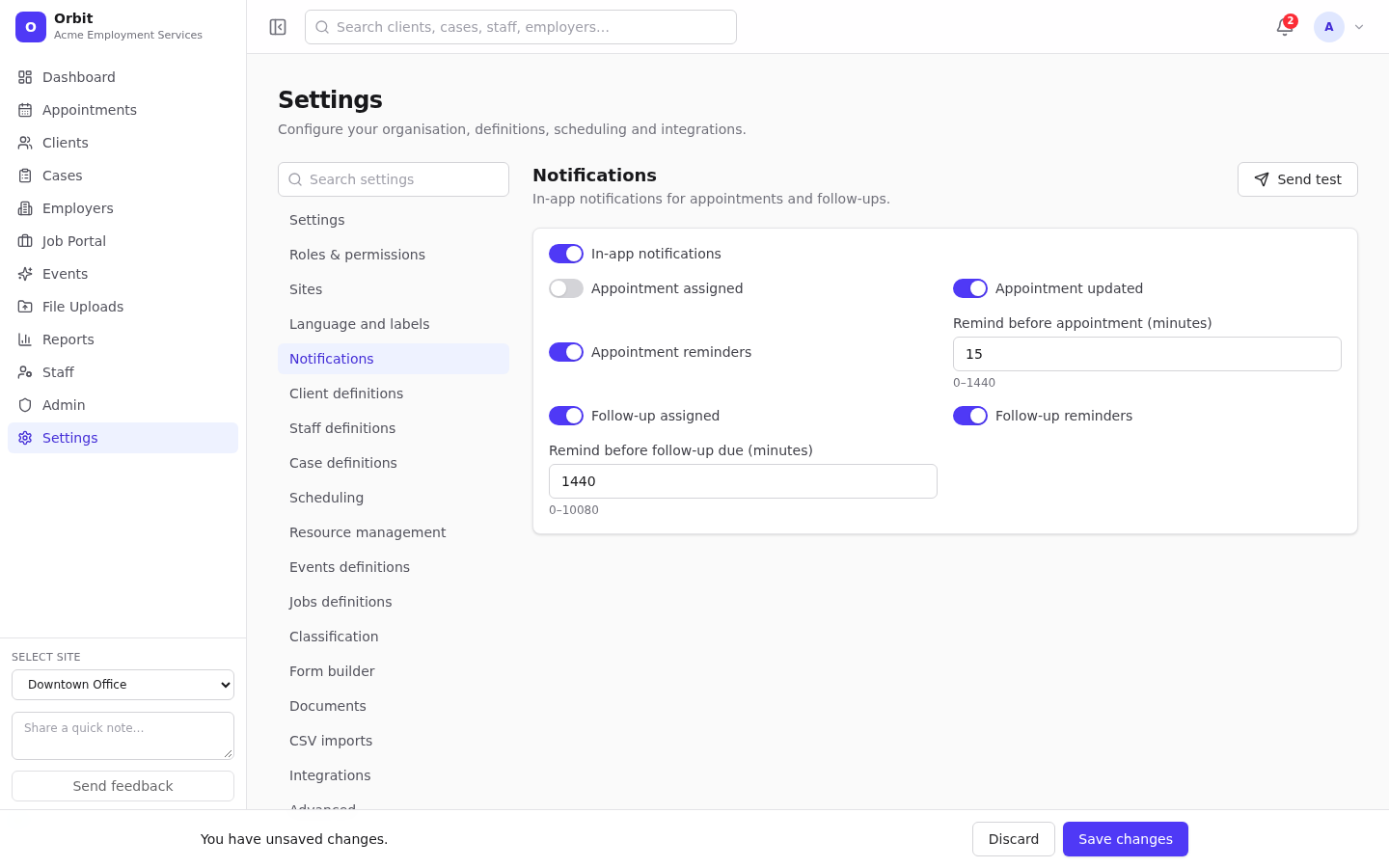
| Notifications and reminders | Settings → Notifications | settings.* |
Notification settings |
| NOC/NAICS policy | Settings → Classification | settings.* |
Classification settings |
| Upload rules | Settings → Documents | settings.* |
Documents settings |
| Import templates | Settings → CSV imports | imports.* |
Import templates |
| Address search key | Settings → Integrations | settings.* |
Integrations |
| Staff profiles | Staff | staff.* |
Staff management |
Which modules appear at all depends on your organisation's licenses.
Settings basics
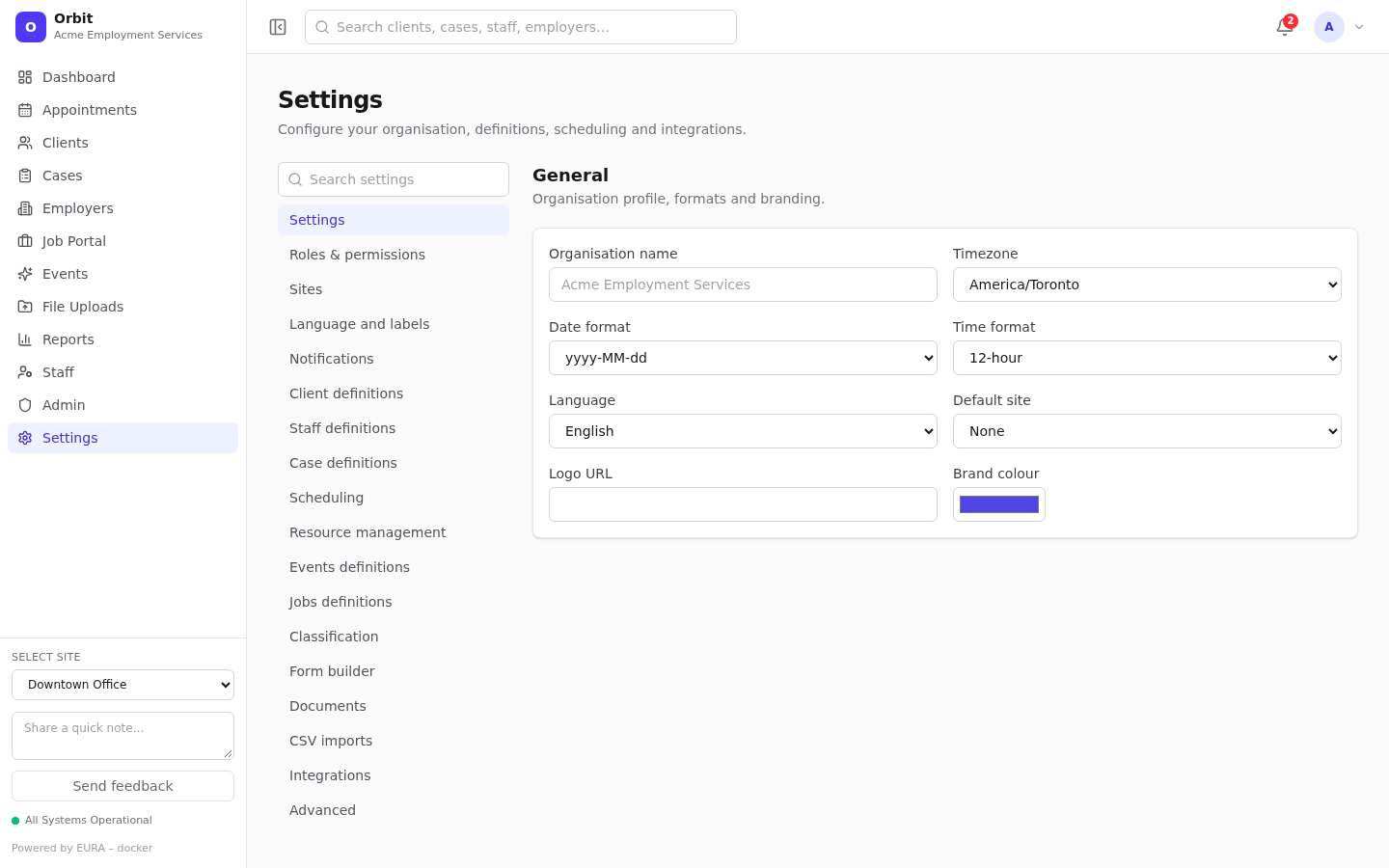
- The left navigation lists only the sections you can read; Search settings filters it.
- Fields are disabled when you can view a section but not change it.
- Form-style sections (General, Language and labels, Notifications, Scheduling defaults, Classification, Documents) show a save bar at the bottom when you change something: Save changes or Discard. Switching section with unsaved changes asks first.
- List-style sections (definitions, roles, sites, resources, forms, templates) save each item as you edit it.
Every change is recorded in the audit log.
First-time setup checklist
- Sites: add each office, with its timezone.
- General settings: organisation name, timezone, default site.
- Definitions: review the defaults; rename and add your statuses, programs and types.
- Scheduling settings: business hours, slot length, appointment types and durations; resources such as rooms.
- Roles: decide on Tenant admin / Staff / Viewer, plus any custom roles.
- Staff and users: create profiles and logins and link them; set working hours.
- Forms: client intake and event registration forms.
- Notifications, then Send test.
- Classification policy, if you need NOC/NAICS rules.
- Import existing data.