Superadmins and security
Superadmins
Where: Overseer → Superadmins.
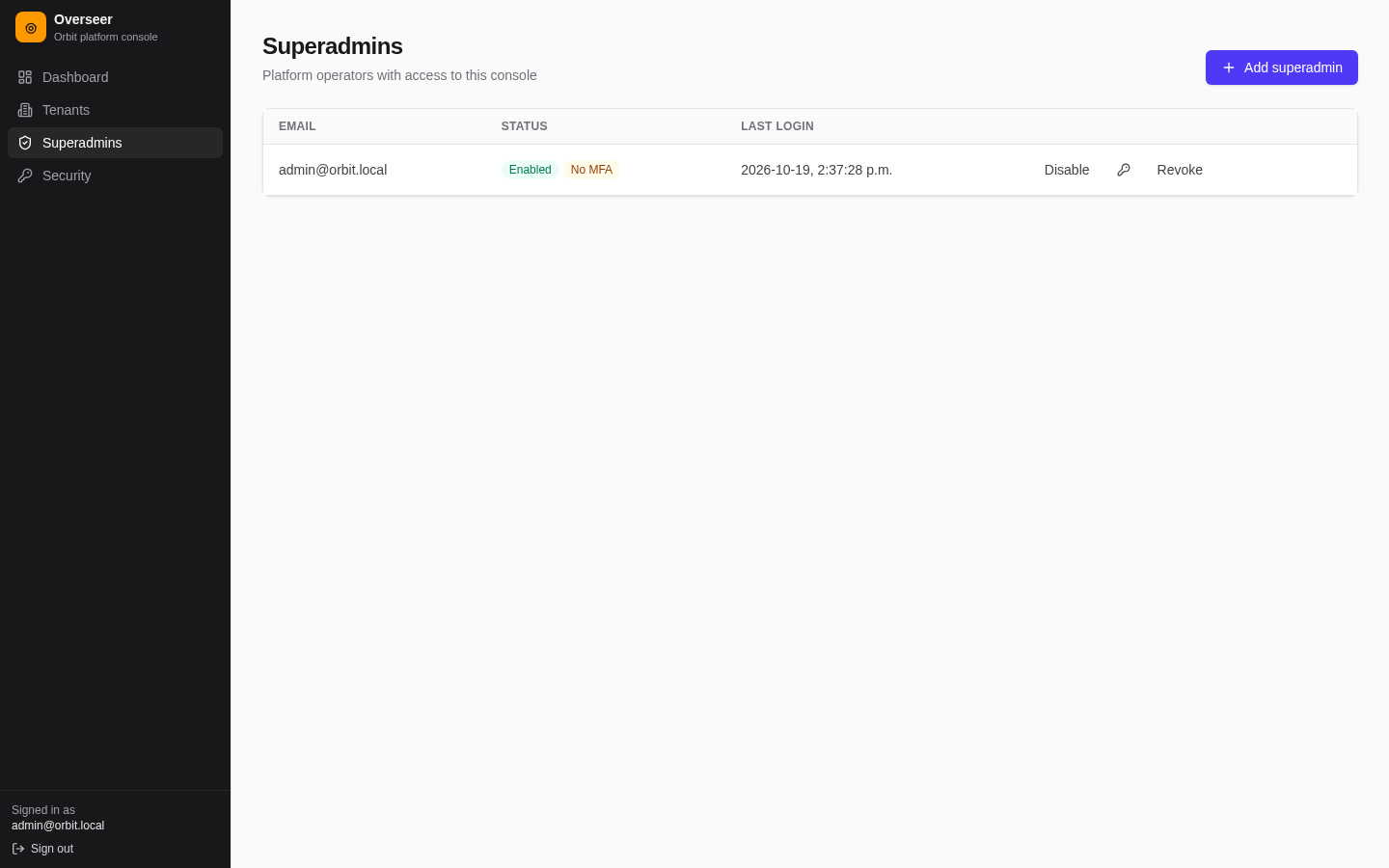
- The list shows each superadmin's email, status (Enabled/Disabled, Locked, MFA / No MFA) and last login.
- Add superadmin: email and password (at least 12 characters).
- Disable / Enable, and Unlock for locked accounts.
- Key icon: set a new password.
- Shield icon: reset two-step verification. They must enrol again at next sign-in.
- Revoke: removes superadmin rights from the account.
Good practice:
- Keep at least two superadmins, so one can recover the other.
- Give each operator their own account; don't share one.
- Revoke or disable accounts as soon as someone leaves.
Your security
Where: Overseer → Security.
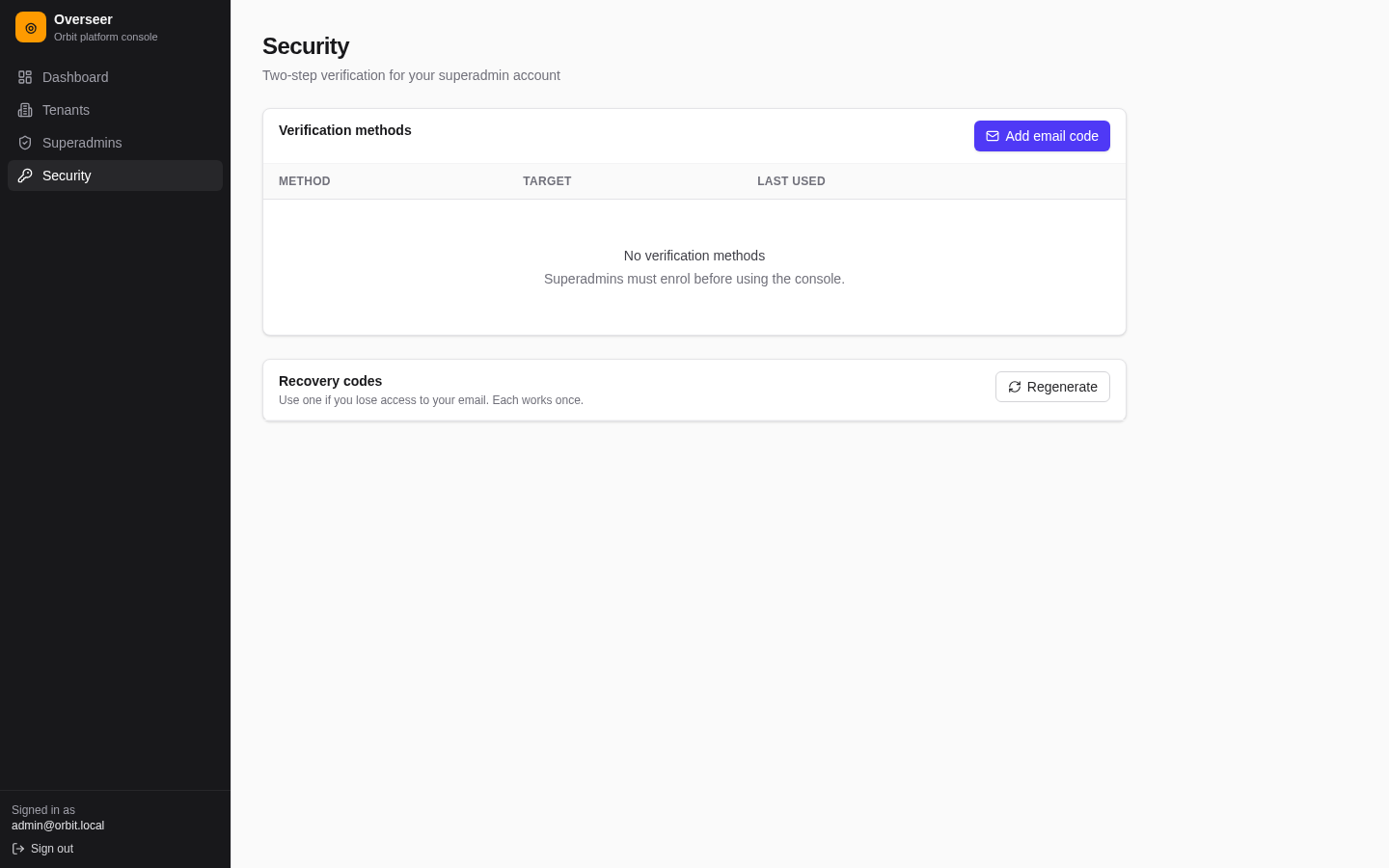
Add a verification method
- Select Add email code. A 6-digit code is emailed to your account address.
- Enter it under Enter the 6-digit code we emailed you and select Verify.
- Save the recovery codes shown. They won't be shown again.
Recovery codes
Regenerate creates new codes; the existing ones stop working.
Remove a method
Bin icon → confirm. If REQUIRE_SUPERADMIN_MFA is on and you remove your last method, the console locks until you enrol again.