Roles and permissions
Control what each user can see and do.
Where: Settings → Roles & permissions. Needs: tenant.roles.read to view, tenant.roles.write to change.
Built-in roles
| Role | Can |
|---|---|
| Tenant admin | Everything in the organisation (all tenant permissions) |
| Staff | Day-to-day work: read and write clients, cases, appointments, employers, jobs, events, public submissions, imports, files and notifications; read staff, users, roles and settings; dashboard; feedback. No reports, no audit logs, no settings changes, no user management |
| Viewer | Read-only access to clients, cases, appointments, staff, employers, jobs, events, submissions, imports, files, settings, notifications and the dashboard |
| Client | No dashboard access (reserved for client portal accounts) |
Built-in roles are shown with a Default badge and are read-only. To change what they allow, clone one into a custom role.
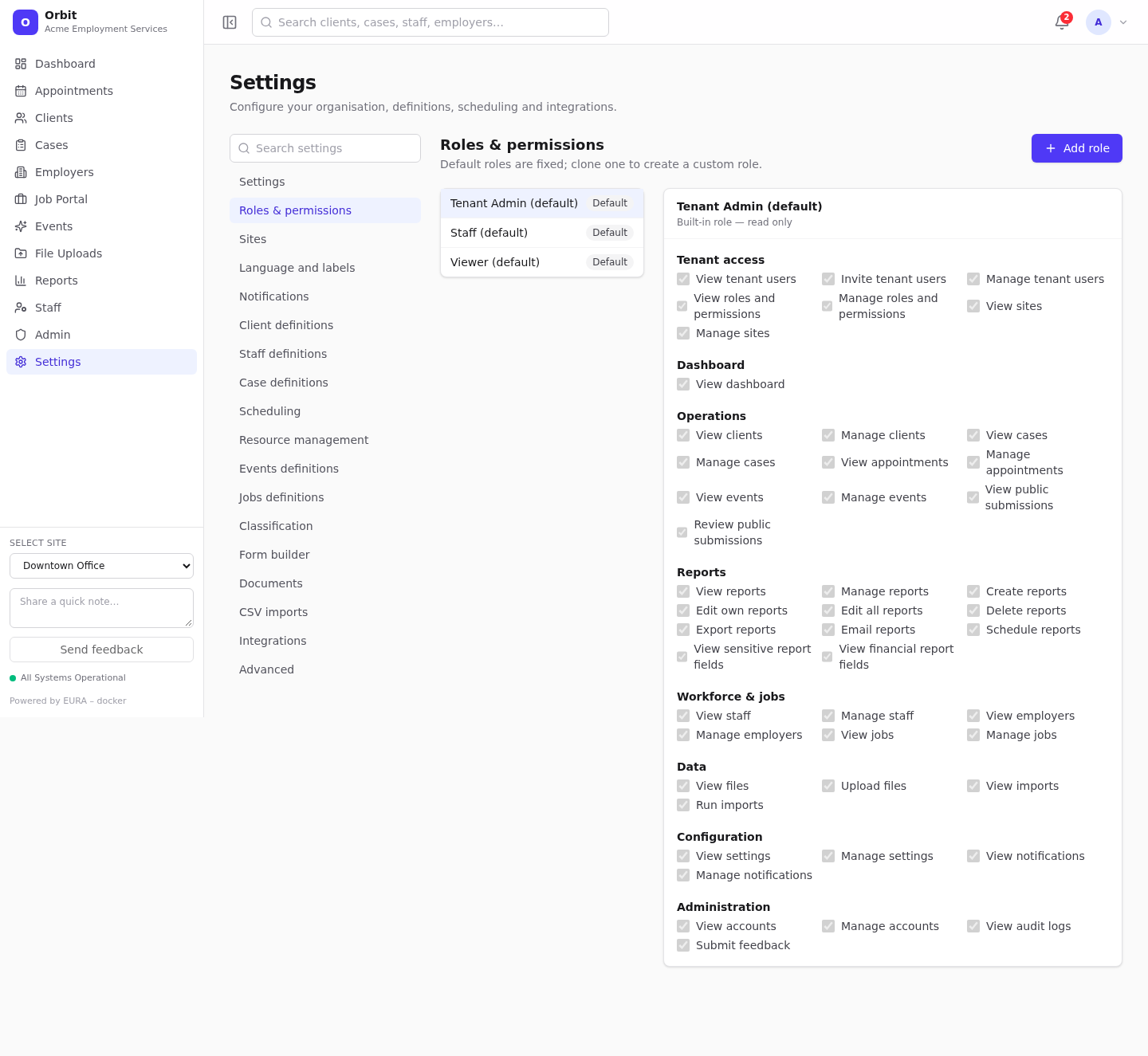
Create a custom role
- Select Add role.
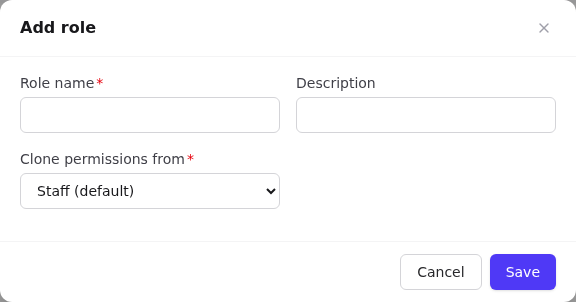
- Enter a Role name and Description.
- Clone permissions from: the role to start from, for example Staff.
- Select Save. The new role opens.
- Tick or untick permissions. Each module group has Select all and Clear all. Hover a permission to see its code.
- Select Save role.
Assign the role to users in Users and access. The list shows how many members each role has.
Common custom roles
| Role | Start from | Add | Remove |
|---|---|---|---|
| Team lead | Staff | reports.read, reports.create, reports.export, reports.email, reports.schedule, audit.view, staff.write |
– |
| Reporting analyst | Viewer | All Reports permissions, including sensitive fields | – |
| Intake worker | Staff | – | employers.write, jobs.write, imports.write |
| Data administrator | Staff | settings.write, imports.write |
– |
Edit, deactivate or archive
- Change the name, description or permissions, then Save role.
- Active off: the role can't be assigned to new users.
- Archive: deletes the role. Users with this role fall back to their default permissions at next sign-in, meaning their underlying built-in role (usually Staff).
The permission catalogue
| Group | Permission (code) |
|---|---|
| Tenant access | View tenant users (tenant.users.read), Invite tenant users (tenant.users.invite), Manage tenant users (tenant.users.write), View roles and permissions (tenant.roles.read), Manage roles and permissions (tenant.roles.write), View sites (tenant.sites.read), Manage sites (tenant.sites.write) |
| Dashboard | View dashboard (dashboard.read) |
| Operations | View/Manage clients (clients.read/.write), cases (cases.*), appointments (appointments.*), events (events.*); View/Review public submissions (public-submissions.read/.write) |
| Reports | View (reports.read), Manage (reports.write), Create (reports.create), Edit own (reports.edit.own), Edit all (reports.edit.all), Delete (reports.delete), Export (reports.export), Email (reports.email), Schedule (reports.schedule), View sensitive report fields (reports.sensitive.read), View financial report fields (reports.financial.read) |
| Workforce & jobs | View/Manage staff (staff.*), employers (employers.*), jobs (jobs.*) |
| Data | View files (files.read), Upload files (files.write), View imports (imports.read), Run imports (imports.write) |
| Configuration | View/Manage settings (settings.*), View/Manage notifications (notifications.*) |
| Administration | View/Manage accounts (admin.accounts.*), View audit logs (audit.view), Submit feedback (feedback.write) |
See Permissions reference for what each permission unlocks.
Rules:
- Read vs write:
.readlets you see;.writelets you create, change and delete. - Permission codes are case-insensitive. A code ending in
.*(for examplereports.*), granted through the API, covers every permission with that prefix. - Licenses apply on top: without the Reporting license nobody sees reports, whatever their role.
- Site restrictions apply on top of permissions.