Public submissions
When someone applies for a job or registers for an event on the public portal, Orbit creates a public submission. Staff review it, then convert it into real records or reject it.
Needs: public-submissions.read to view, public-submissions.write to convert or reject.
Lifecycle
Guest submits ─► pending ─(guest clicks email link)─► confirmed ─► converted
                    │                                     └──────► rejected
                    └─(link expires, 72 h by default)─► deleted automatically
- Pending: the guest has submitted but not yet confirmed their email address. Orbit emails a confirmation link.
- Confirmed: the guest opened the link. The submission is ready for review.
- Converted: staff turned it into an applicant and job application, or an event participant (and optionally a client).
- Rejected: staff declined it. This can't be undone.
Pending submissions whose confirmation link has expired are removed, with any uploaded file, by the background worker (hourly by default).
Finding submissions
- Job applications: on the posting's Applicants tab, under Awaiting confirmation (pending), Needs review (confirmed) and Rejected. Across all postings: Postings list → Any applicant activity → Needs review.
- Event registrations: on the event's Registration requests card.
/public-submissionsredirects to postings that need review.
Review a submission
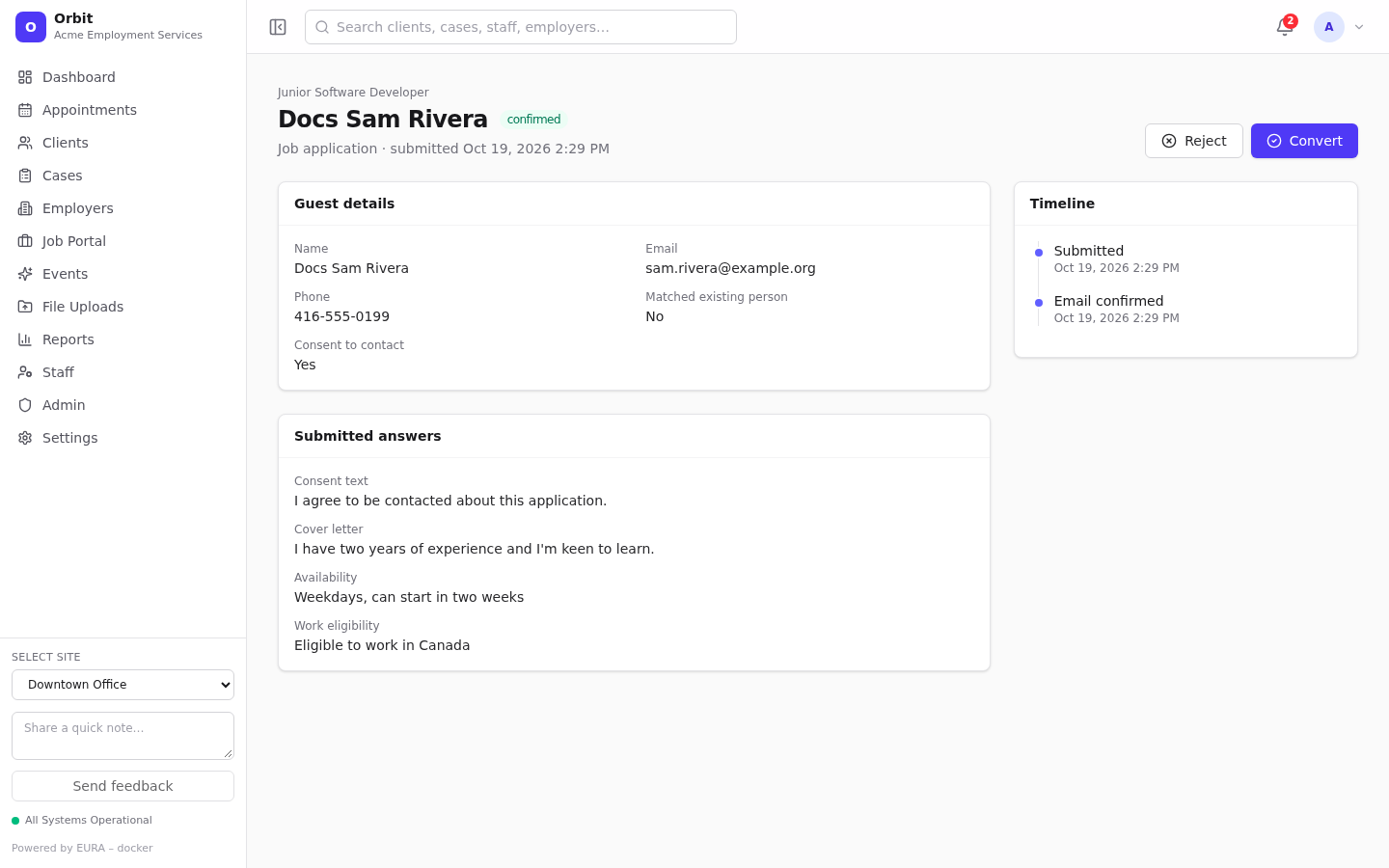
- Guest details: name, email, phone, consent to contact, and Matched existing person. Yes means the email matches someone already in Orbit; conversion links to that person instead of creating a duplicate.
- Submitted answers: cover letter, availability, work eligibility, message, consent text, and answers to the event's registration form.
- Attachment: the resume. It stays quarantined until conversion; Download to view it.
- Timeline: submitted, email confirmed, converted or rejected, with who and when.
While a submission is still pending you'll see Waiting for the guest to confirm their email address, and Convert is disabled.
Convert
- Select Convert (available once the submission is confirmed).
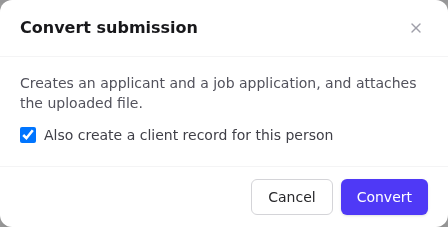
- Read what will happen:
- Job application: Creates an applicant and a job application, and attaches the uploaded file.
- Event registration: Registers the guest for the event (or the waitlist if full).
- Leave Also create a client record for this person ticked to add them as a client too, or untick it.
- Select Convert.
The Converted records card then links to the new client and job application (or event participant).
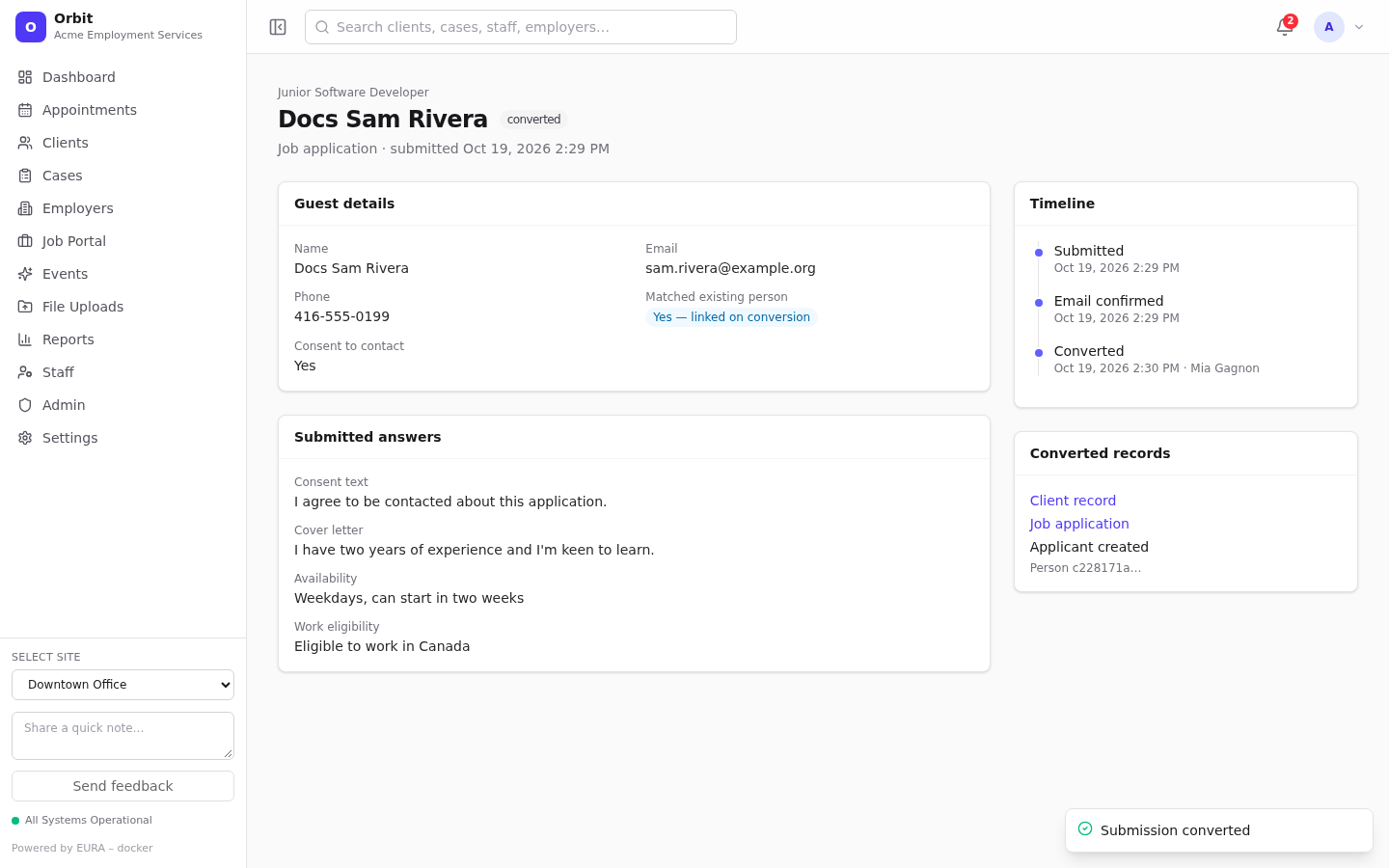
Converting twice is safe: the second attempt reports Already converted.
Reject
- Select Reject.
- Optionally enter a Reason.
- Select Reject. The guest's confirmation link stops working.