Appointments
The scheduler shows appointments for staff and bookable resources (rooms, labs, equipment) by day, week or month. Create, move and resize appointments directly on the calendar.
Where: sidebar → Appointments (/appointments). Needs: appointments.read to view, appointments.write to create or change. License: Scheduling.
The scheduler
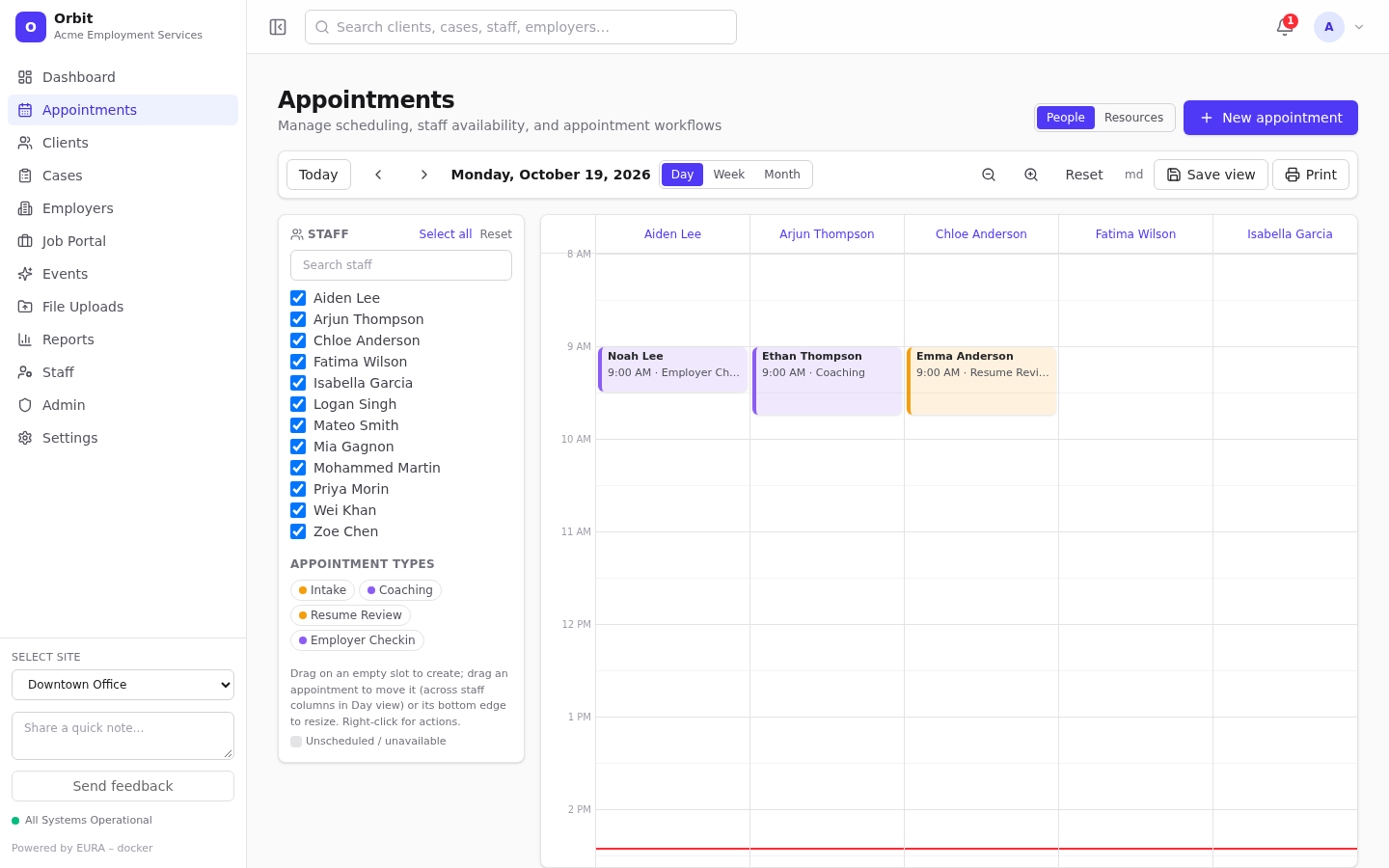
Toolbar
| Control | What it does |
|---|---|
| People / Resources | Show columns per staff member, or per resource |
| New appointment | Opens the appointment dialog |
| Today, ‹ › | Jump to today; previous or next day, week or month |
| Day / Week / Month | Change the view |
| Zoom out / zoom in / Reset | Change how tall time slots are; zoom out far enough and the whole day fits |
| Save view | Remembers your view, mode and staff selection as your personal default |
| Prints the current calendar (the sidebar and toolbar are left out) |
Side panel
- Staff (People mode): tick the staff to show. Select all shows everyone; Reset restores the default order. Hover a name and use ↑ ↓ to reorder columns.
- Resources (Resources mode): tick the resources to show. Add resources in Settings → Resource management.
- Appointment types: select types to filter the calendar; Clear removes the filter. Each type's colour comes from its definition.
- Grey hatched areas are unscheduled / unavailable time: outside the staff member's working hours, blocked hours or time off. See Staff workload and availability.
Views
- Day: one column per selected staff member (or resource). Best for drag-and-drop across people.
- Week: seven days for one person or resource; pick who from the Staff: / Resource: dropdown above the grid.
- Month: an overview; select a day to open it in Day view.
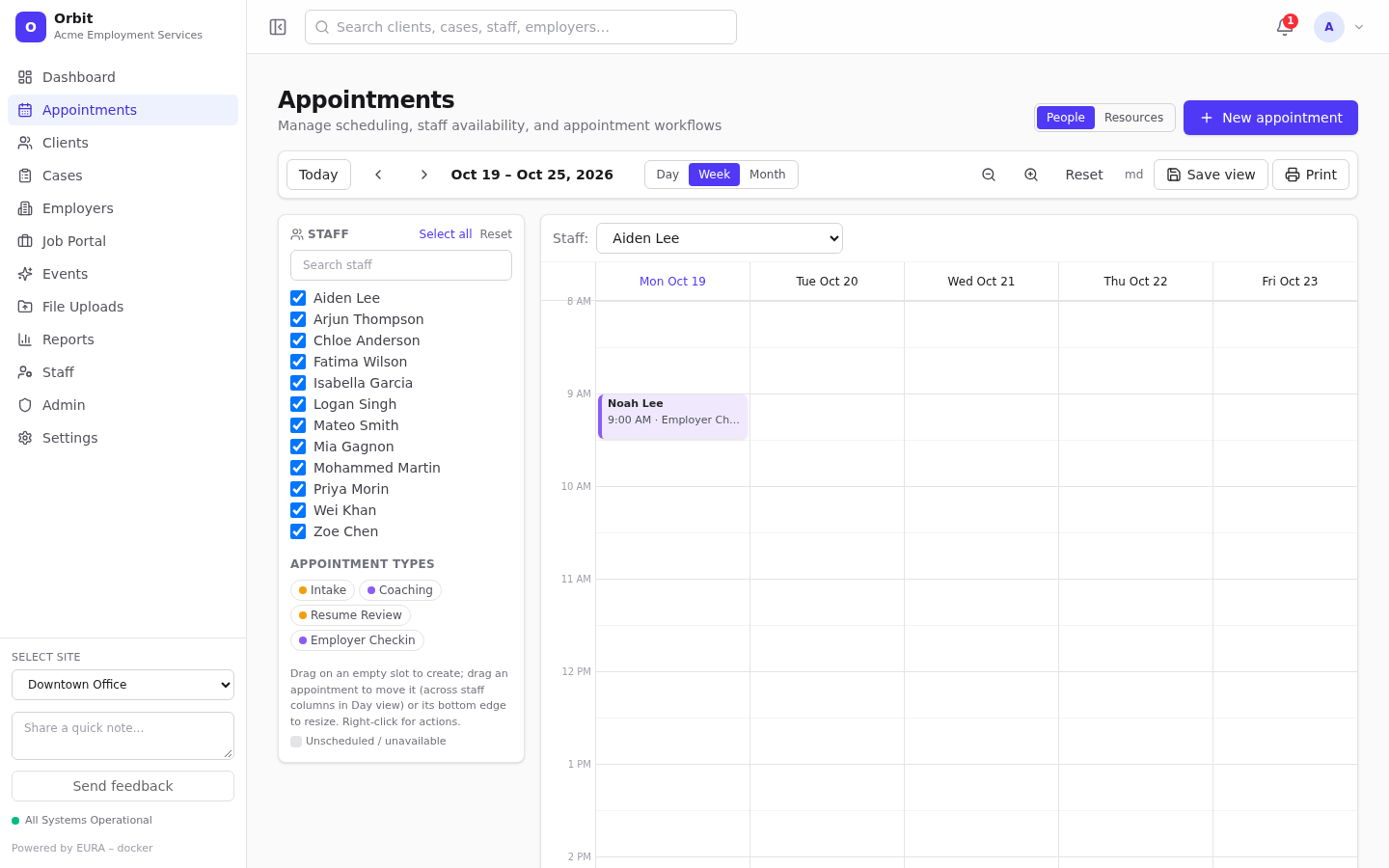
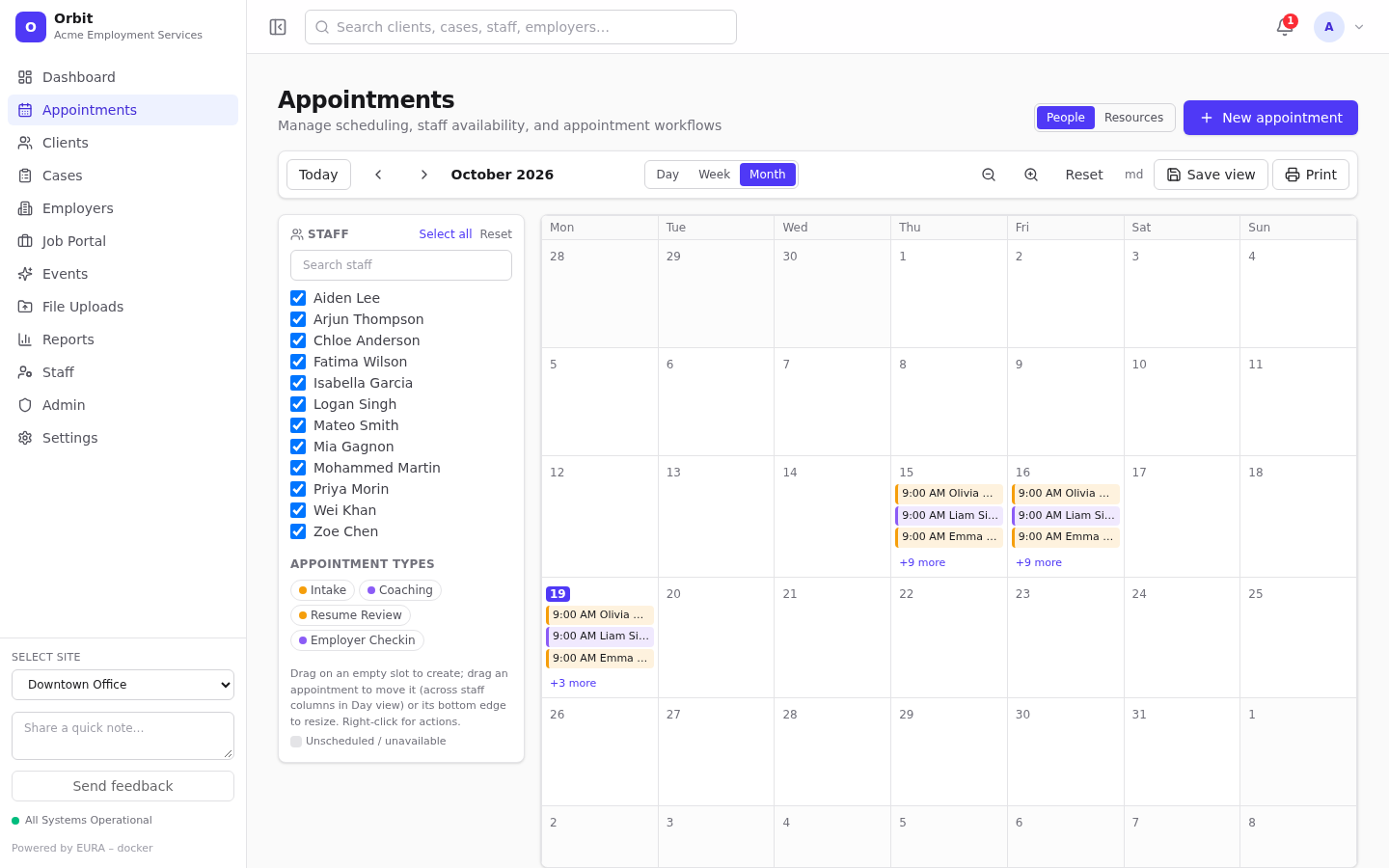
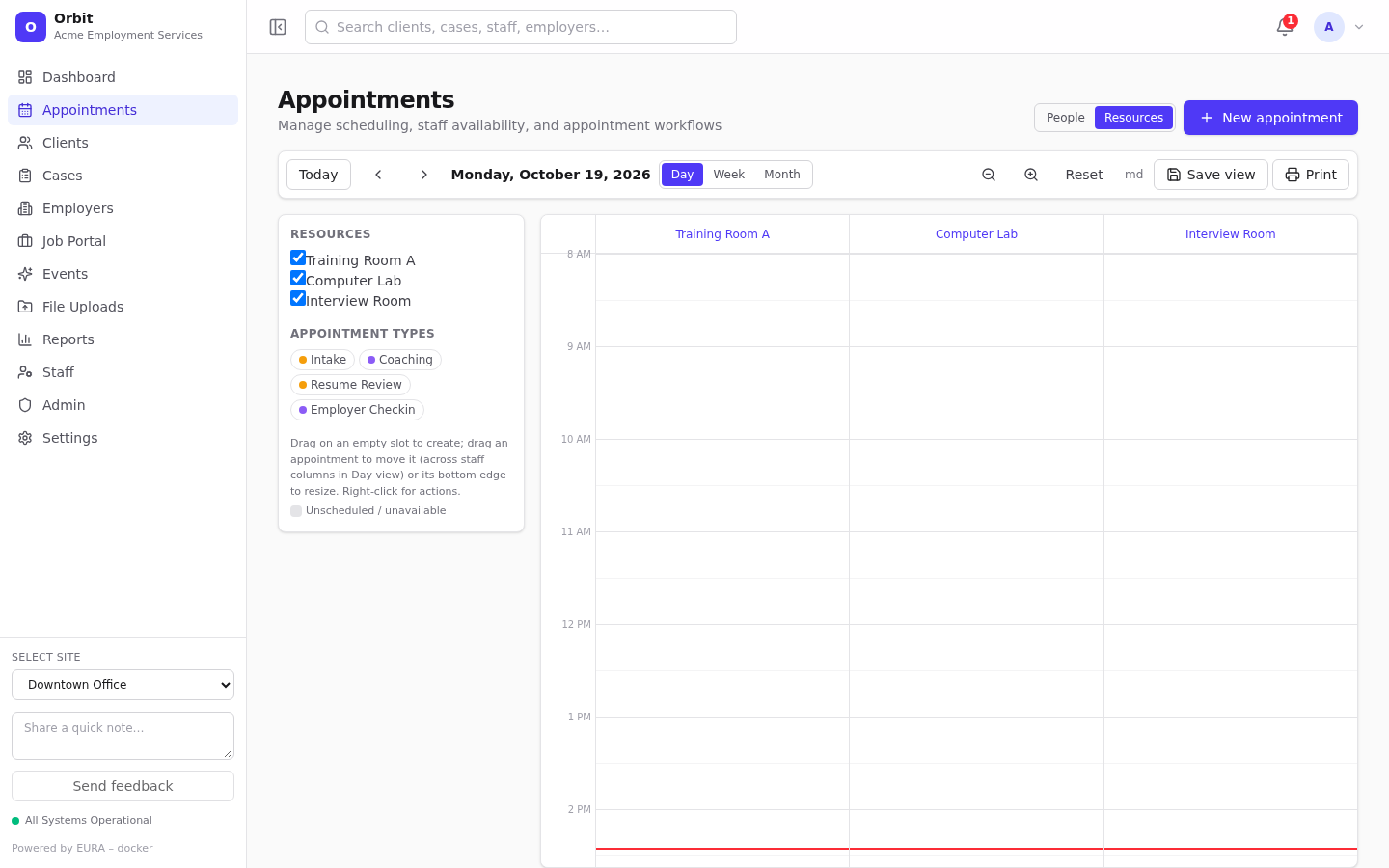
The red line marks the current time. Cancelled appointments appear struck through. ↻ marks a repeating appointment.
The default slot length, day start and end, first day of the week and visible weekdays come from Settings → Scheduling. See Scheduling settings.
Create an appointment
Quickest: in Day or Week view, press on an empty slot and drag down to the end time. The dialog opens with the time, staff member (or resource) filled in.
Or: select New appointment, or Schedule on a client's record (the client is filled in).
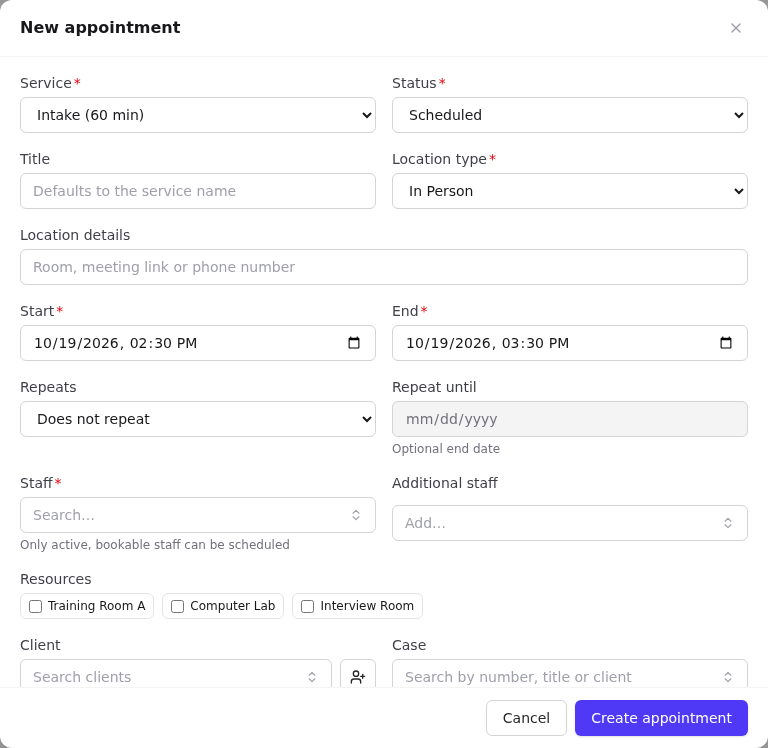
- Service (required): the appointment type. If the type has a default duration, the end time adjusts automatically.
- Status (required): defaults to your default status (for example Scheduled).
- Title: optional; defaults to the service name.
- Location type (required): In Person, Video Call, Phone Call…
- Location details: room, meeting link or phone number.
- Start and End (required). End must be after start. Changing Start keeps the same duration.
- Repeats and Repeat until: see Recurring appointments.
- Staff (required): only active staff with Scheduling enabled appear. Additional staff adds more people.
- Resources: tick rooms or equipment to book them as well.
- Client (with Quick create client) and Case: optional links.
- Description (shown to colleagues) and Internal notes.
- Select Create appointment.
Conflict warnings
While you fill in the dialog, Orbit checks the selected staff and resources. If anything overlaps, an Appointments at this time warning lists the clashing bookings, including the appointment's buffer time before and after.
- If your organisation allows overlapping appointments (Settings → Scheduling), you can still save.
- If not, saving fails with Appointment overlaps with existing bookings. Pick another time, person or resource.
- One or more selected staff members are not available for scheduling means a chosen staff member is inactive or doesn't have Scheduling enabled. Turn it on in their staff profile.
Working hours and time off don't block saving. They are shaded on the calendar, and dragging into them asks you to confirm.
View and change an appointment
Select an appointment to open the details drawer.
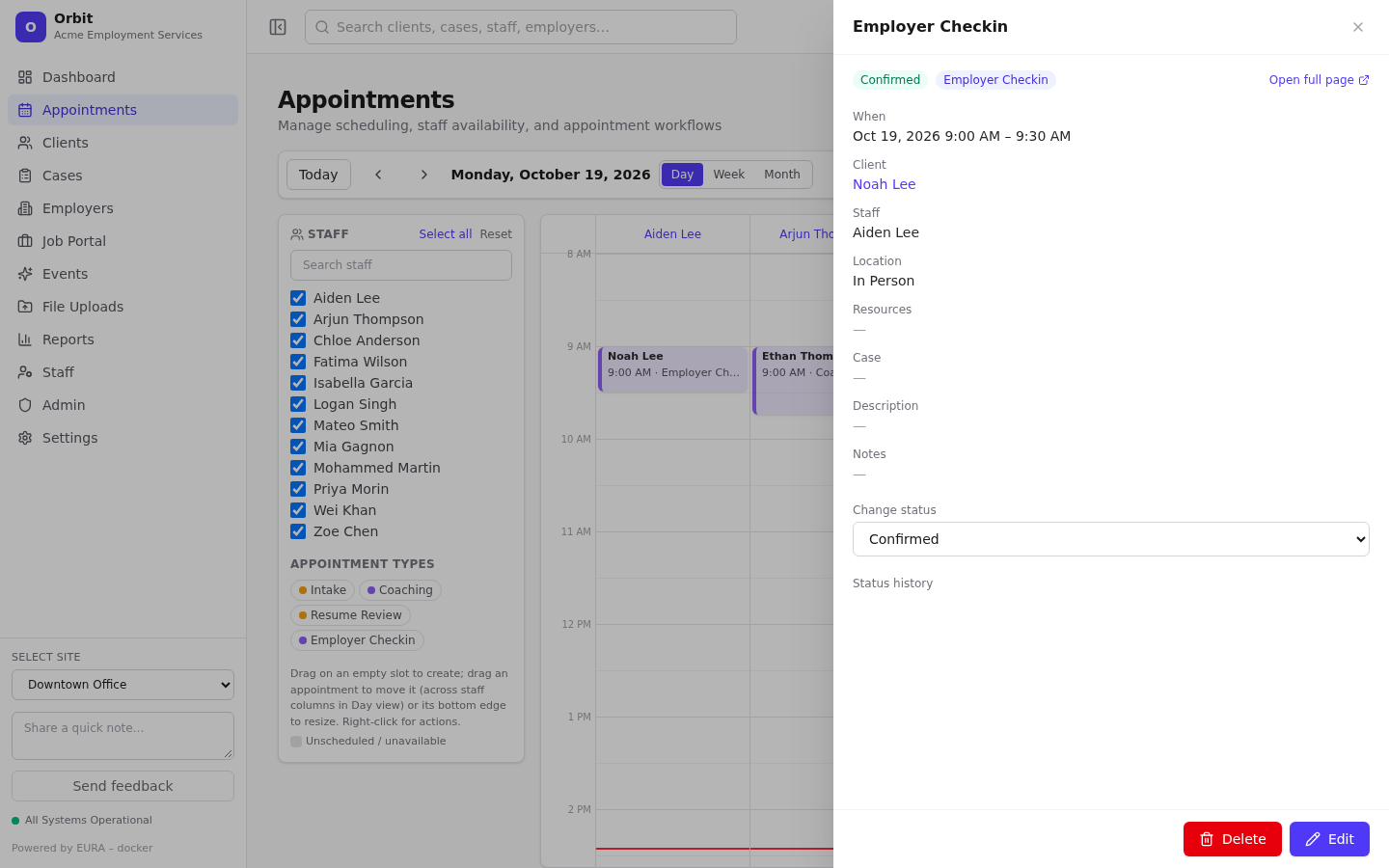
- When, client, staff, location, resources, case, description and notes.
- Change status: the change is recorded in Status history with who made it.
- Edit opens the dialog. Delete removes it; for repeating appointments it asks which occurrences to remove.
- Open full page opens the appointment page.
Drag, drop and resize
- Move: drag an appointment to a new time. In Day view you can also drag it into another staff member's column to reassign it.
- Resize: drag the bottom edge.
- Moving into unavailable time asks Move into unscheduled hours? Choose Move anyway to confirm.
Right-click menu
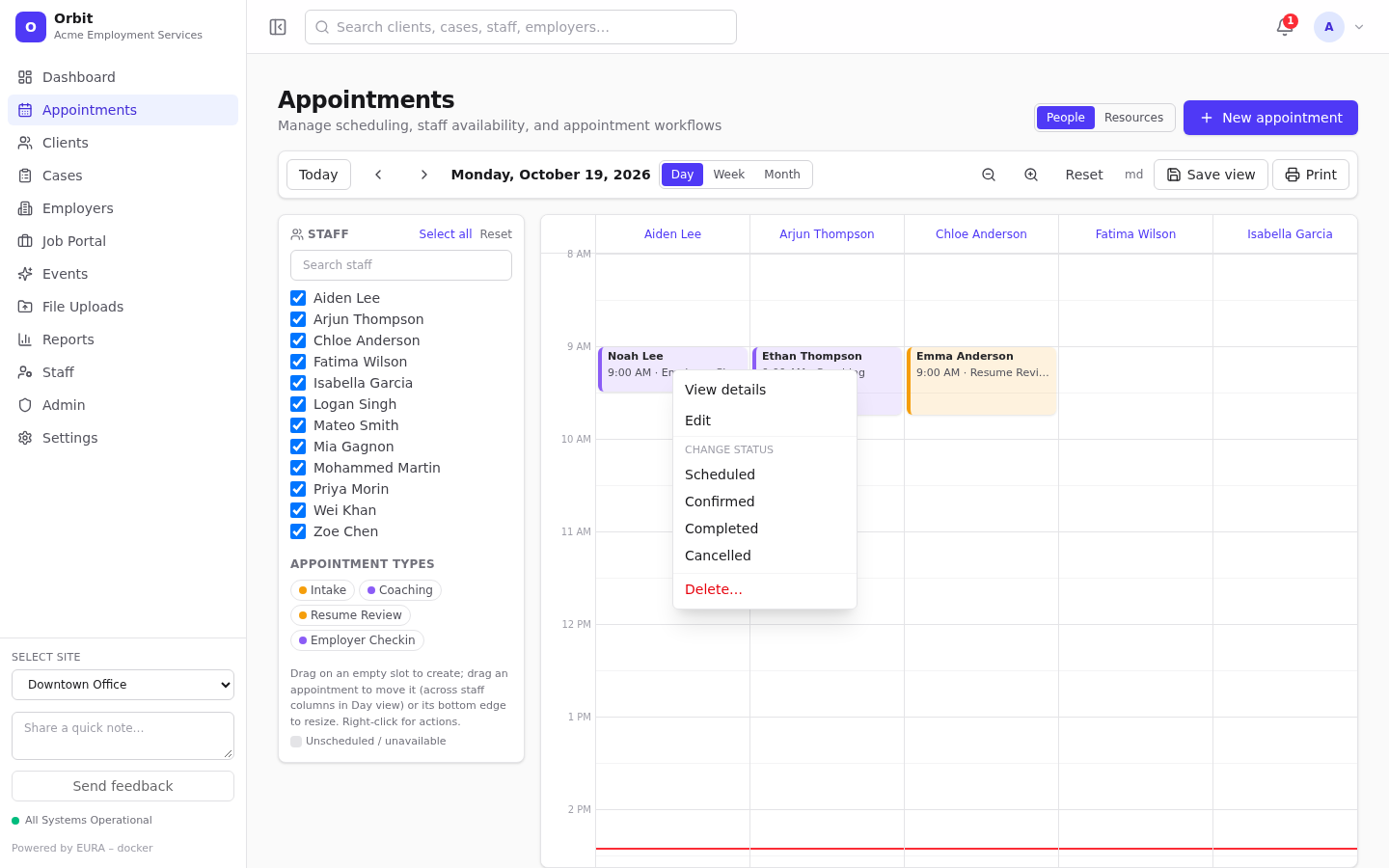
Right-click an appointment for View details, Edit and a Change status list.
Appointment page
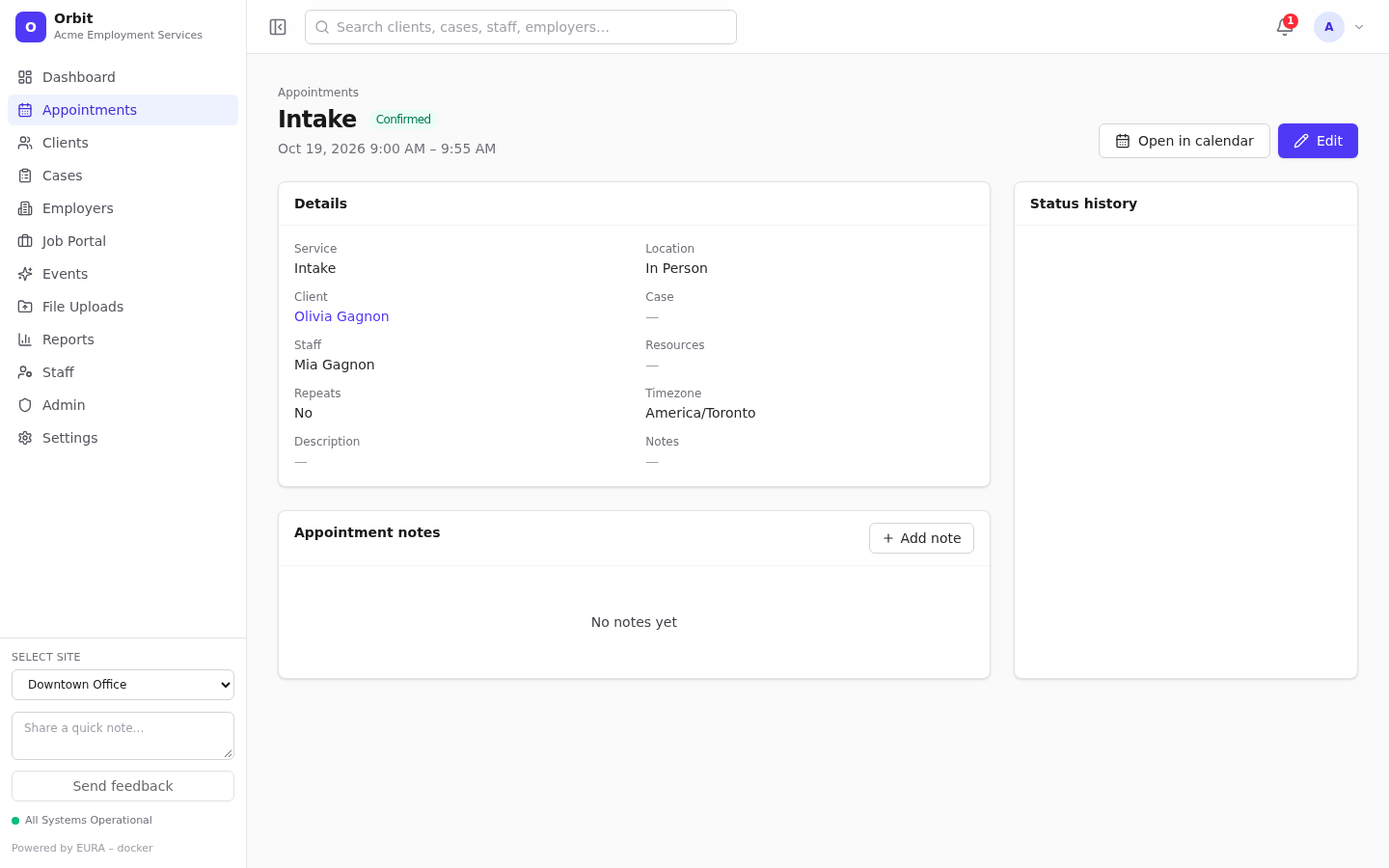
/appointments/<id> shows the appointment's details, timezone and repeat rule. It has Appointment notes, the Status history, Open in calendar and Edit.
Notifications and reminders
Depending on notification settings, staff receive in-app notifications when they're assigned to an appointment or it changes, plus a reminder a set number of minutes beforehand.