CSV imports: concepts
Bring existing data into Orbit from spreadsheets: clients, staff, cases, appointments, events, employers, job postings, applications and more. This page explains how imports work. For click-by-click instructions see:
- CSV import walkthrough: your first import, step by step.
- Import templates: save a column mapping and reuse it.
- Import recipes: what each record type needs, with sample files, and the order to import related data.
- Import troubleshooting: fixing failed rows.
Where: sidebar → File Uploads (/file-uploads). Needs: imports.read to see the page and history, imports.write to run imports and manage templates.
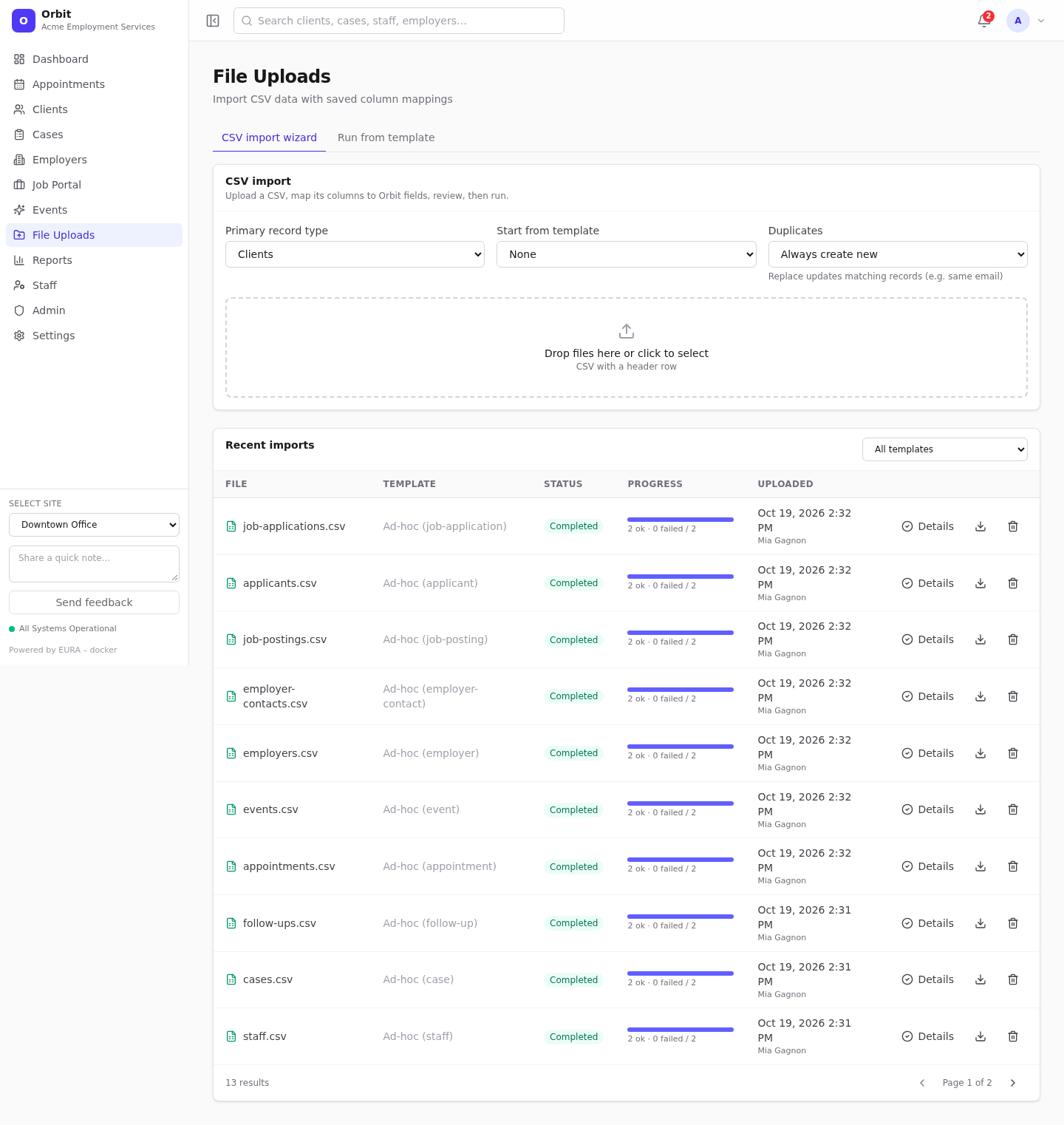
The file
- CSV (comma-separated) with one header row. Header names are trimmed. A UTF-8 byte-order mark is fine.
- Blank lines are skipped.
- Quote values that contain commas:
"Toronto, ON". - Save as CSV UTF-8 from Excel so accented names survive.
- One record type per file. To import clients and their cases, use two files. See the import order.
Record types you can import
| Record type | Creates | Required columns |
|---|---|---|
| Clients | A person and a client record | First name, Last name |
| People | A person only (used before Staff and Applicants) | First name, Last name |
| Staff | A staff profile for an existing person | Person (email) |
| Applicants | A job-portal applicant for an existing person | Person (email) |
| Cases | Cases for existing clients | Client, Case type, Case status, Case number, Title, Opened at |
| Follow-ups | Tasks | Task |
| Appointments | Appointments | Title, Start, End, Type, Status |
| Events | Events | Title, Start, End, Type, Status |
| Employers | Employers | Legal name, Status |
| Employer contacts | Contacts for existing employers | Employer (name) |
| Job postings | Postings for existing employers | Employer (name), Title, Description, Status |
| Job applications | Applications linking applicants to postings | Applicant (email), Job posting (code or title), Status |
The full field list for each type is in Import field reference.
How each column is used
For every CSV column you choose How to use:
| Option | Meaning | Example |
|---|---|---|
| Ignore | Skip the column | An internal ID you don't need |
| Use spreadsheet value | Copy the value into the field (trimmed, then converted to a number, yes/no, date or date-time as needed) | First Name → First name |
| Match to existing record or definition | Look the value up and store a link to what it finds | Status = active → the Active client status; Assigned Staff = staff1@demo.orbit → that staff member |
Orbit suggests a field for each column by comparing the header with field names. A header like Date of Birth, date_of_birth or DOB… matches Date of birth. Always check the suggestions.
Lookups
Fields marked (lookup) in the field list link to something that must already exist.
| Lookup | Matches on |
|---|---|
| Definitions (statuses, types, priorities, programs, stages…) | The definition code (default) or name. Case and punctuation are ignored, so Job Search, job-search and JOB_SEARCH all match code job_search. Only active definitions match |
| Clients | Client number, or the client's email |
| Staff | Email, or employee number |
| People, Applicants | |
| Employers | Legal name or display name (case-insensitive) |
| Cases | Case number |
| Job postings | Posting code, or exact title (case-insensitive) |
| Sites | Site name or site code |
You can also put an Orbit record ID (UUID) in any lookup column. If a lookup finds nothing, that row fails with Missing lookup for … and the rest carry on.
Definition checks appear under the mapping table before you run. They list any CSV values that don't match an active definition, so you can fix the file or add the definition first.
Duplicates
The Duplicates setting decides what happens when a row matches an existing record:
| Setting | Behaviour |
|---|---|
| Always create new (default) | Every row creates a new record |
| Replace / update matches | A row that matches an existing record updates it (status updated in results). Other rows create new records |
How a match is found:
| Record type | Matches existing record by |
|---|---|
| Clients | Email of the person |
| People | |
| Staff, Applicants | The person (email) |
| Cases | Case number |
| Employers | Legal name (case-insensitive) |
| Job postings | Posting code (rows without a code always create new) |
| Job applications | Same applicant + same posting |
| Follow-ups, Appointments, Events, Employer contacts | No matching: always created new |
Tip: Use Replace / update matches when you re-run a corrected file, so the rows that worked the first time aren't duplicated. For types without matching, import only the rows that failed.
What happens when you run
- Rows are processed in order. Each row succeeds or fails on its own: one bad row doesn't stop the others, and successful rows are not rolled back.
- Results record, per row: status (success, updated or failed), the error or warning, the original CSV values and the resulting record.
- The wizard runs the import immediately and shows the results. (Integrations can also queue an import through the API,
POST /v1/imports/upload; the background worker processes those.) - The CSV is stored as a document, so you can download exactly what was imported later.
- Rows are written directly. Imported records skip some of the automation that happens when you create a record on screen. See What imports don't do.
Import history
Recent imports at the bottom of File Uploads lists every import: file, template (or Ad-hoc (record type)), status (Pending, Processing, Completed, Failed), progress (ok · failed / total), who uploaded it and when.
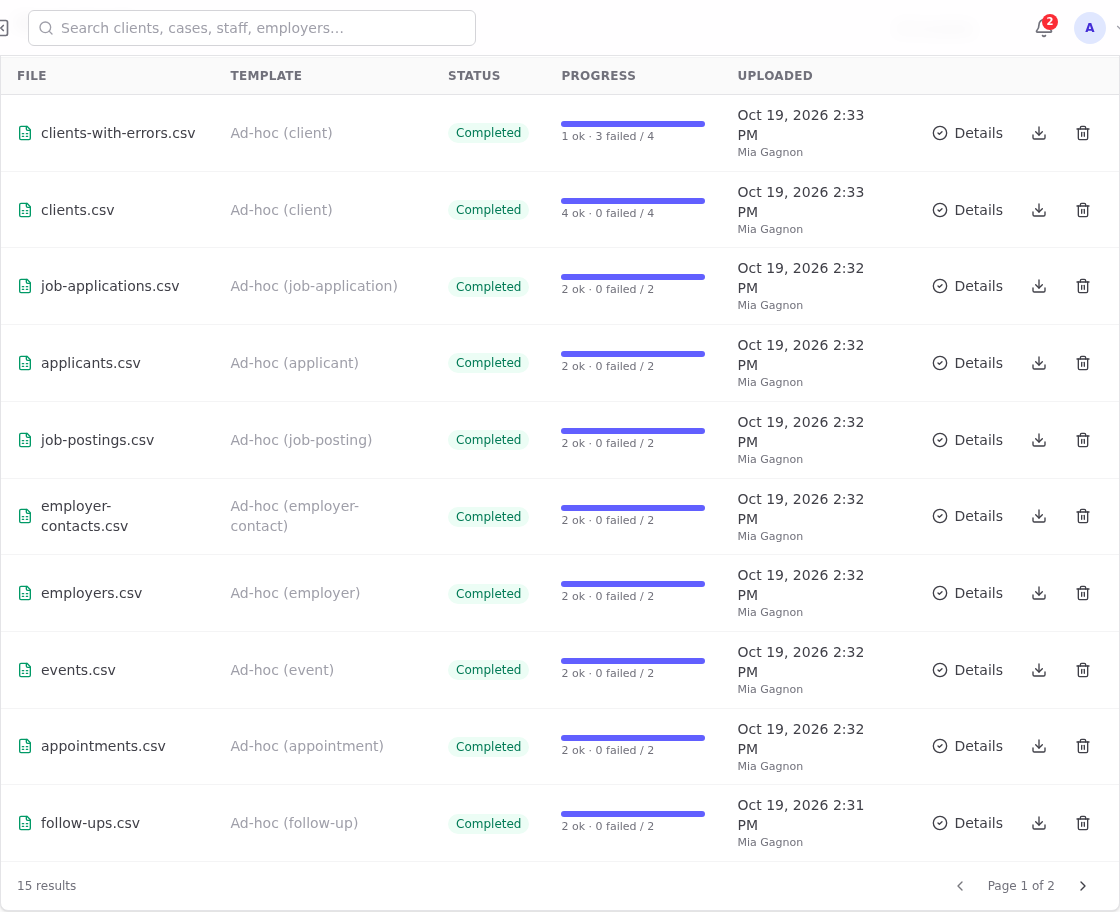
- Details: row-by-row results, filterable by Succeeded, Updated or Failed.
- Download: the original CSV.
- Delete: removes the import from the history. It does not remove the records it created.
- All templates filter: show imports run with one template.