Workflow: running an event
Plan a workshop, take public registrations, check people in and report attendance.
Needs: events.write, public-submissions.write; settings.write for the setup steps. License: Events.
1. Setup (once)
- Event types and statuses: Settings → Events definitions. Keep the Published and Open for Registration statuses: they make events public. To make another status public, add
"isPublic": trueto its metadata through the API. - Rooms: add bookable rooms in Settings → Resource management.
- Registration form (optional): Settings → Form builder → New form, Used for: Event registration, add questions (for example Dietary needs, How did you hear about us?) and Publish. Only published forms can be chosen. File fields aren't shown on public forms.
2. Create the event
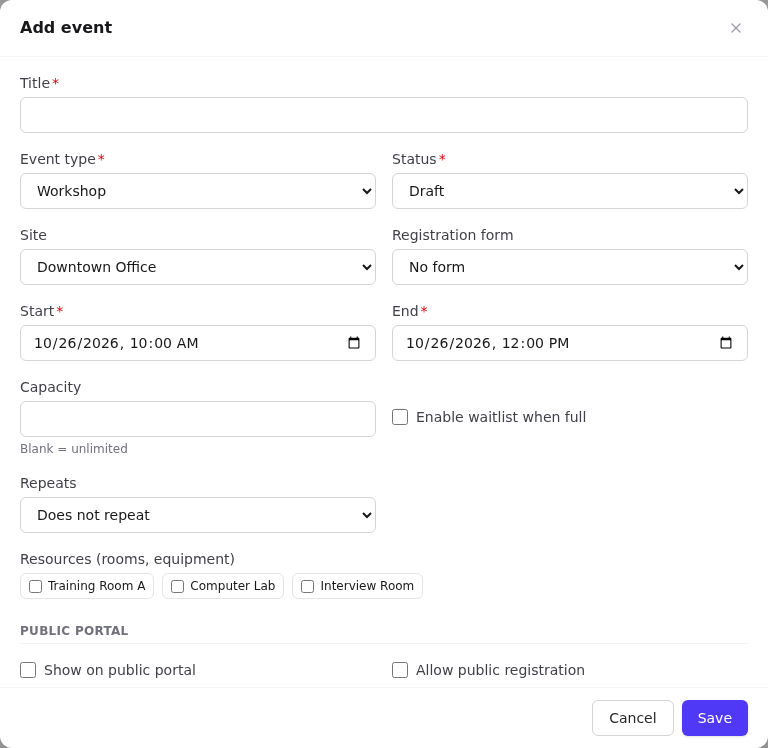
Events → Add event:
- Title, type, status Draft while you prepare.
- Site, start and end, capacity, Enable waitlist when full.
- Registration form: pick the form from step 1.
- Resources: tick the room.
- Public portal: tick Show on public portal and Allow public registration; set Registration closes if you need a cut-off.
- Description: the public sees this.
3. Publish
When ready, change the status to Published (or Open for Registration) from the event page's status dropdown. The event appears on /events/<tenant>. Use Public link → Open public page to check it.
4. Manage registrations
- Guests register on the portal and confirm by email.
- Registration requests on the event shows Pending confirmation and Ready for review.
- Open each one and Convert to add them as an attendee (or to the waitlist if full). Optionally create a client record for them too.
- Add known clients directly with Add attendee.
5. On the day: check-in
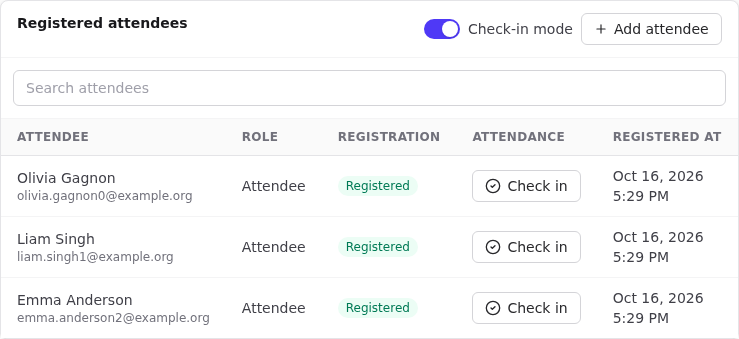
Open the event, turn on Check-in mode and select Check in for each arrival. Use the attendee search to find people quickly. Checked in counts up.
6. Afterwards
- The event moves to Completed automatically after it ends.
- Mark no-shows: attendance status No-show.
- Add Event notes, for example a debrief.
- Run the Event Attendance starter report for registered vs. checked-in totals.
Related
- Events · Public portal · Forms