Signing in
How to sign in to the Orbit dashboard, use two-step verification, recover a forgotten password and accept an invitation.
Who: everyone with an Orbit account. Platform superadmins sign in to the separate Overseer console instead; see Overseer overview.
Sign in
- Open your organisation's Orbit address, for example
https://orbit.example.org/login. - Enter your Email.
- Enter your Tenant ID. This is your organisation's short identifier, such as
acme. It is often filled in for you. - Enter your Password and select Sign in.
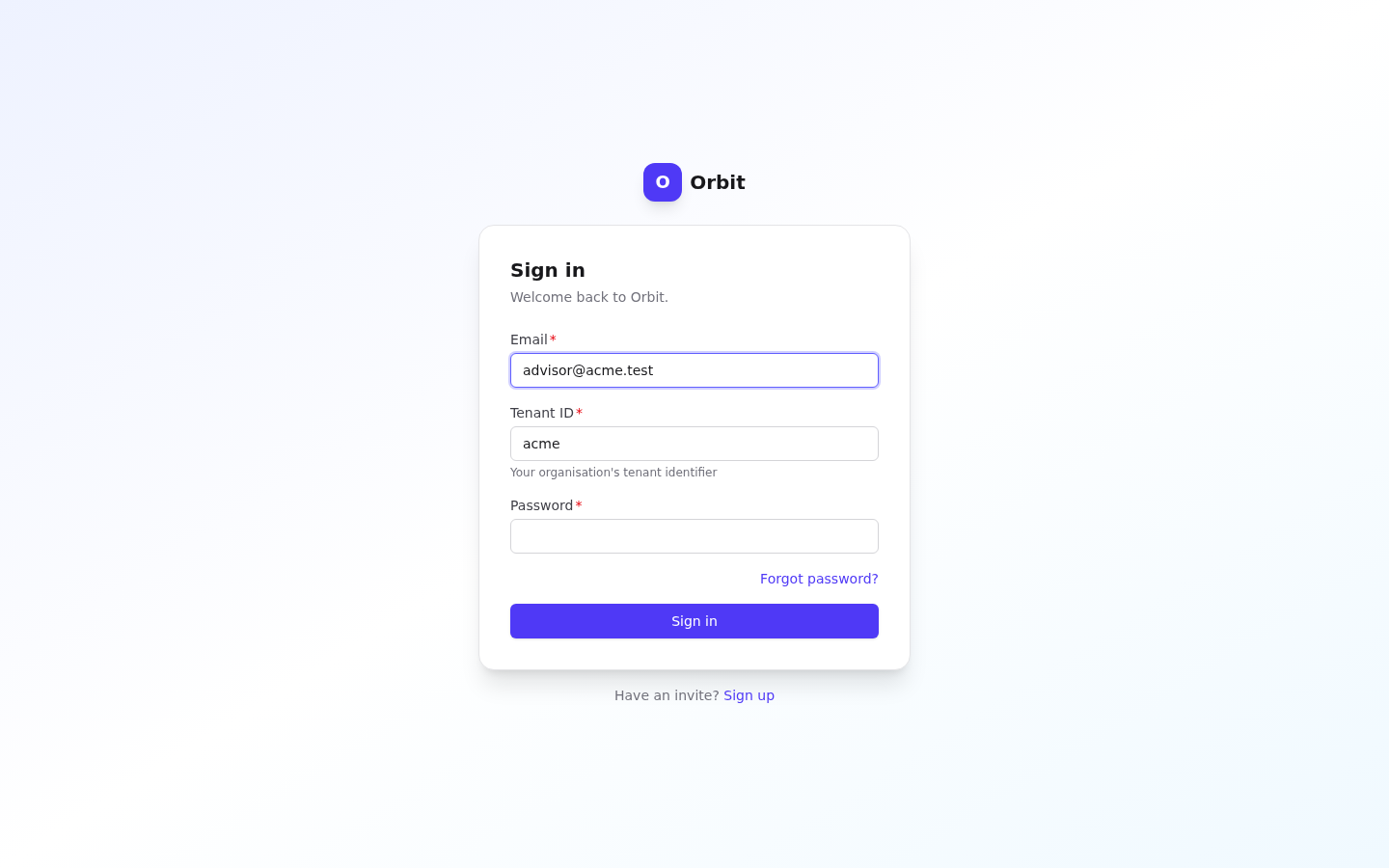
After signing in you land on the Dashboard. If you followed a link to a specific page, Orbit takes you there instead.
Note: If you see Superadmins use the Overseer console, your account is a platform superadmin account. Use the Overseer address instead.
What can happen after you select Sign in
| You see | Why | What to do |
|---|---|---|
| The dashboard | Sign-in worked | Nothing |
| Choose a verification method | You have more than one two-step method | Pick one; a code is sent to it |
| Enter verification code | Two-step verification is on | Type the 6-digit code from your email and select Verify |
| Choose a new password (Your administrator requires you to set a new password) | An administrator gave you a temporary password | Set a new password (see below) |
| Invalid credentials or a similar error | Wrong email, tenant or password, or the login is disabled or locked | Check all three. If they are right, ask an administrator to check your account in Admin → Users. Resetting your password also unlocks a locked account |
Two-step verification at sign-in
When two-step verification is enabled on your account:
- Sign in with email, tenant and password as usual.
- Orbit emails a 6-digit code to your verification address. Codes expire after 10 minutes by default.
- Type the code and select Verify.
- No code? Select Resend code.
- Lost access to the email? Select Use a recovery code and enter one of the one-time codes you saved when you set up verification (format
ABCDE-12345-FGHIJ-67890). Each code works once.
To turn two-step verification on or off, see Your profile and security.
Forgot your password
- On the sign-in page select Forgot password?
- Check the Tenant ID and enter your Email.
- Select Send reset link.
- Orbit shows Check your email. The message is the same whether or not the account exists, so it doesn't reveal which emails are registered.
- Open the link in the email. On Choose a new password, enter the New password twice and select Update password.
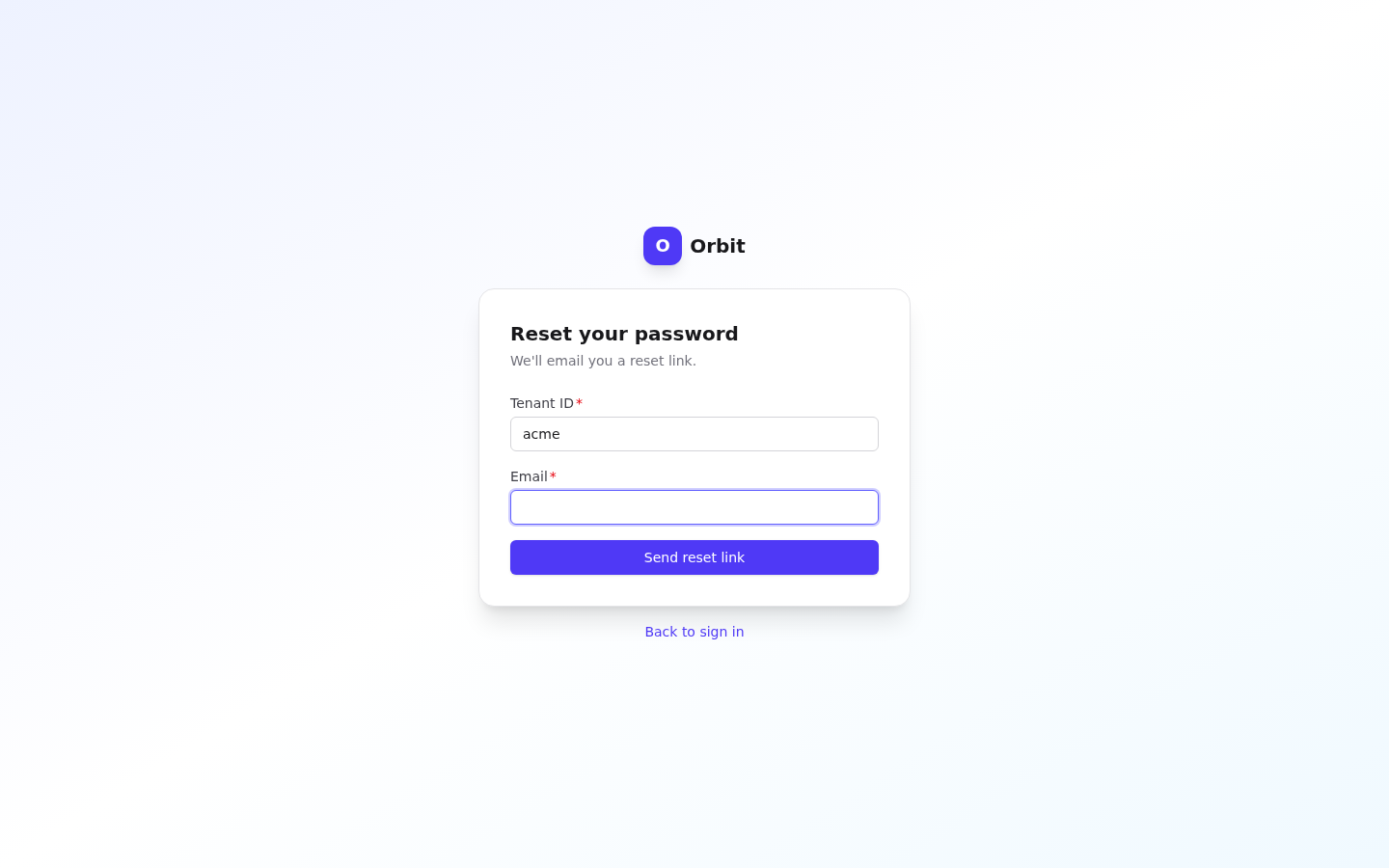
Password rules shown under the form:
- At least 8 characters.
- Both entries must match.
Tip: An administrator can also email you a reset link, or set a temporary password for you. See Users and access.
Forced password change
If an administrator created your account with a temporary password, or ticked Force password reset on next login, Orbit sends you straight to Choose a new password after you sign in. It shows Your administrator requires you to set a new password.
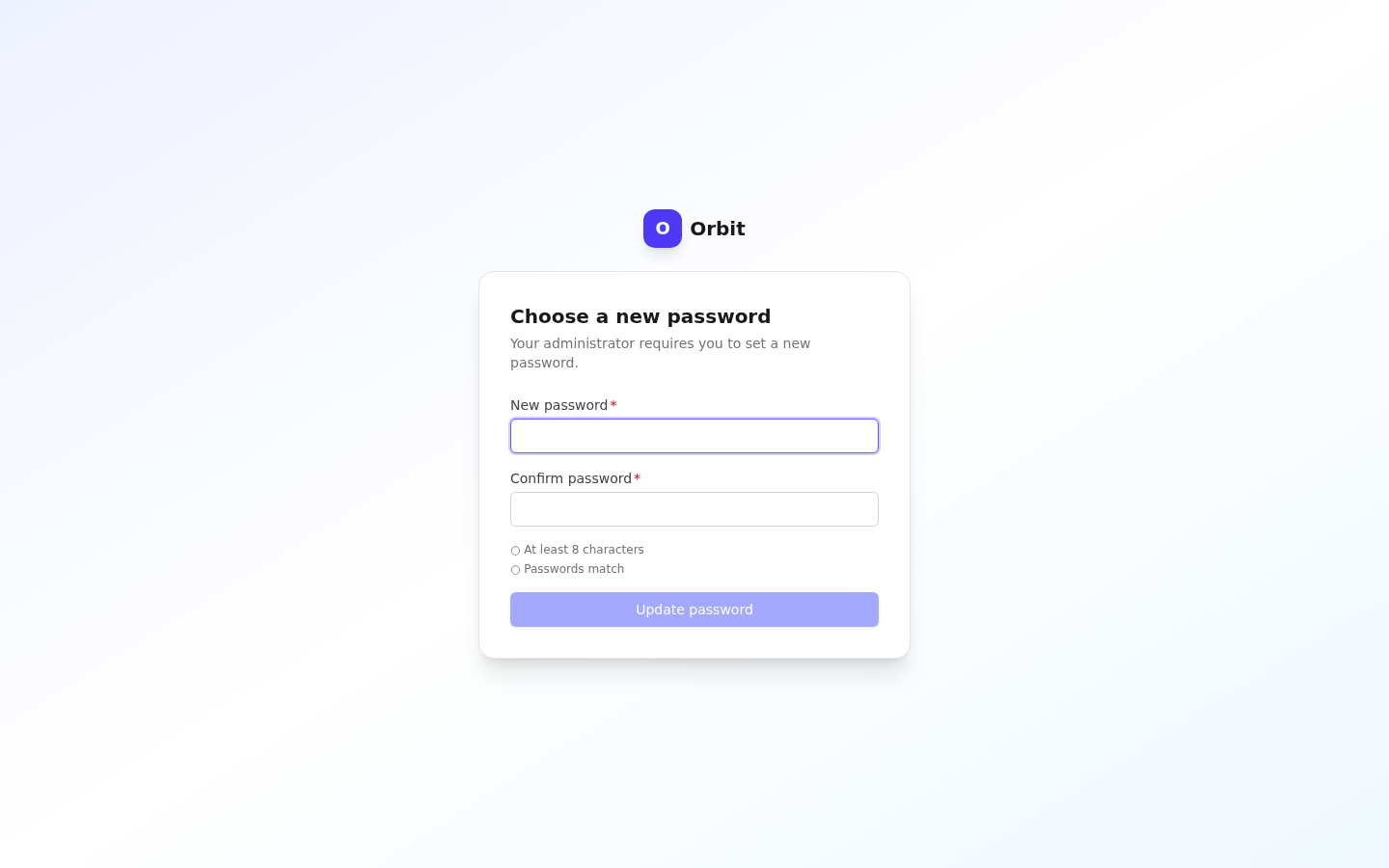
Set a new password, then sign in again with it.
Accepting an invitation (sign up)
Administrators can invite you by email. The invitation link opens /signup?token=….
- Open the link from the invitation email. It is valid for 72 hours by default.
- Enter your First name and Last name.
- Email and Tenant ID are for reference. Use the address the invitation was sent to.
- Enter a Password and Confirm password (at least 8 characters).
- Tick I agree to the Terms and Privacy Policy.
- Select Create account. When you see Account created successfully, select Go to sign in.
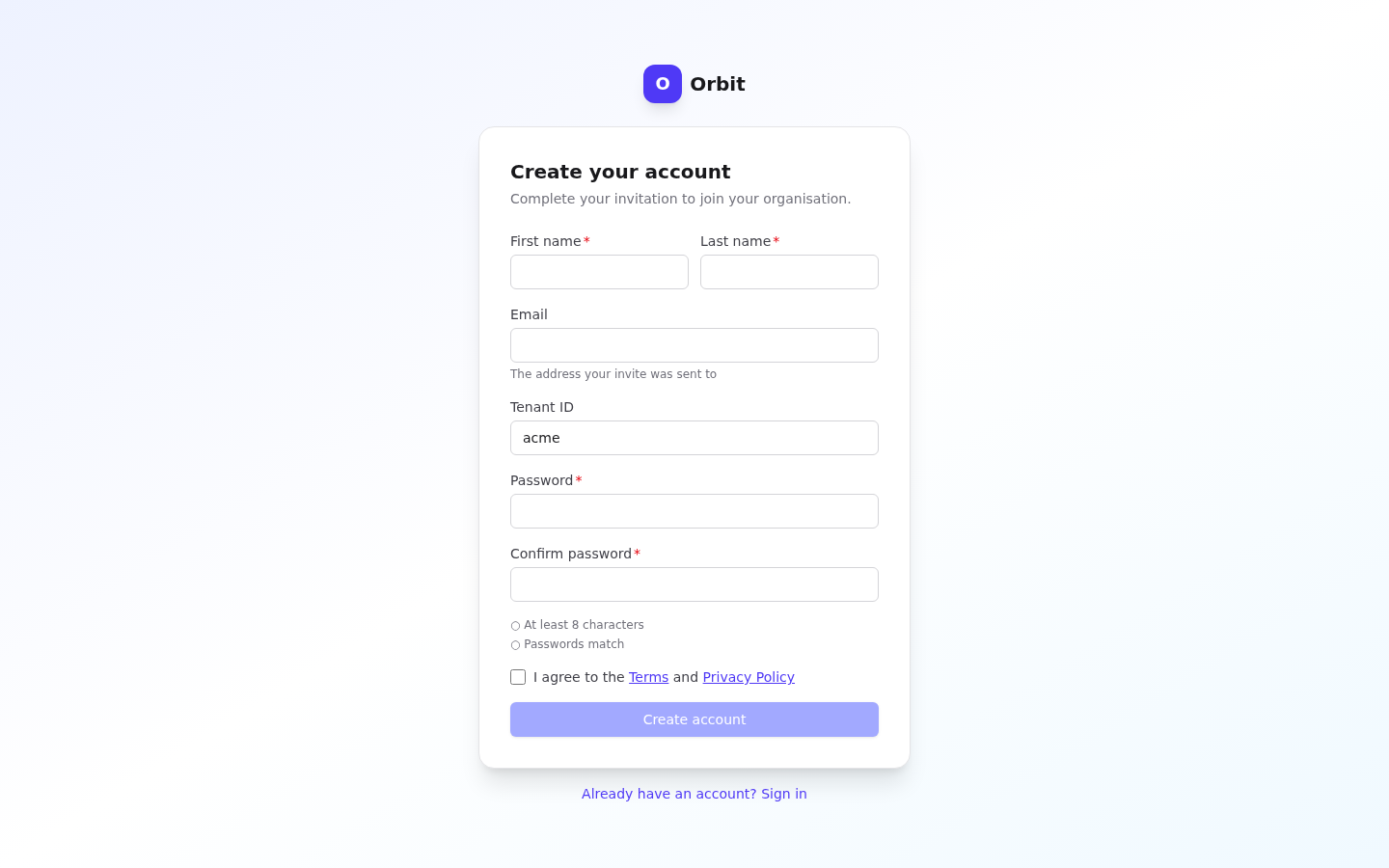
If you open /signup without a token you'll see Sign up requires a valid invite link with a token. Ask your administrator to send a new invitation.
Session expiry
Orbit keeps you signed in and refreshes your session in the background. If the session can't be refreshed (for example after a long time idle, or because an administrator disabled your login), a Session expired box appears over the page. Enter your password to continue where you left off, or select Sign out.
Signing out
Open the account menu (your initials, top right) and select Sign out.
Related
- Navigating Orbit
- Your profile and security
- Users and access for administrators