Cases
A case tracks a piece of work for one client, such as a career plan, resume support, a job match or retention support. It has a status, a priority, assigned staff, notes, documents, follow-ups and a full history.
Where: sidebar → Cases (/cases). Needs: cases.read to view, cases.write to create or change.
Case list
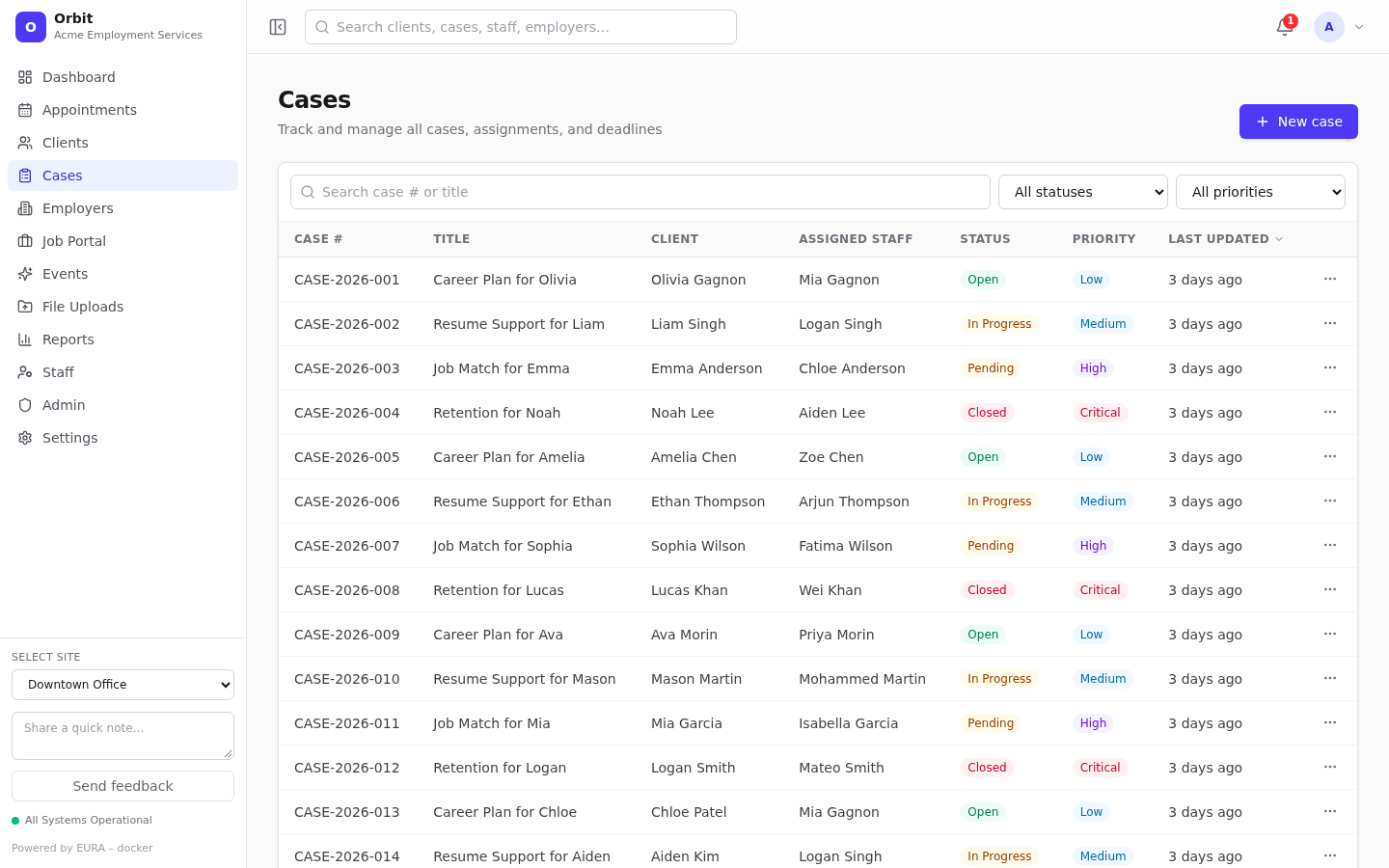
- Search case # or title, All statuses, All priorities.
- Columns: Case #, Title, Client, Assigned staff (primary plus additional), Status, Priority, Last updated.
- Sort by Case #, Title or Last updated.
- Row menu: View details, Edit case, Status: … (one-click status change), Delete case (soft delete).
Create a case
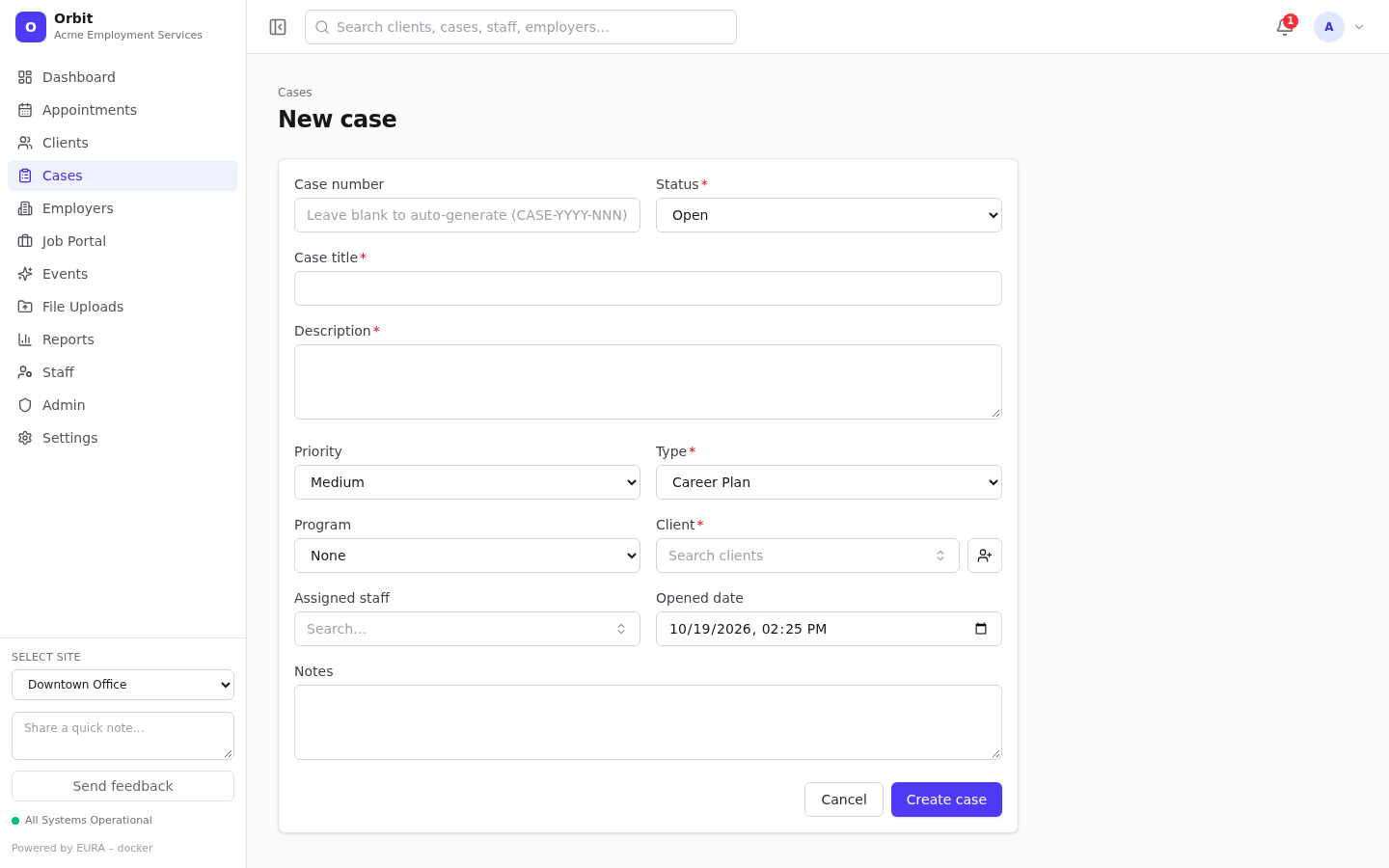
- Select New case on the list, or New case on a client's record (which fills in the client). The full-page form is at
/cases/new. - Case number: leave blank and Orbit generates one in the form
CASE-YYYY-NNN, for exampleCASE-2026-014. Enter your own only if you must match an external system. - Status (required; uses the default status).
- Case title and Description (both required).
- Priority, Type (required) and Program.
- Client (required): search, or use Quick create client.
- Assigned staff: the primary staff member.
- Opened date: defaults to now.
- Notes: optional.
- Select Create case.
Case record
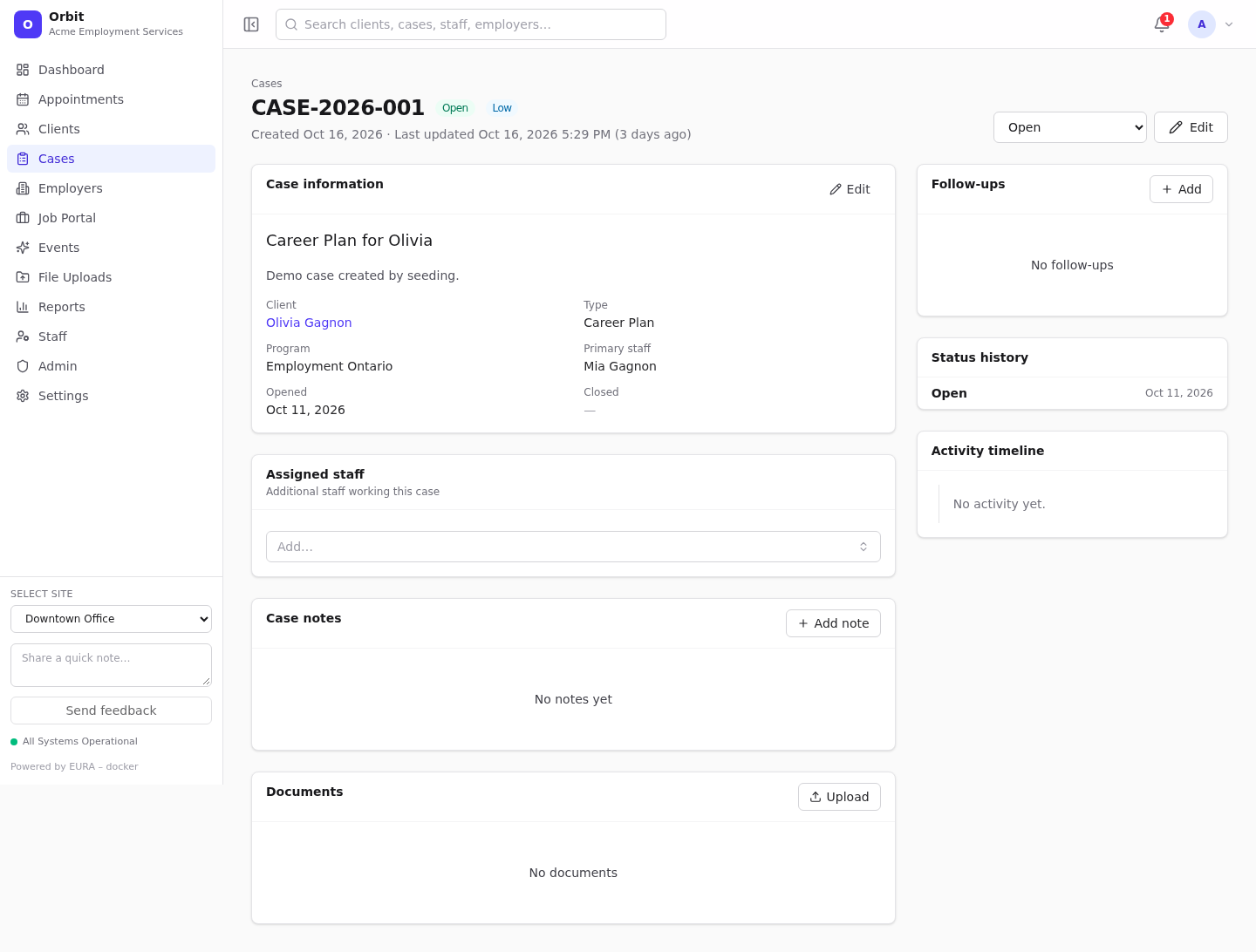
- Header: case number, status and priority badges, created and last-updated times.
- Status dropdown (header): change the status directly. Every change is written to Status history with who made it and when.
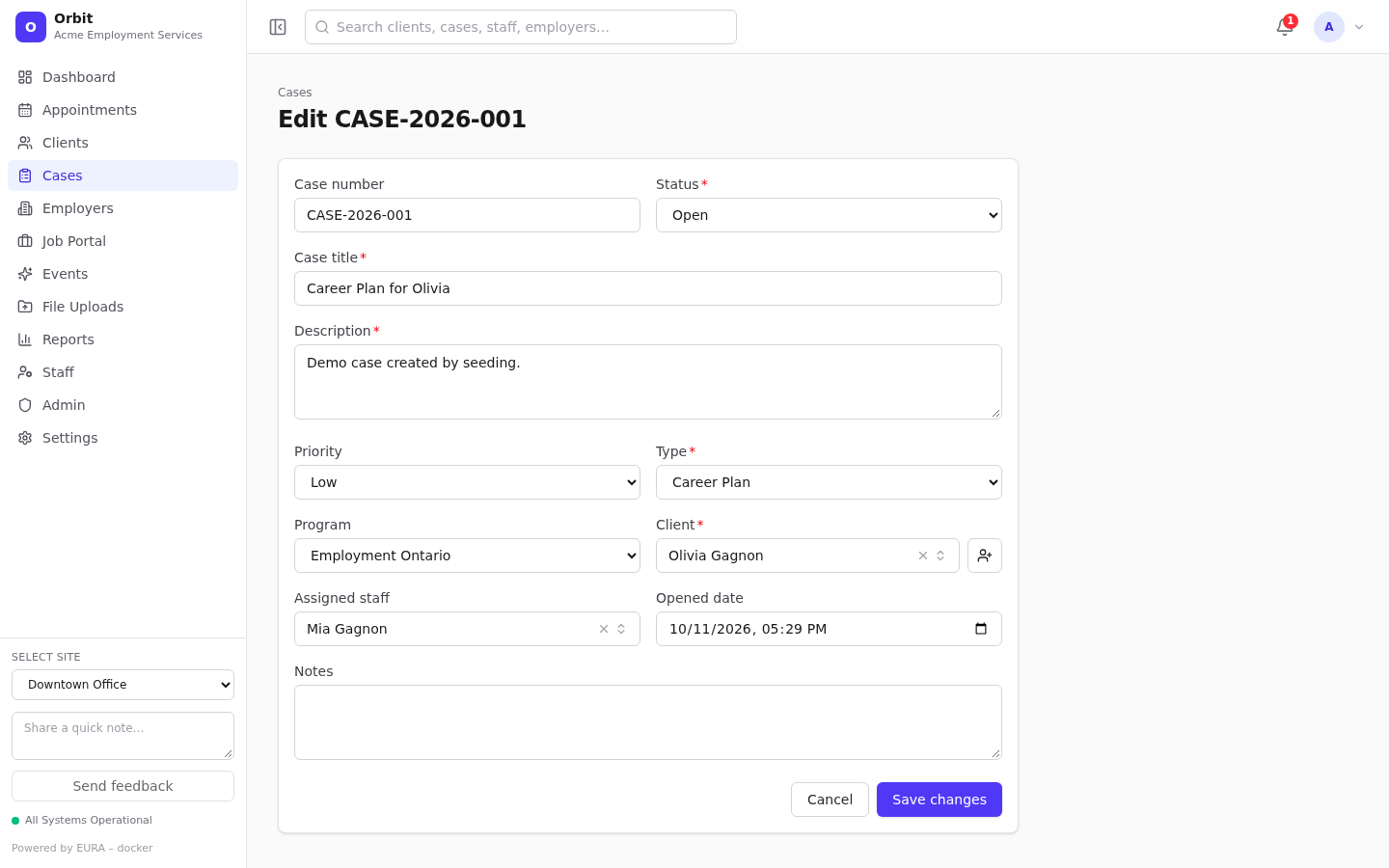
- Edit opens the full edit page (
/cases/<id>/edit). Orbit warns you if you leave with unsaved changes. - Case information: title, description, client, type, program, primary staff, opened/closed dates and closure reason. Select Edit on the card for a quick inline edit, including Closure reason.
- Assigned staff: additional staff working the case. Add or remove people directly in the box; it saves immediately.
- Case notes: same as client notes.
- Documents: upload and download files. See Documents and files.
- Case forms: one panel per published form Used for: Case. See Forms.
- Follow-ups: tasks for this case. See Follow-ups and tasks.
- Status history and Activity timeline.
Closing a case
- Open the case and set the Status to Closed. Orbit stamps the Closed date automatically. Moving the case back to another status clears it.
- On Case information, select Edit, choose a Closure reason (Goal achieved, Client request, Inactivity, Duplicate…) and Save.
Note: Only the status with code
closedcounts as closed. If you add your own closing statuses (for example Withdrawn), cases in them stay "open" for dashboards, workload and reports. Prefer renaming the Closed label over adding new closing codes.
Statuses, types, priorities, programs and closure reasons are configured in Settings → Case definitions. See Definitions.