Report delivery: email and schedules
Send a saved report by email now, or on a daily, weekly or monthly schedule.
Needs: reports.email to send, reports.schedule to schedule. Requires: SMTP configured by your platform operator (see Configuration). Starter reports must be duplicated first.
Send a report now
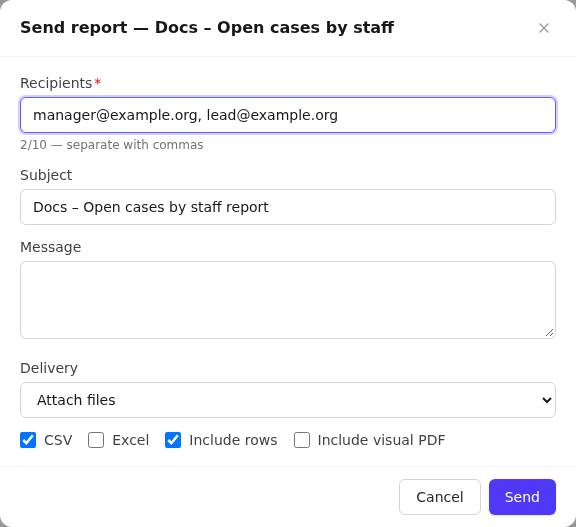
- Open Custom reports, then the report's row menu → Email (or the mail icon in the preview).
- Recipients: up to 10 addresses, separated by commas.
- Subject and Message.
- Delivery: Attach files, or Authenticated links (recipients sign in to Orbit to download, which is safer for sensitive data).
- Formats: CSV and/or Excel. Include rows adds the data. Include visual PDF adds a formatted PDF summary.
- Select Send.
If SMTP isn't configured you'll see Email delivery is not configured (SMTP).
Schedule a report
- Row menu → Schedule.
- Name, for example Open cases (weekly).
- Frequency: Daily, Weekly (choose a Weekday) or Monthly (choose a Day of month, 1–28).
- Run time and Timezone (defaults to your browser's).
- Site scope: all your sites, or one site.
- Recipients: up to 10.
- Include visual PDF, and Enabled.
- Select Save schedule.
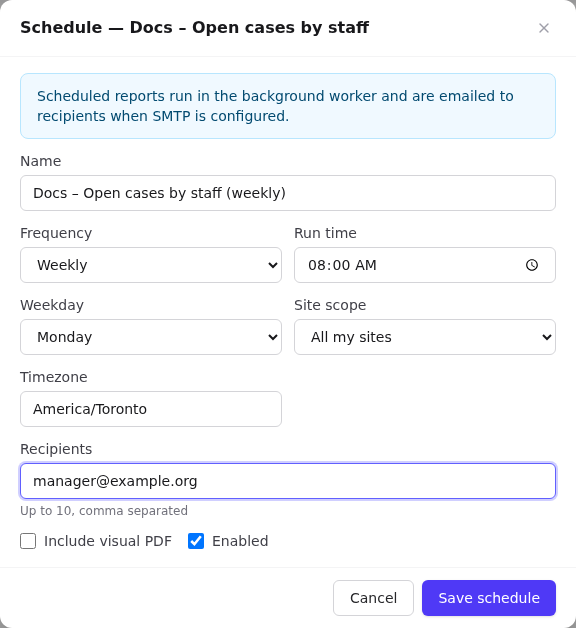
Scheduled reports run in the background worker, which checks for due schedules every minute. Each run is recorded in the history and the export file is kept. The schedule's format is the report's Export format (builder step 4).
Schedules tab
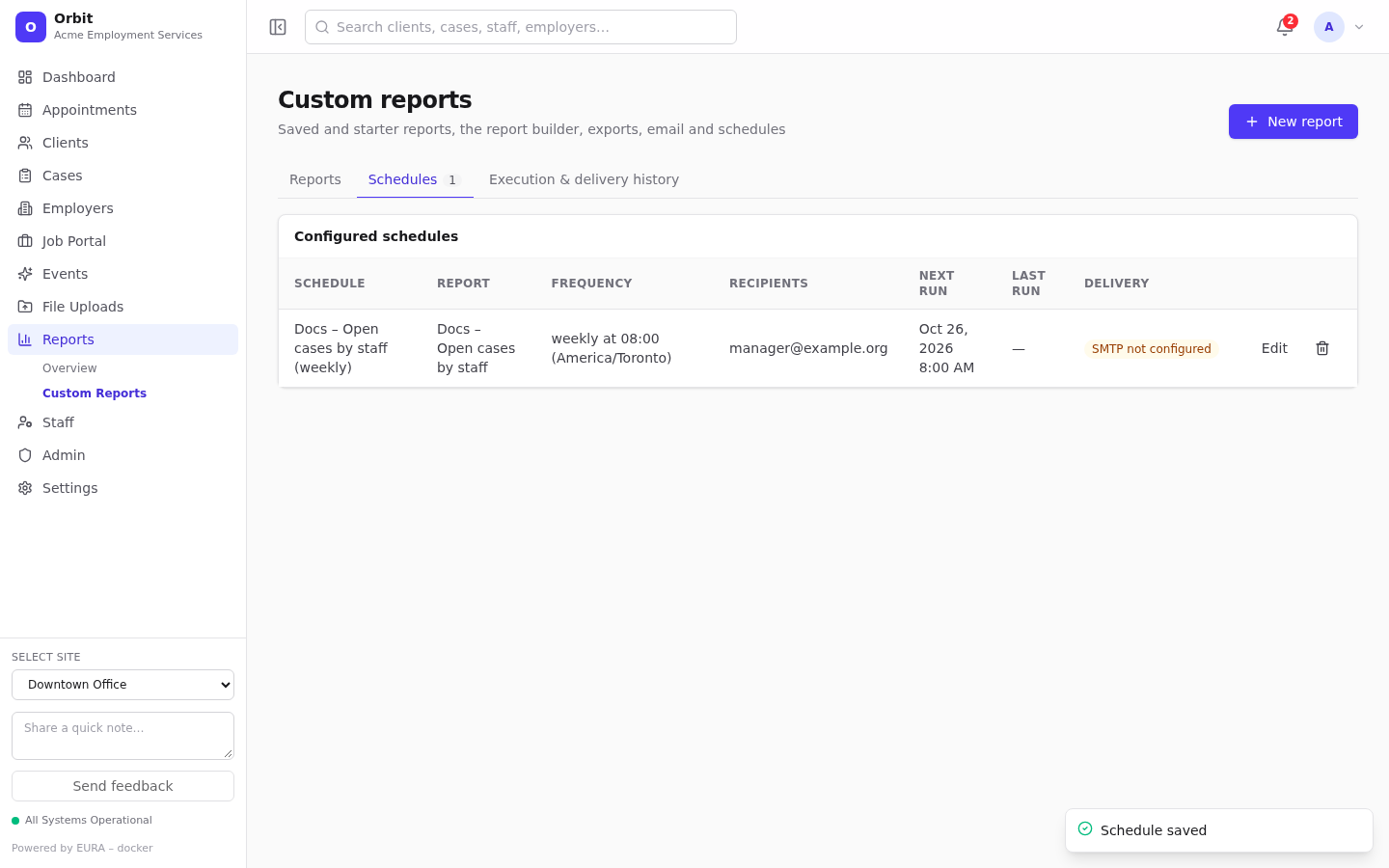
- Frequency and time, recipients, Next run (or Disabled), Last run.
- Delivery: Active, or SMTP not configured. In the second case the schedule still runs and keeps the file, but no email is sent.
- Edit and Delete.
Execution & delivery history
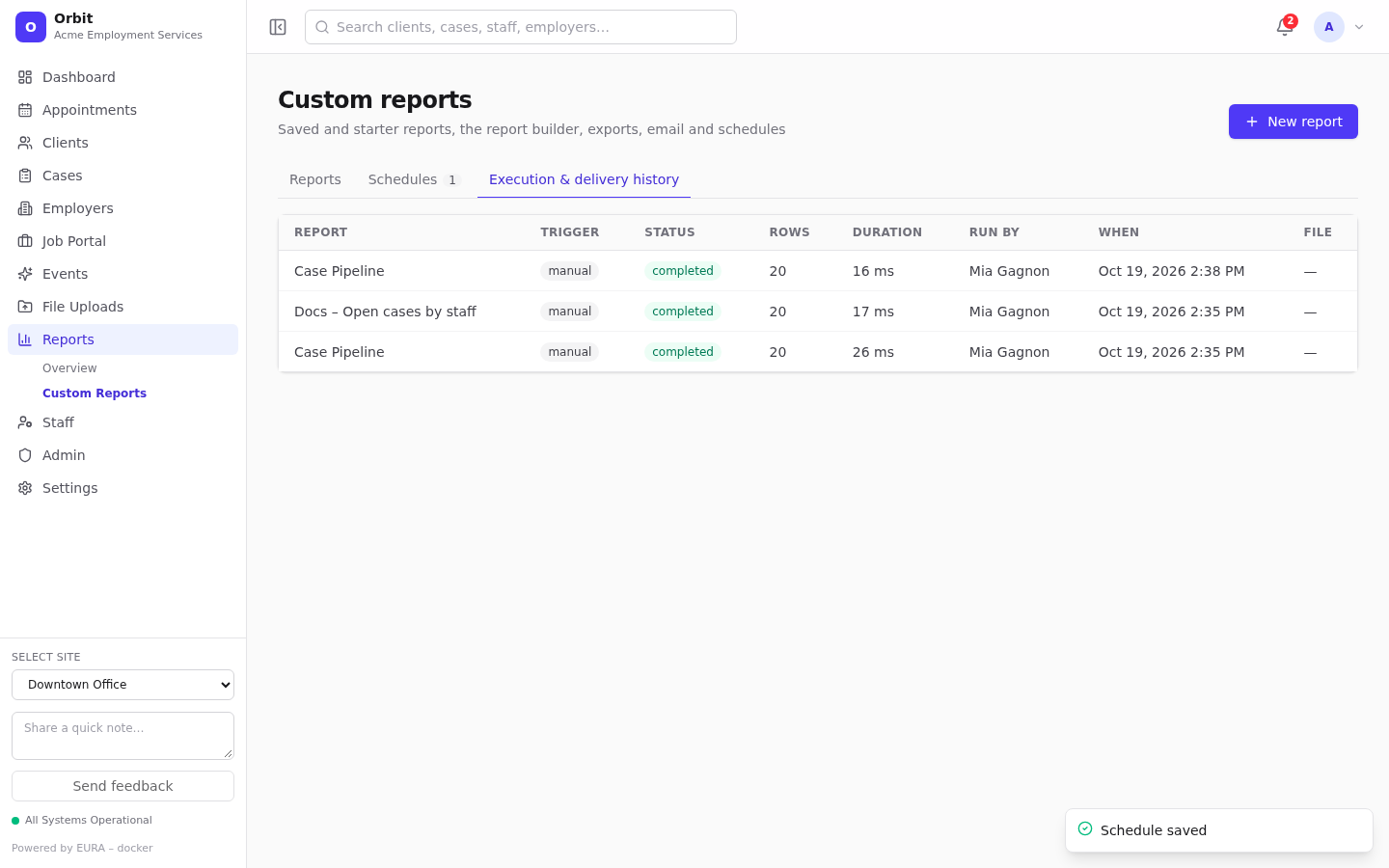
Every manual run, export, email and scheduled run: report, trigger, status, rows, duration, who ran it, when, and a file download when an export was produced. Links in report emails (/reports/custom?download=<id>) download straight from here after sign-in.