Events
Run workshops, info sessions and hiring events: schedule them, publish them for public registration, manage attendees and check people in.
Where: sidebar → Events (/events/manage). Needs: events.read / events.write. License: Events.
Events list
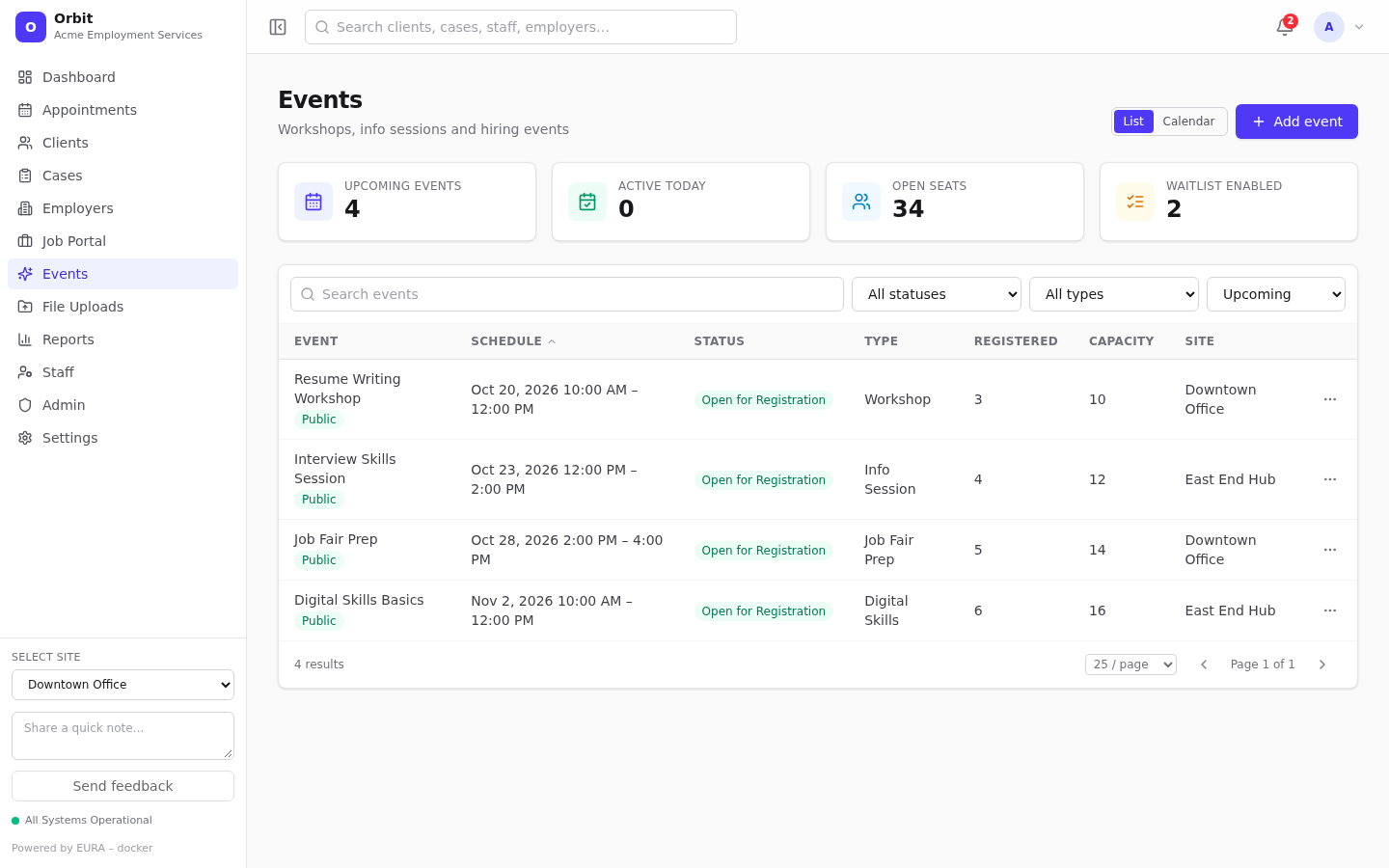
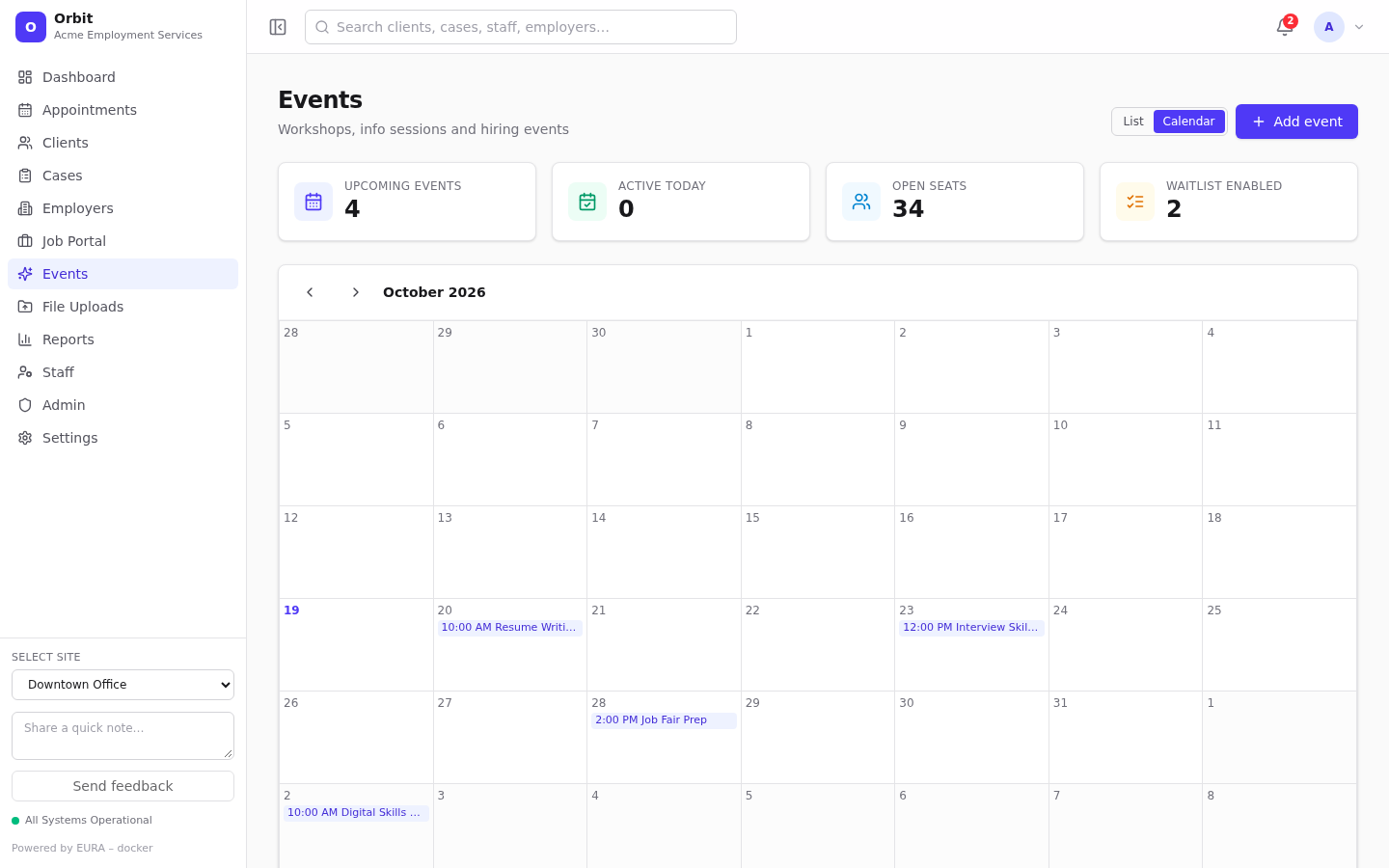
- List / Calendar toggle (top right). The calendar shows a month; select an event to open it.
- Tiles: Upcoming events, Active today, Open seats, Waitlist enabled.
- Filters: search, status, type, Upcoming or All dates.
- Badges: Public (on the portal), Repeats.
- Columns: Schedule, Status, Type, Registered (+ waitlist), Capacity, Site.
Create an event
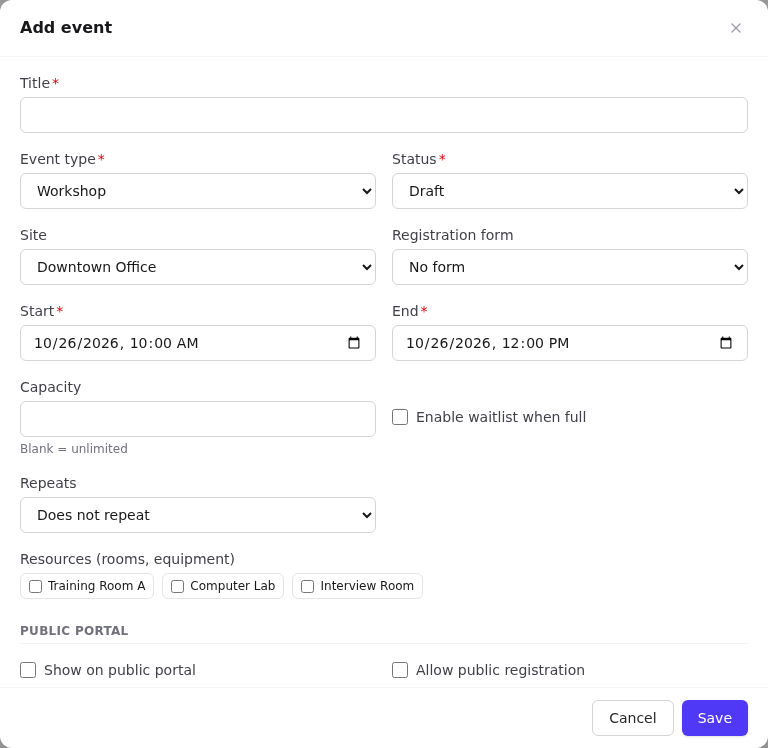
- Select Add event.
- Title, Event type and Status (required).
- Site: leave as All sites for an organisation-wide event.
- Registration form: optionally pick a published form Used for: Event registration. Its questions are asked on the public registration page. See Forms.
- Start and End (end must be after start).
- Capacity: leave blank for unlimited. Tick Enable waitlist when full to let people queue once it's full.
- Repeats / Repeat until: for a series. See Recurring appointments.
- Resources (rooms, equipment): tick to book them. Orbit checks for clashes.
- Public portal: Show on public portal, Allow public registration and optionally Registration closes.
- Description: shown on the public page.
- Select Save.
When is an event visible and open on the portal?
| Condition | Effect |
|---|---|
| Show on public portal ticked and status Published or Open for Registration (or any status marked public in its definition) | Listed on /events/<tenant> |
| Allow public registration ticked, registration close time not passed, and the event hasn't ended | Registration form shown (Registration open) |
| Capacity reached and waitlist enabled | Waitlist: guests can Join waitlist |
| Capacity reached, no waitlist | Full: the form is hidden |
Events whose end time has passed move to Completed automatically (repeating series excepted).
Event record
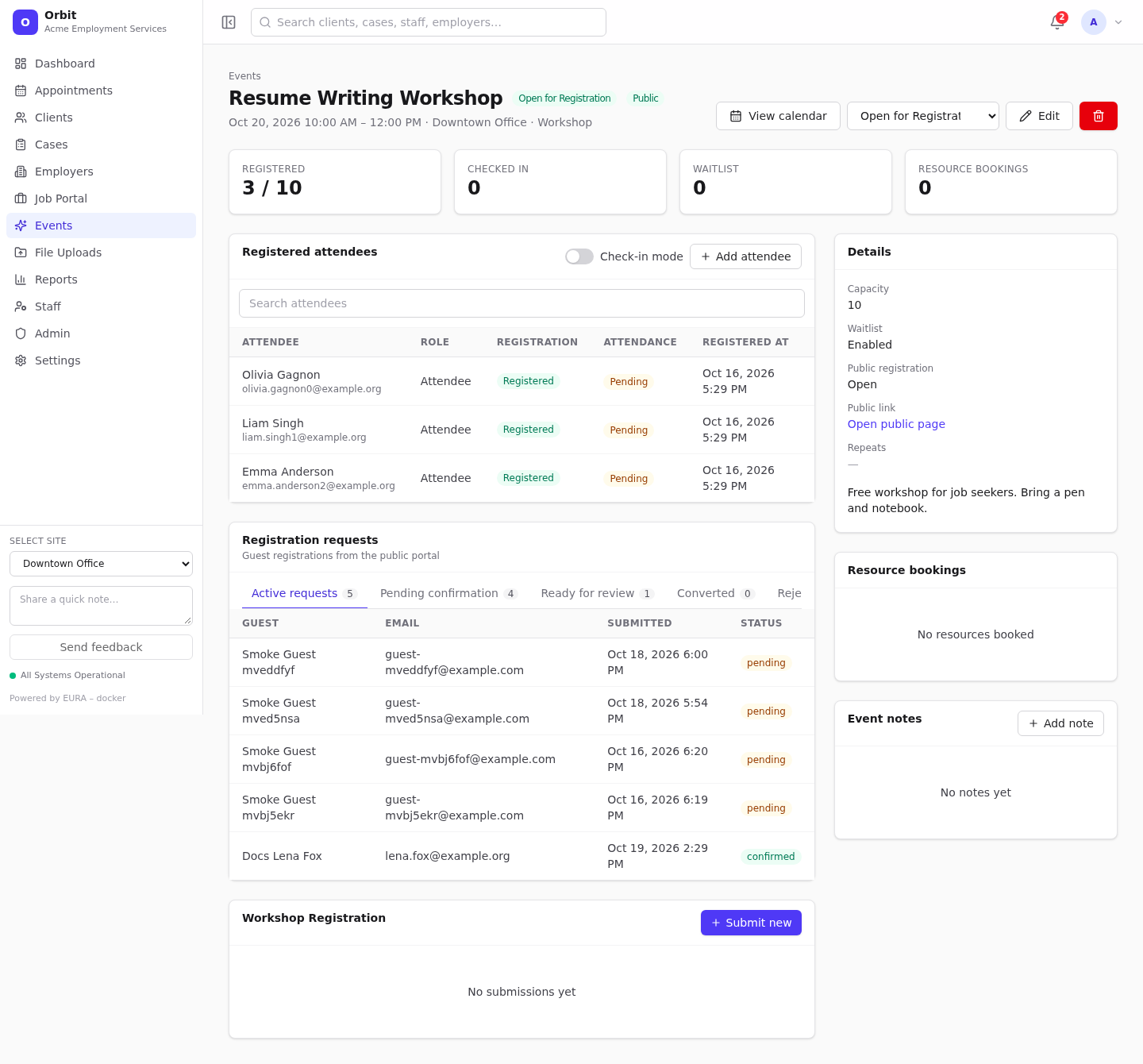
- Header: status dropdown, Edit, Delete (deleting a repeating event deletes the whole series), View calendar.
- Tiles: Registered (of capacity), Checked in, Waitlist, Resource bookings.
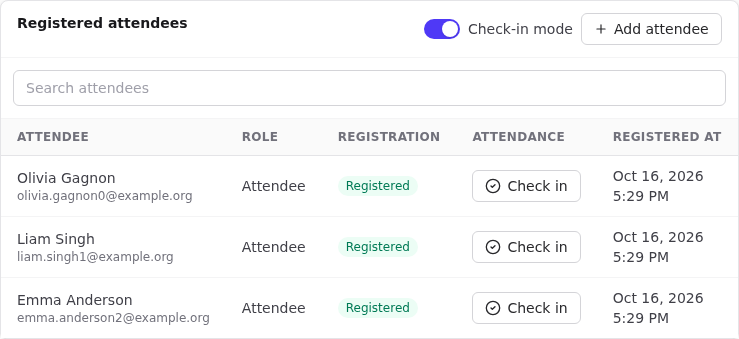
- Registered attendees: name, email, role, registration status (with waitlist position), attendance, registered time. Search attendees by name or email.
- Add attendee: pick a Client, their Role (Attendee, Facilitator, Presenter) and Registration status.
- Registration requests: registrations from the public portal, split into Active requests, Pending confirmation, Ready for review, Converted and Rejected. Select one to review it. See Public submissions.
- Registration form answers: submissions for the event's registration form.
- Details, Resource bookings and Event notes.
Check-in
- Turn on Check-in mode on the Registered attendees card.
- Select Check in next to each person as they arrive. The button changes to Checked in, and the Checked in tile updates.
- Select Checked in again to undo.
Attendance values (Pending, Attended, No-show) are configured in Settings → Events definitions. Use the Event Attendance starter report for totals.