Tenant management
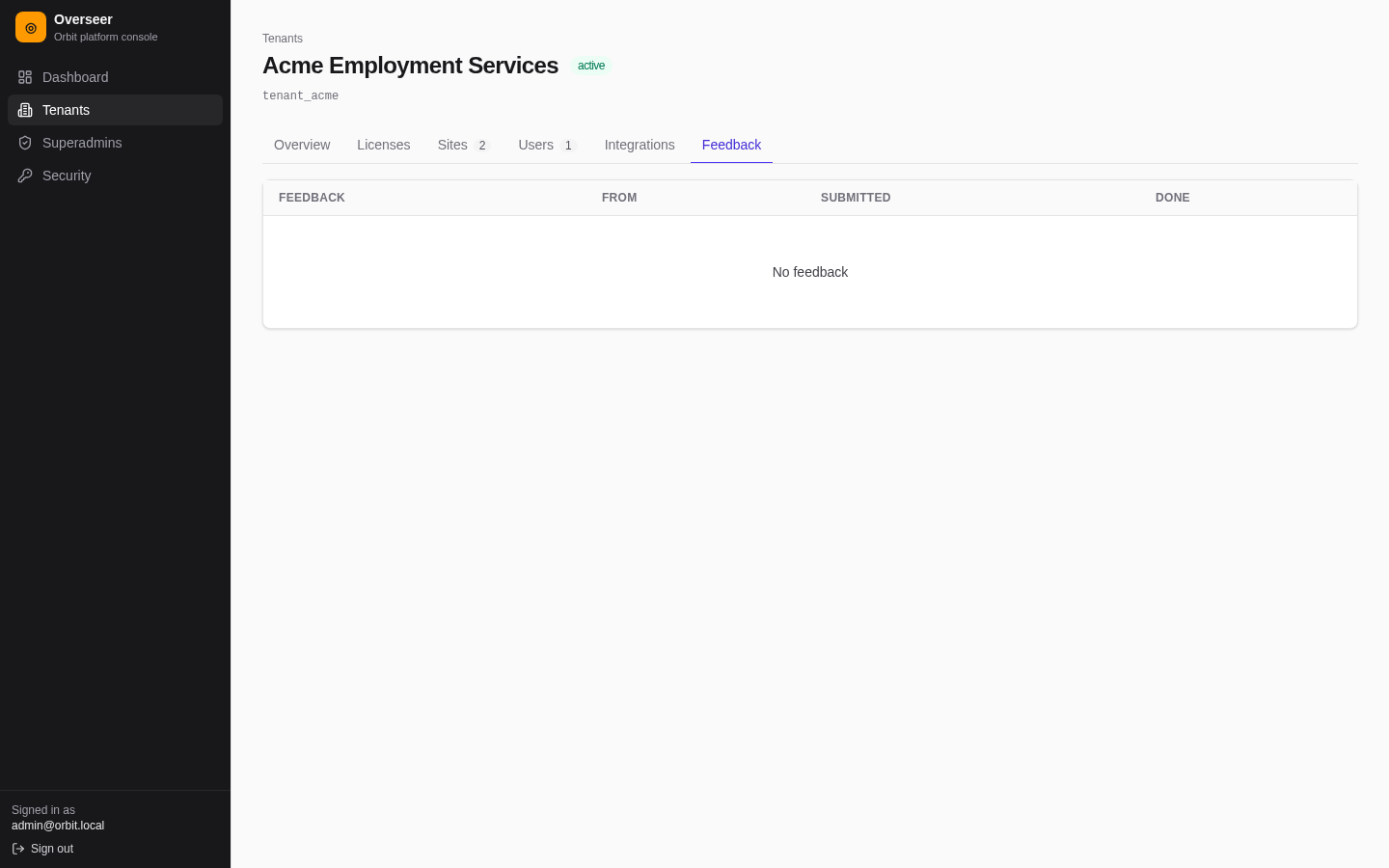
Manage one organisation from Overseer → Tenants → select a tenant. The page has six tabs.
Overview
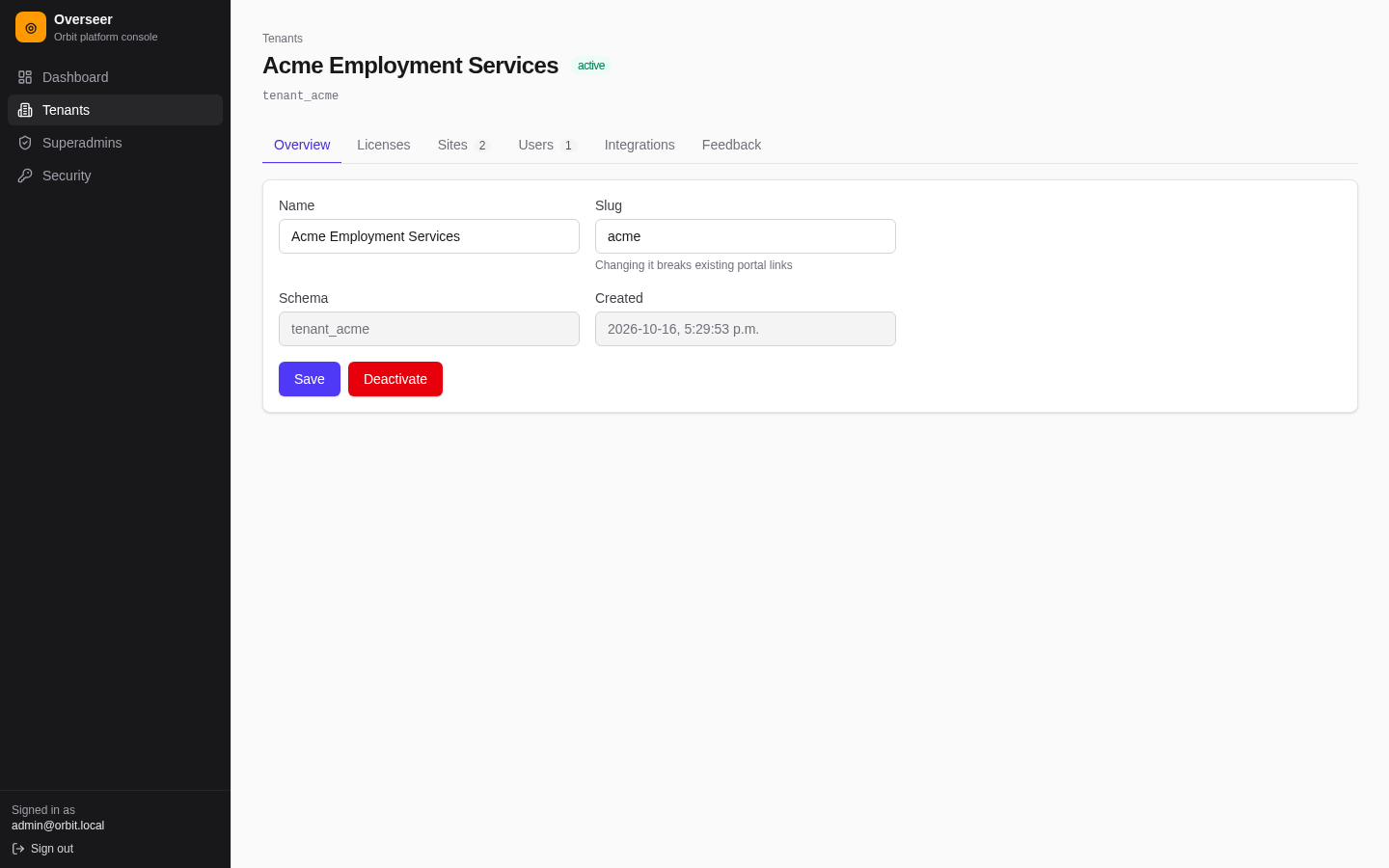
- Name and Slug → Save. Changing the slug breaks existing portal links and changes the Tenant ID users sign in with. Tell the organisation first.
- Schema and Created are read-only.
- Deactivate / Activate. A deactivated tenant's users can't sign in, its public portal returns not found, and the background worker skips it. Data is kept.
Licenses
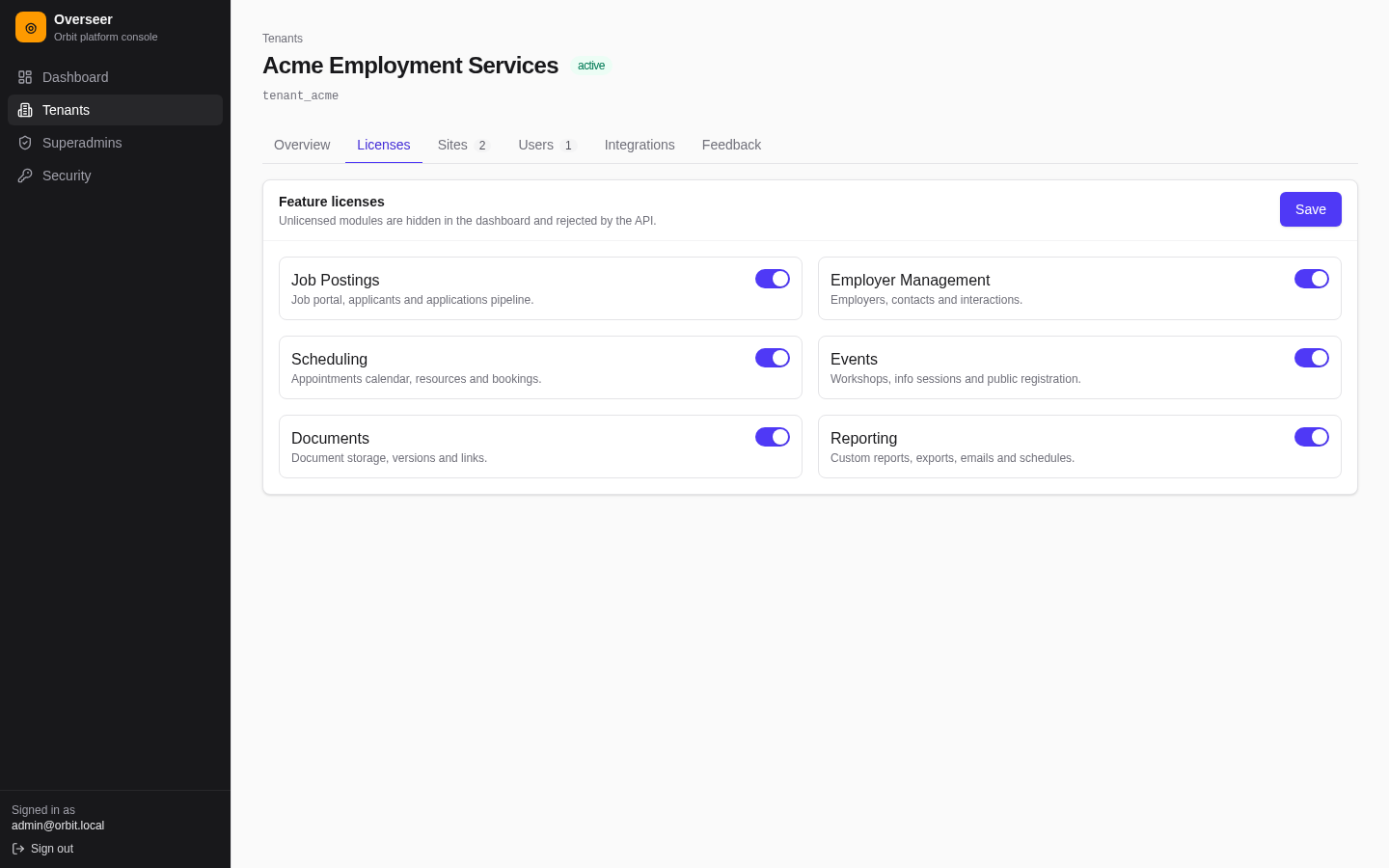
Toggle Job Postings, Employer Management, Scheduling, Events, Documents and Reporting, then Save. Unlicensed modules are hidden in the dashboard and rejected by the API. See Licensing.
Sites
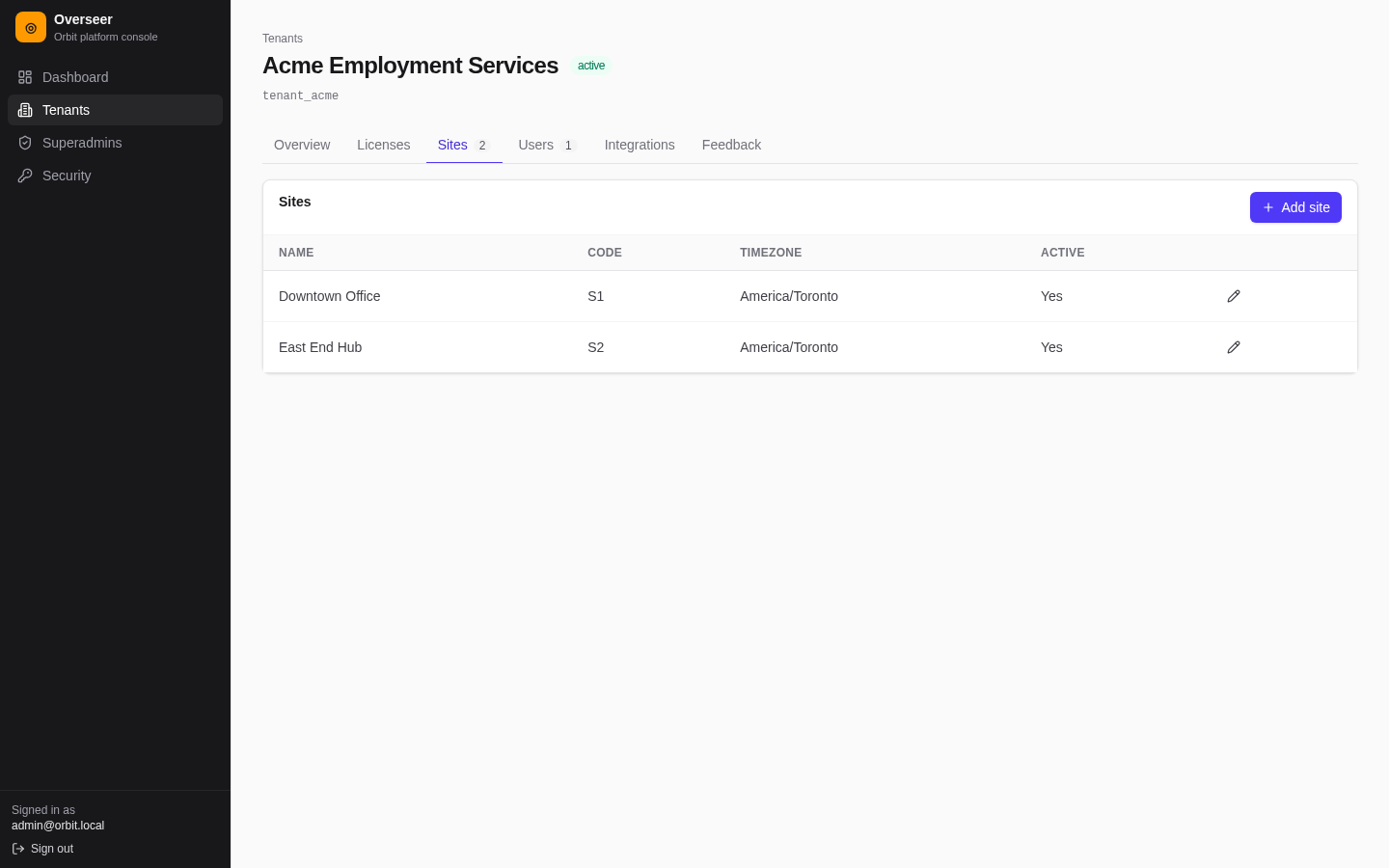
Add or edit sites: name, code, timezone, phone, email, city, province, active. Tenant admins can do the same in Settings → Sites.
Users
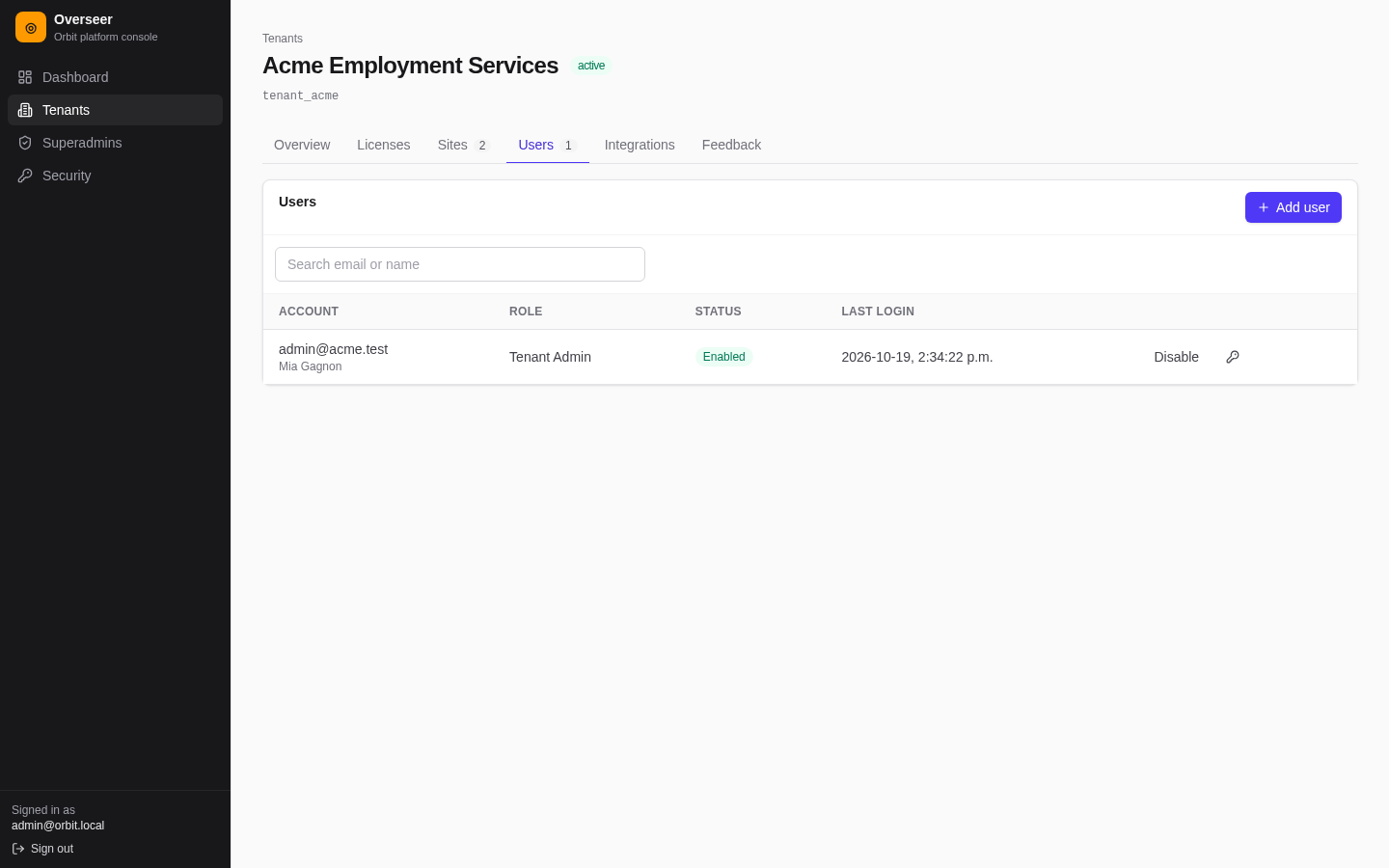
- Search by email or name. Columns: account, role, status (Enabled/Disabled, Locked, MFA), last login.
- Add user: email, temporary password, role (Tenant Admin, Staff, Viewer), Require password change at first sign-in.
- Enable / Disable login.
- Key icon: set a new password, with Require change at next sign-in.
- Shield icon (users with MFA): Reset two-step verification. Use it when a user has lost both their email access and their recovery codes. They can sign in with their password and enrol again.
Day-to-day user management (sites, staff links, custom roles) is done by the tenant's own admins in Admin → Users.
Integrations
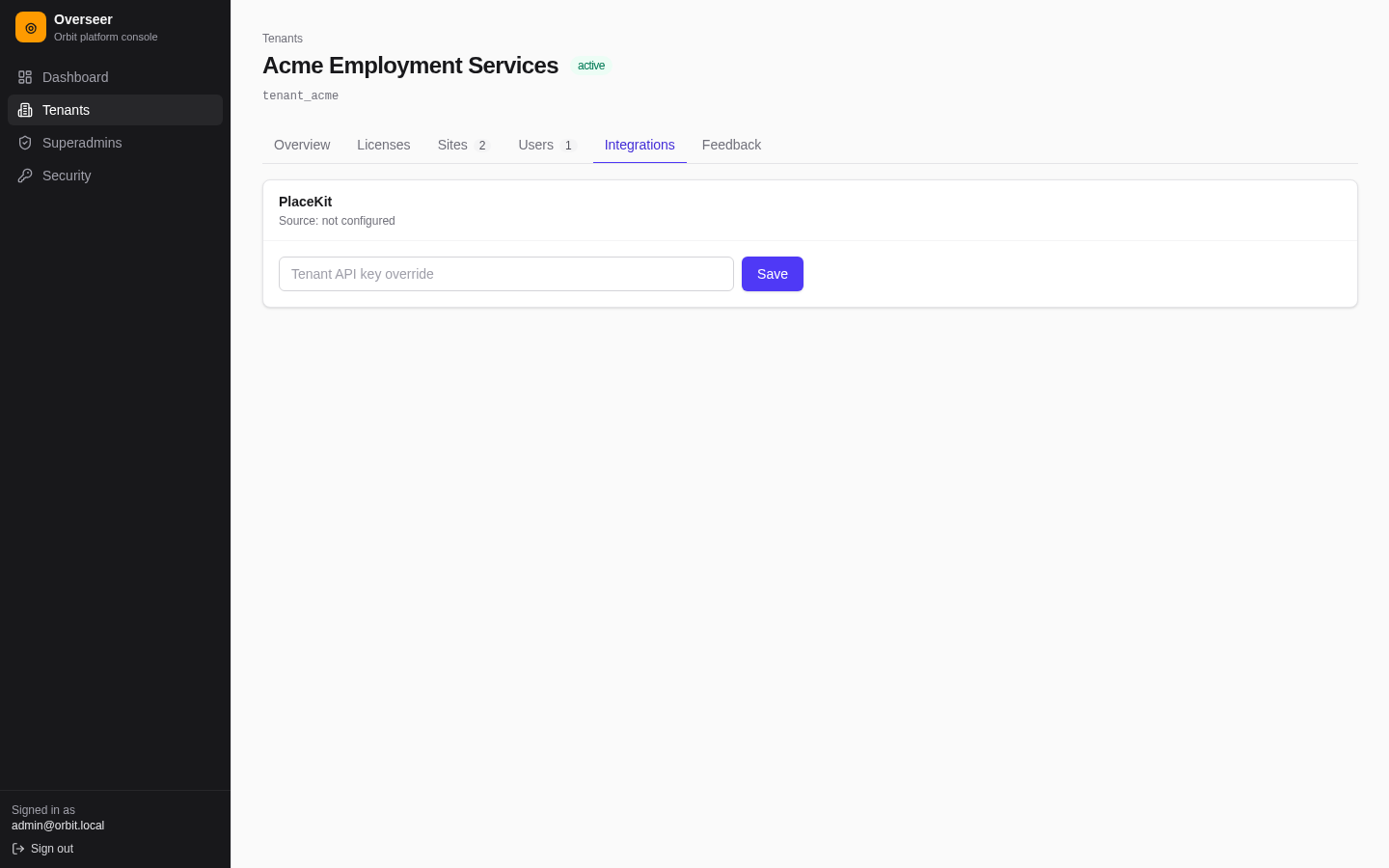
Set or clear the tenant's PlaceKit API key override. Source shows whether the tenant uses its own key, the platform default (PLACEKIT_API_KEY) or nothing.
Feedback
Notes users sent from the dashboard's feedback box, with the page they were on, who sent it, site and time. Tick Done when handled. The dashboard's Open feedback tile counts the unhandled ones.