CSV import walkthrough
A step-by-step first import: four clients from clients.csv. Read CSV imports: concepts for the background.
Needs: imports.write.
The sample file:
First Name,Last Name,Email,Phone,Date of Birth,City,Province,Postal Code,Status,Assigned Staff,Site
Docs Amara,Okafor,amara.okafor@example.org,416-555-0101,1991-04-12,Toronto,ON,M5V 2T6,intake,staff1@demo.orbit,Downtown Office
…
Step 1: Prepare the file
- Put one record per row, with a header row.
- Use codes (or exact names) for statuses and other dropdown values, for example
intake,active,job_search. Check the codes in Settings → Client definitions, or see Definition sets. - Identify linked records by something unique: staff by email, sites by name or code.
- Write dates as
YYYY-MM-DD. Write date-times with a UTC offset, for example2026-11-10T10:00-05:00(see Dates and times). - Save as CSV UTF-8.
Step 2: Choose the record type and duplicates rule
- Go to File Uploads. The CSV import wizard tab is open.
- Primary record type: choose Clients.
- Start from template: leave as None for a first import. (To reuse a saved mapping, upload the file first and then pick the template. See Import templates.)
- Duplicates: choose Replace / update matches if some of these clients may already exist (matched by email). Otherwise keep Always create new.
Step 3: Upload the CSV
Drag the file onto Drop files here or click to select, or click it and choose the file. The box shows the file name and N rows · N columns.
Note: Choose the record type before uploading. Changing it afterwards re-suggests the mapping and discards your manual changes.
Step 4: Review the column mapping
The mapping table appears, with a row for each CSV column.
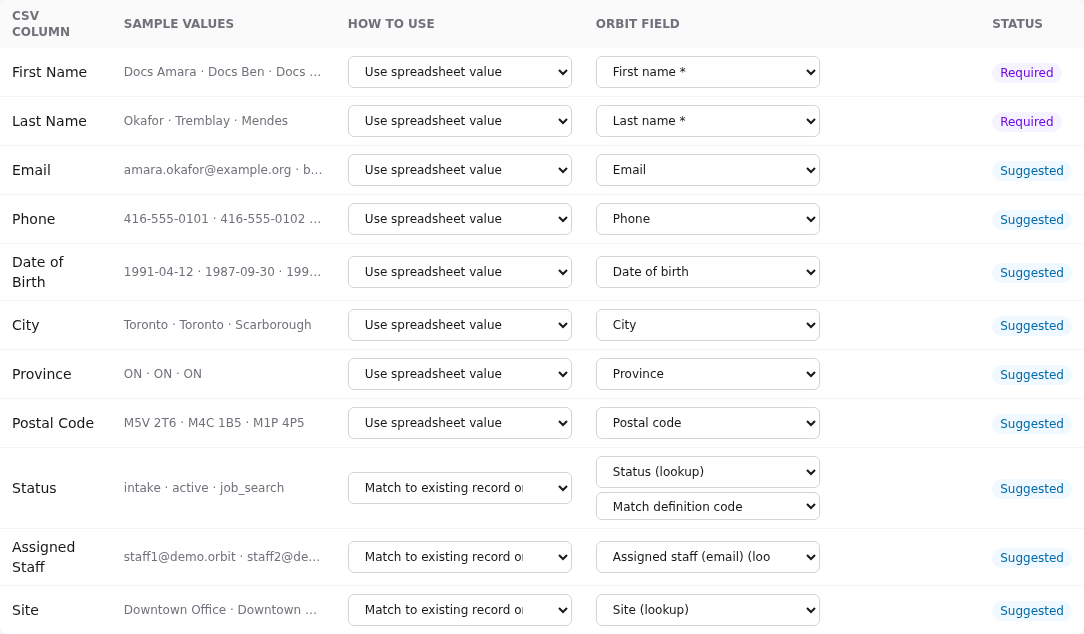
| Column | Meaning |
|---|---|
| CSV column | The header from your file |
| Sample values | The first three values, to check you've got the right column |
| How to use | Ignore / Use spreadsheet value / Match to existing record or definition |
| Orbit field | Where the value goes. * = required, (lookup) = a lookup field |
| Status | See below |
Status chips:
| Chip | Meaning | Action |
|---|---|---|
| Suggested | Orbit guessed this field from the header | Check it's right |
| Mapped | You chose the field | – |
| Required | Mapped to a required field | – |
| Skipped | Ignored or no field chosen | Fine for columns you don't need |
| Missing lookup | Match to existing… is chosen but the field isn't a lookup | Pick a lookup field, or change to Use spreadsheet value |
For each row:
- Check the Orbit field. To change it, pick another from the list. Picking a lookup field switches How to use to Match to existing… automatically.
- For definition lookups (like Status) a second dropdown appears: Match definition code (default) or Match definition name. Choose name if your file has
Job Searchlabels rather thanjob_searchcodes. Either usually works, because matching ignores case and punctuation. - Set columns you don't want to Ignore.
Above the table the counters show N mapped, N skipped, N required missing and Duplicate targets (two columns mapped to the same field, which you must fix).
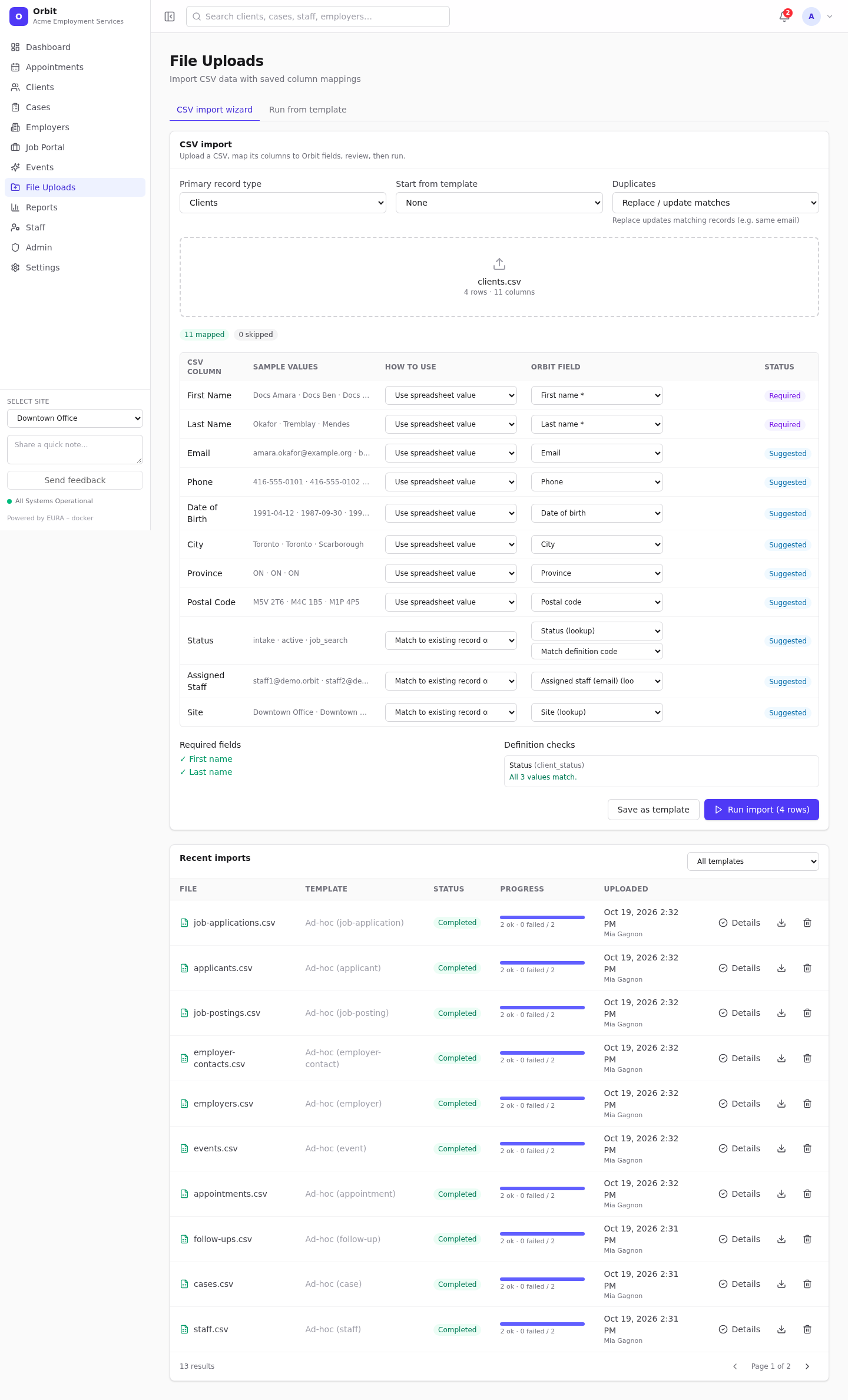
Step 5: Check required fields and definitions
Below the table:
- Required fields: ✓ in green when mapped, ○ in red when missing. Run import stays disabled until every required field is mapped, with the warning Map all required fields before running. Rows missing required values will fail.
- Definition checks: for each definition lookup, either All N values match or Not found in active definitions: followed by the unmatched values.
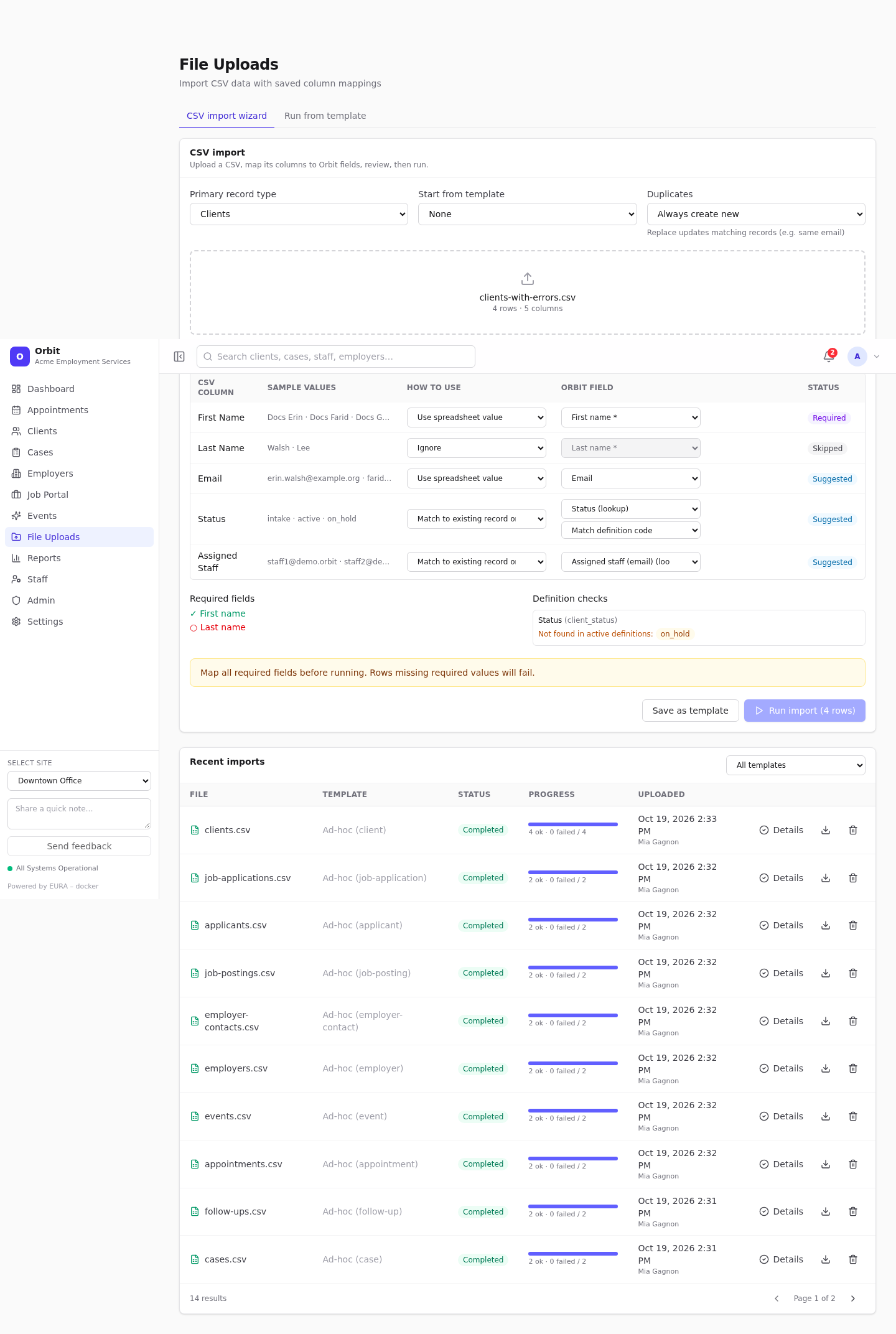

If a value isn't found, either correct the CSV, or add the value in Settings (Settings → Client definitions → Client statuses → Add), then re-upload the file so the check runs again. Rows with unmatched values fail; the others import.
Step 6 (optional): Save the mapping as a template
If you'll import this kind of file again, select Save as template now. See Import templates.
Step 7: Run
Select Run import (N rows). The import runs straight away. A toast reports Import finished: N succeeded, N failed, and the results open.
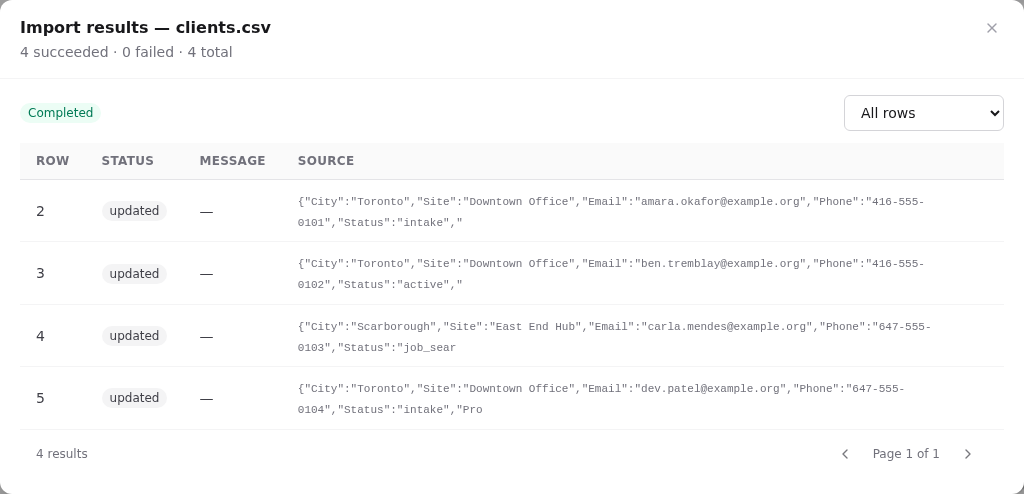
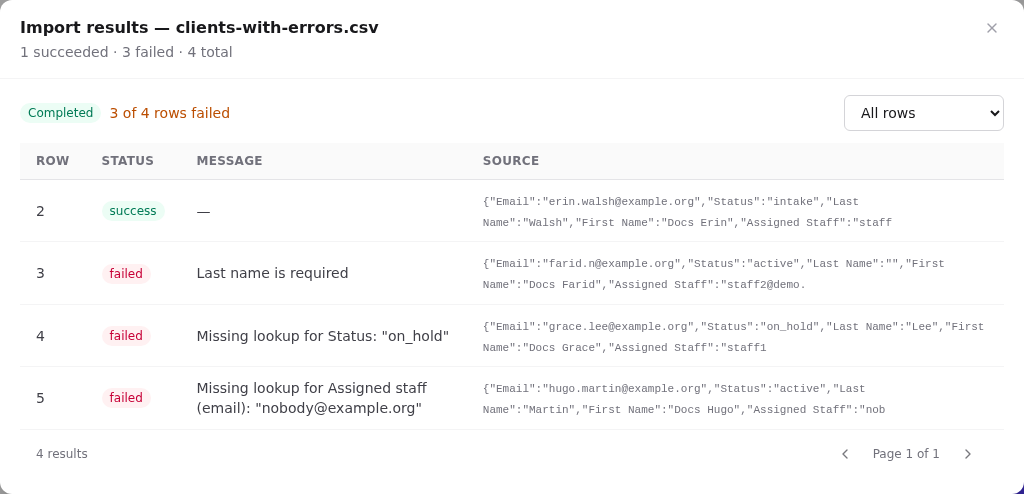
- Row is the line number in the CSV. The header is line 1, so the first data row is row 2.
- Status: success (created), updated (matched and updated) or failed.
- Message: why a row failed, or a warning.
- Source: the original values.
- Filter All rows / Succeeded / Updated / Failed.
Step 8: Fix failures and re-run
The second sample, clients-with-errors.csv, has three deliberate problems:
Filtered to Failed:
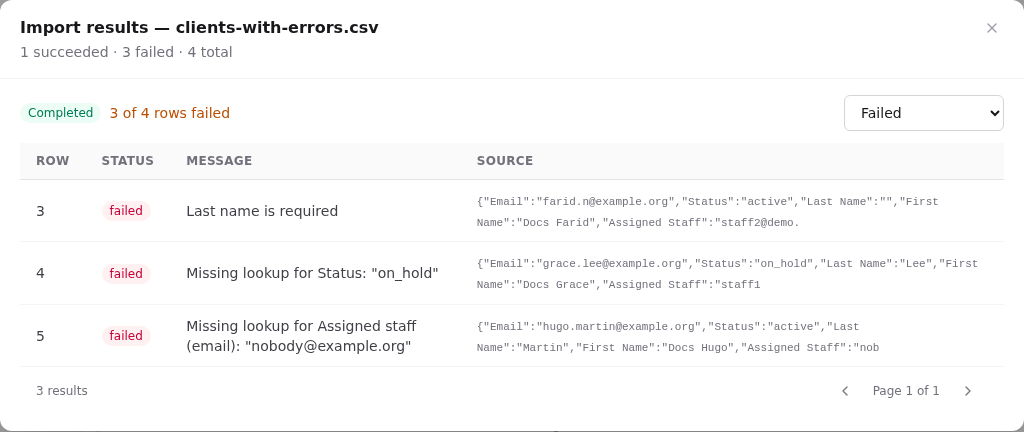
| Row | Message | Fix |
|---|---|---|
| 3 | Last name is required | Fill in the value |
| 4 | Missing lookup for Status: "on_hold" | Use an existing status code, or add on_hold to Client statuses |
| 5 | Missing lookup for Assigned staff (email): "nobody@example.org" | Use a real staff email, or leave it blank |
To re-run:
- Fix the rows in your spreadsheet. Either keep only the failed rows, or keep all rows and choose Replace / update matches so that rows already imported are updated instead of duplicated.
- Upload the corrected file and run again.
More messages and fixes: Import troubleshooting.
Step 9: Check the result
Open Clients and search for an imported name. Check the status, assigned staff and site. Each imported client is a normal client record from now on.