Job postings
Create job postings for employers, publish them to the public job board, and track applicants through to placement.
Where: sidebar → Job Portal → Overview (/jobs/manage) and Postings (/jobs/postings). Needs: jobs.read / jobs.write. License: Job Postings.
Job Portal overview
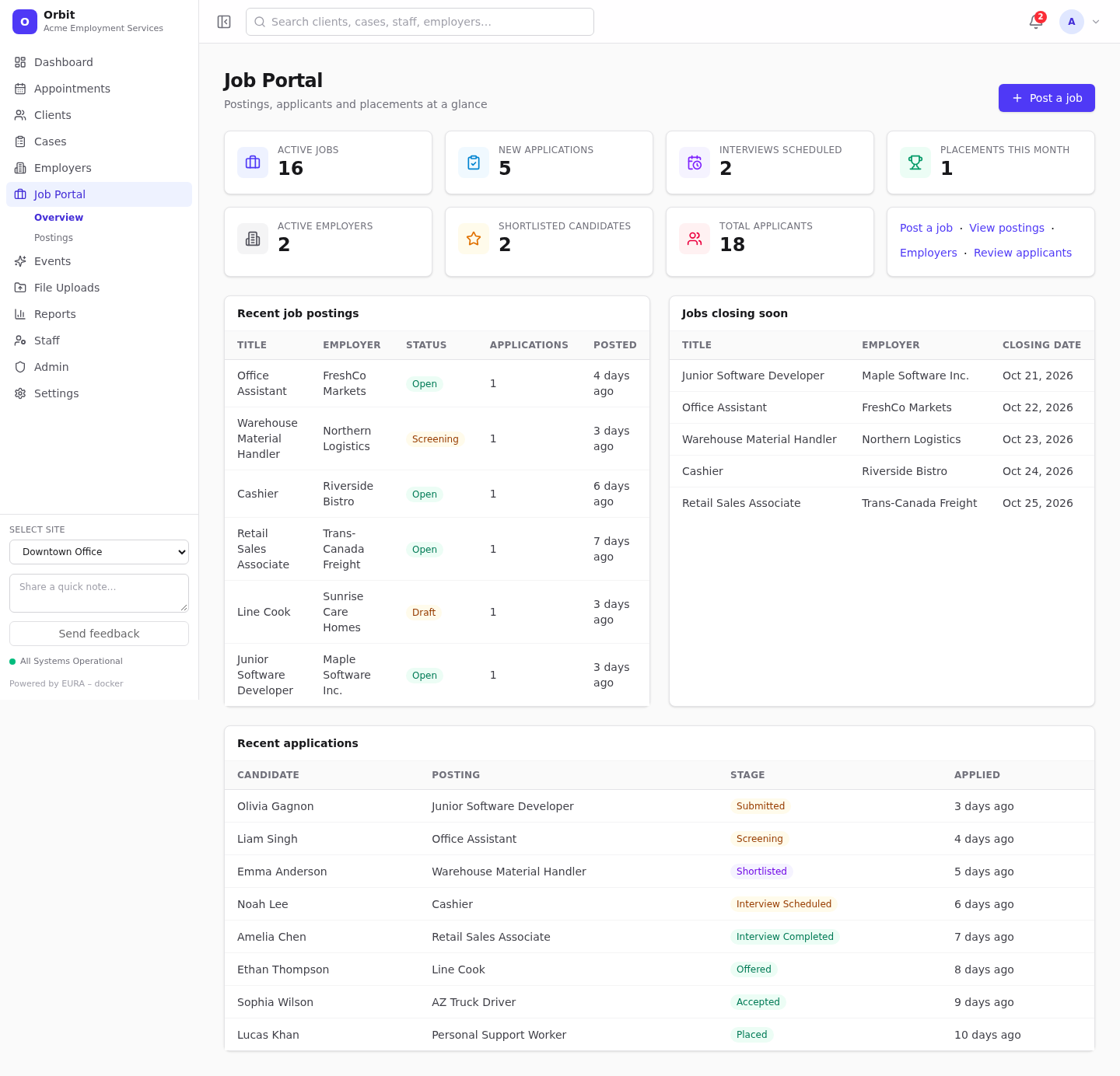
- Tiles: Active jobs, New applications, Interviews scheduled, Placements this month, Active employers, Shortlisted candidates, Total applicants.
- Quick links: Post a job, View postings, Employers, Review applicants.
- Recent job postings, Jobs closing soon (next 7 days) and Recent applications.
Postings list
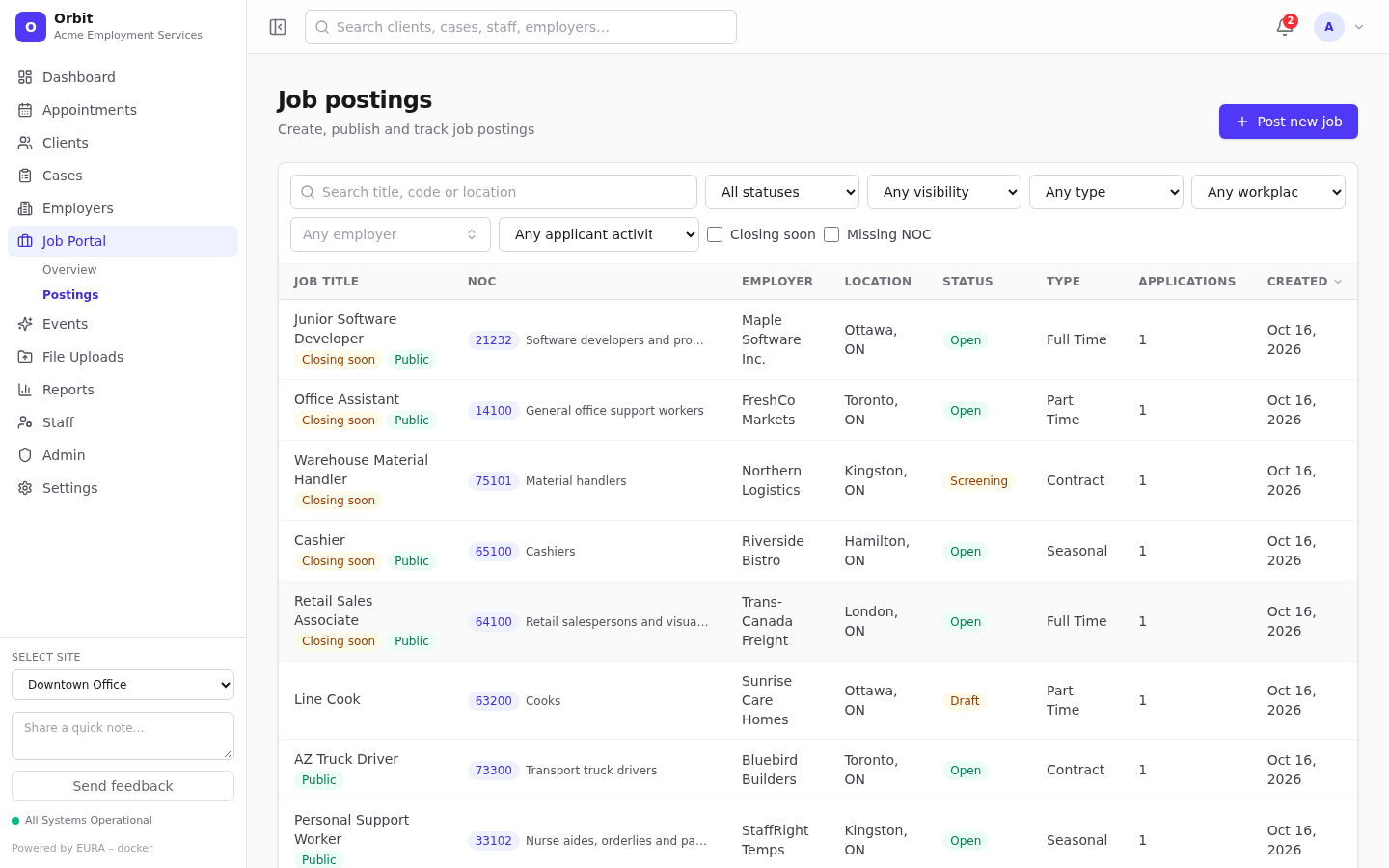
Filters: search (title, code or location), status, visibility (internal/external/both), employment type, workplace type, employer, applicant activity (Needs review, Awaiting confirmation, Has applications, Rejected submissions), Closing soon and Missing NOC.
Badges: Urgent (tag urgent), Closing soon (within 7 days), Public (shown on the portal).
Row menu: View details, Edit, Status: …, View public posting (when published), Delete.
Create a posting
- Select Post new job (or Post job on an employer, which fills in the employer).
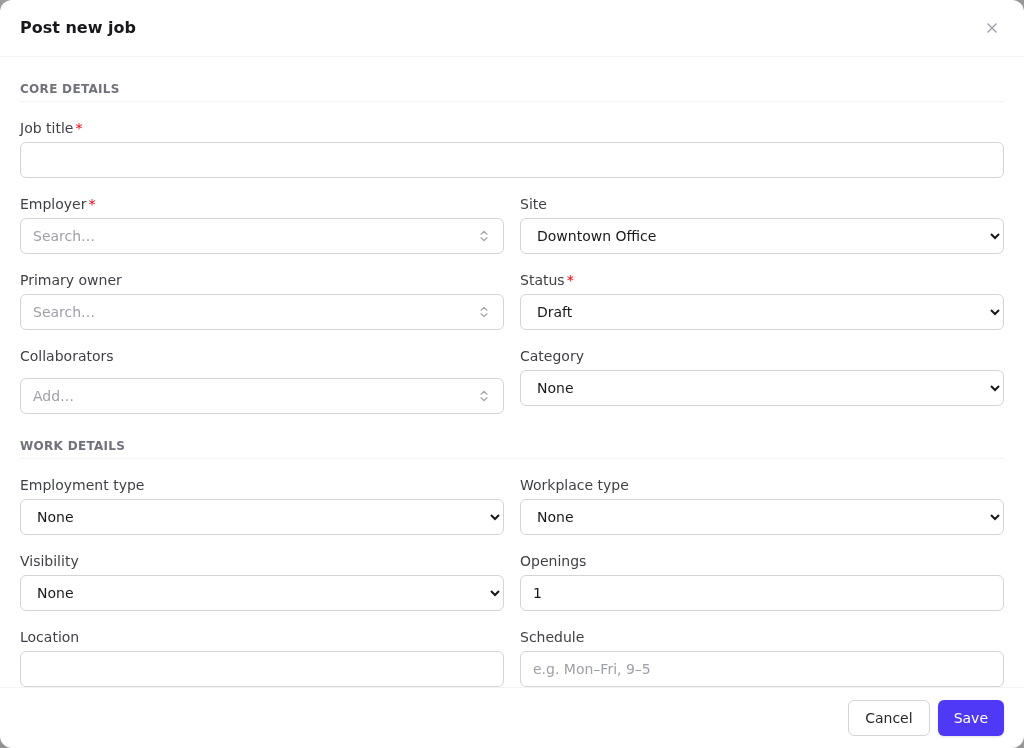
- Core details: Job title, Employer and Status (required); site, Primary owner, Collaborators (more staff) and category.
- Work details: employment type, workplace type, Visibility (Internal only / External / Both), openings, location, schedule, start date, Published at, Closes at, Show on public portal.
- Occupation (NOC 2021): search, browse or Suggest (based on title and description). Only specific 5-digit unit groups can be added; up to 3; the star marks the primary code. Matching uses these codes.
- Compensation: salary min, max, period and display text (for example
$20–24/hour), and benefits. - Posting content: Description (required), qualifications, preferred qualifications, how to apply.
- Tags: comma-separated.
urgentshows the Urgent badge;featuredputs the job on the portal's Featured tab;confidentialhides the employer's name on the public portal. - Internal notes: staff only.
- Select Save.
Publishing to the public job board
A posting appears on the public board (/jobs/<tenant>) when:
- Show on public portal is ticked, and
- it has a Published at date.
When you create a posting with Show on public portal ticked and leave Published at empty, Orbit fills it in with the current time. When you edit an existing posting to publish it, also set Published at (for example to now), otherwise it stays unpublished. The date isn't a schedule: a posting with any Published at date is visible straight away.
Your classification policy may block publishing until the posting has a 5-digit NOC code and the employer has a NAICS code. You'll see a message such as A 5-digit NOC code is required before publishing.
Note: Statuses don't hide a posting. A posting set to Filled or Closed, or past its Closes at date, stays on the board, but new applications are refused ("This posting is closed"). Untick Show on public portal to take it down.
Note: Postings created by CSV import don't get a Published at date. To publish one, open it, select Edit, set Published at and save.
Posting record
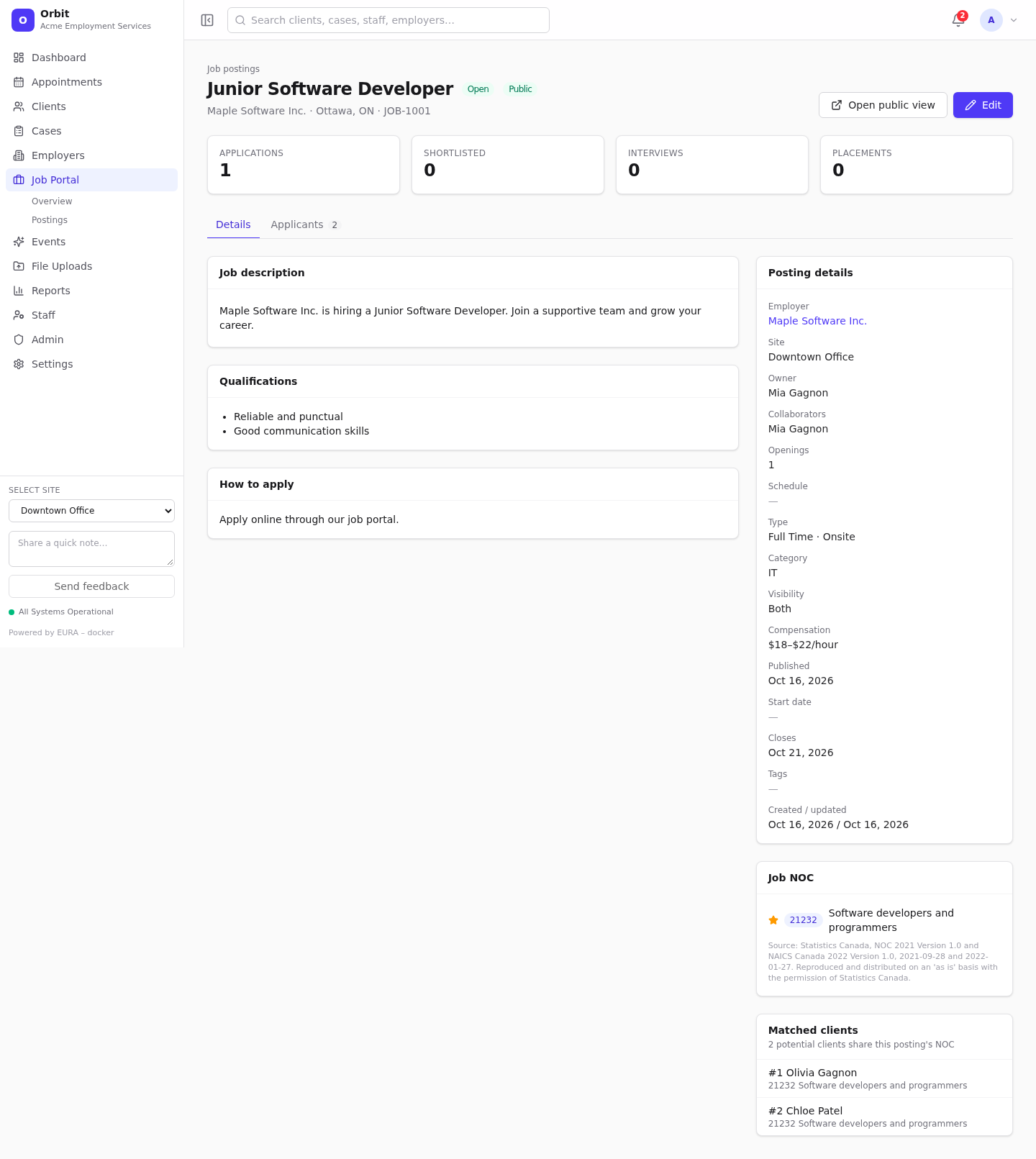
- Tiles: Applications, Shortlisted, Interviews, Placements.
- Details tab: description sections, internal notes, posting details, Job NOC, and Matched clients (clients whose career interests share this posting's NOC codes).
- Open public view: opens the portal page (published postings only).
- Applicants tab: see Job applications.