Scheduling settings and resources
Where: Settings → Scheduling and Settings → Resource management. Needs: settings.read / settings.write.
Scheduler defaults
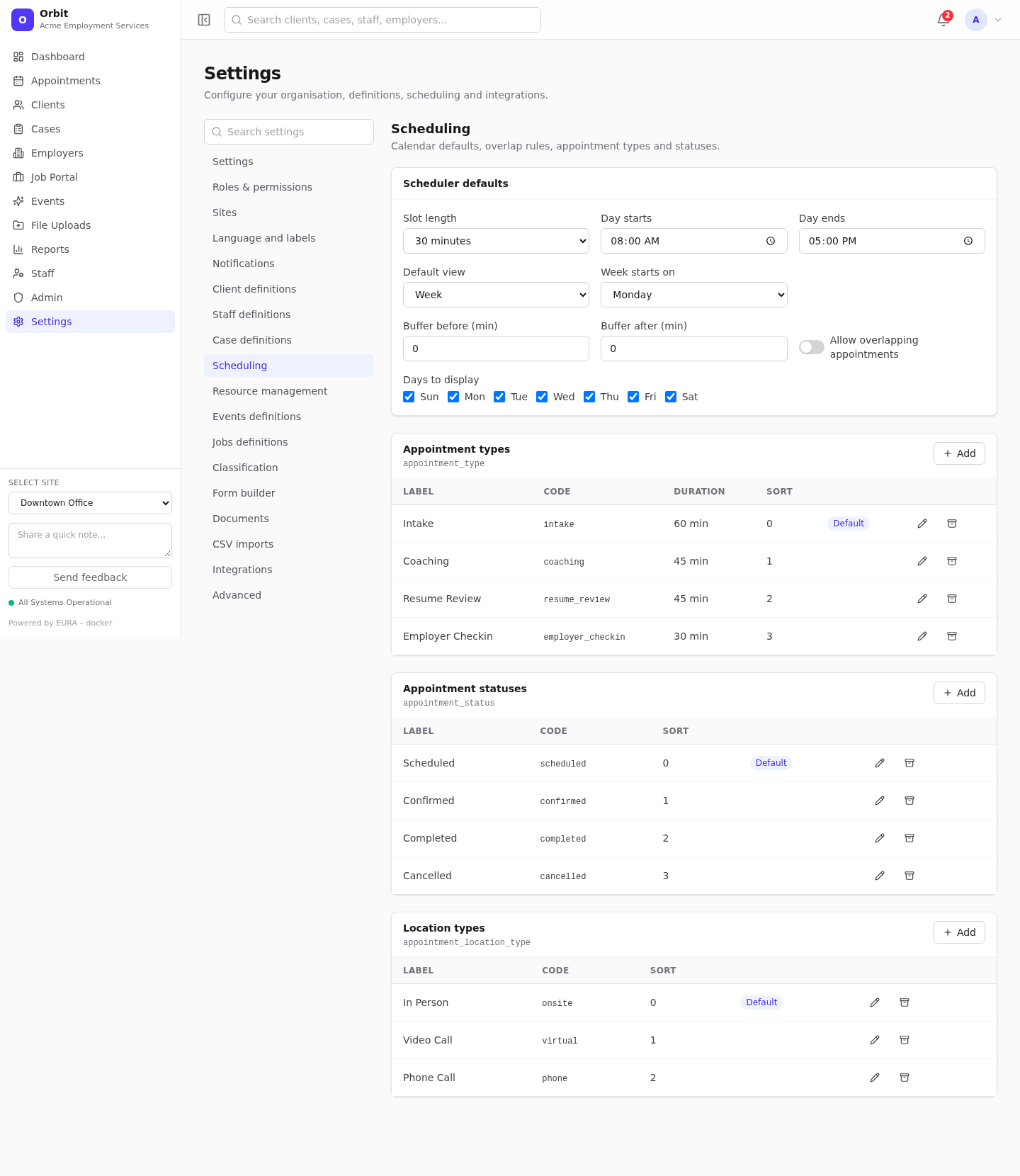
| Setting | Default | Effect |
|---|---|---|
| Slot length | 30 minutes | Grid size and drag-to-create step (15, 30 or 60) |
| Day starts / Day ends | 08:00 / 17:00 | Visible hours in Day and Week views |
| Default view | Week | First view for users without a saved view |
| Week starts on | Monday | Week and Month layout |
| Buffer before / after (min) | 0 / 0 | Extra time around appointments that counts in conflict checks |
| Allow overlapping appointments | Off | Off: overlapping bookings for the same staff or resource are refused. On: allowed, with a warning |
| Days to display | All | Hide weekends, for example |
Save with the save bar. Users can still save their own view in the scheduler (Save view).
Appointment types, statuses and location types
Edited on the same page with the definition editor.
- Appointment types (shown as Service in the appointment dialog) have a Default duration (minutes) that sets the end time automatically. Defaults: Intake 60, Coaching 45, Resume Review 45, Employer Check-in 30. The colour is used on the calendar.
- Appointment statuses: Scheduled, Confirmed, Completed, Cancelled. Cancelled appointments are struck through; Cancelled and Completed don't count as active workload.
- Location types: In Person, Video Call, Phone Call.
Resource management
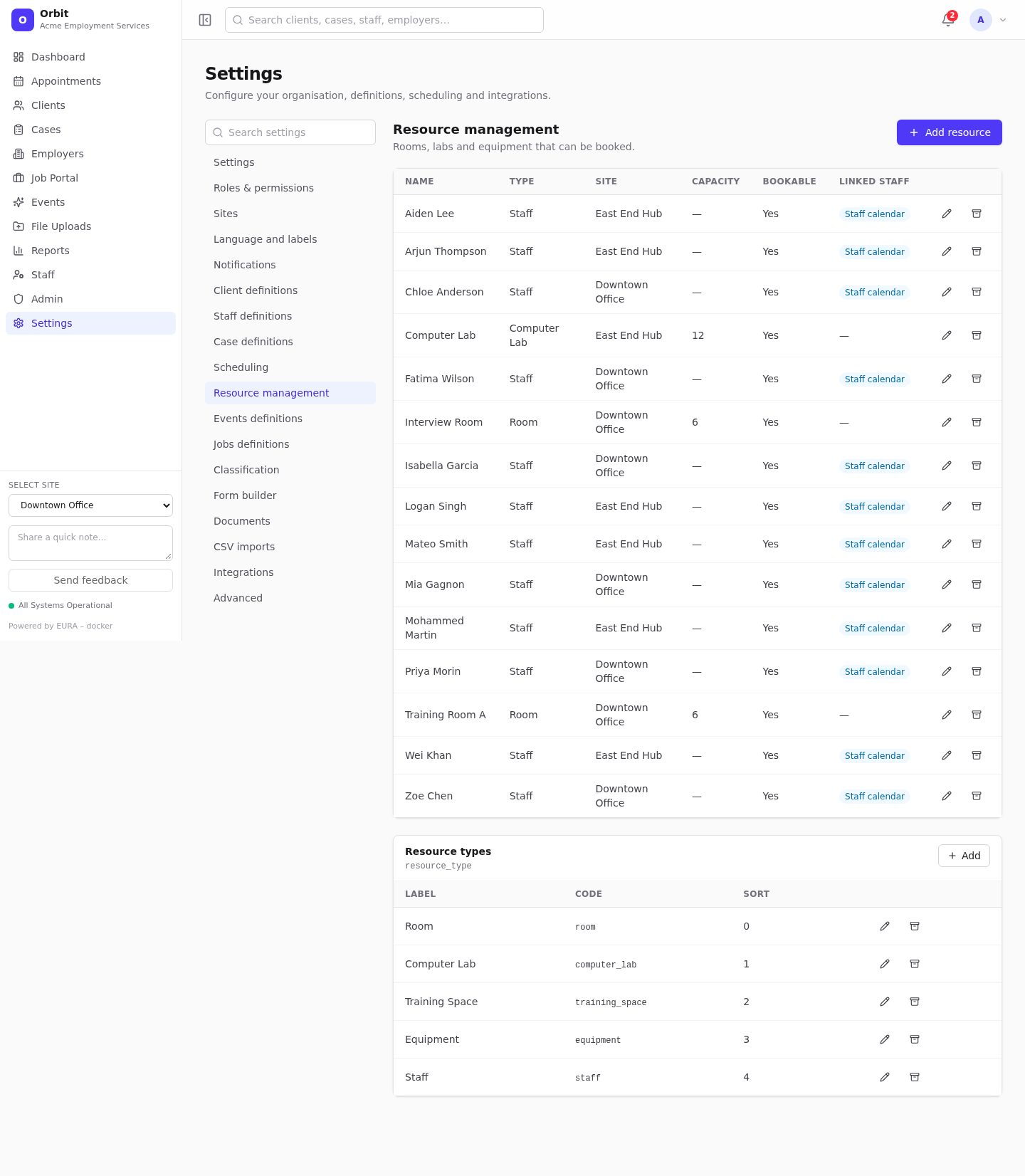
Resources are bookable things: rooms, computer labs, training spaces, equipment.
Add a resource
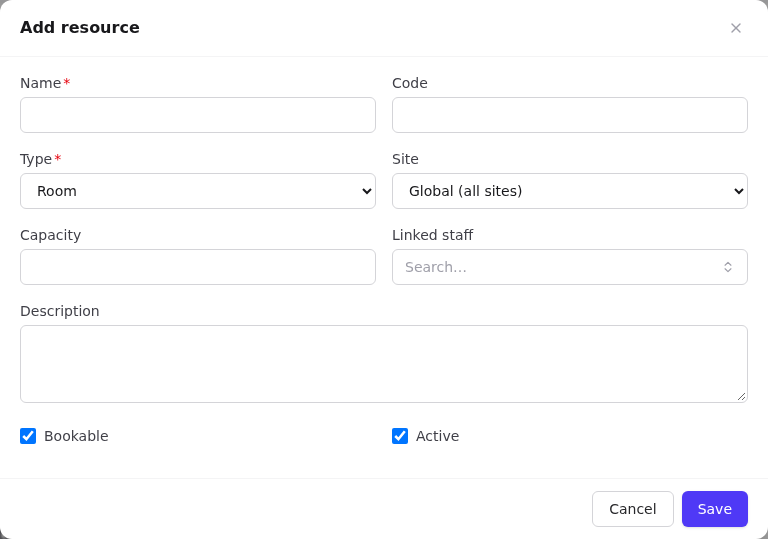
- Add resource.
- Name (required), Code, Type (required; from Resource types).
- Site: one site, or Global (all sites).
- Capacity, Description.
- Linked staff: only for resources that represent a staff member's calendar. Orbit creates these itself when you set staff availability; leave it empty for rooms.
- Bookable and Active.
- Save.
Bookable resources appear as checkboxes in the appointment and event dialogs, and as columns in the scheduler's Resources mode. Double-bookings are checked just like staff. The archive icon toggles Active.
Resource types (Room, Computer Lab, Training Space, Equipment, Staff) are edited below the table.