Workflow: month-end reporting
Set up the monthly reports once, then let Orbit deliver them automatically.
Needs: reports.create, reports.export, reports.email, reports.schedule (and reports.sensitive.read if reports include names). License: Reporting. Requires: SMTP for emailed delivery.
1. Agree what's needed
Typical monthly pack:
| Report | Start from | Settings |
|---|---|---|
| Caseload by status | Case Pipeline starter | Date range: All time |
| New cases this month | New report, Cases | Date range: Last month, field Opened; group by type |
| Appointments delivered | Service Summary starter | Date range: Last month |
| Cancellations and no-shows | Cancellation & No-show starter | Date range: Last month |
| Placements | Applications by Stage starter | Date range: Last month; read the Placed group |
| Event attendance | Event Attendance starter | Date range: Last month |
2. Build or duplicate each report
- Reports → Custom Reports.
- For a starter: open it and select Duplicate to customise. Rename the copy, for example Monthly – Case pipeline.
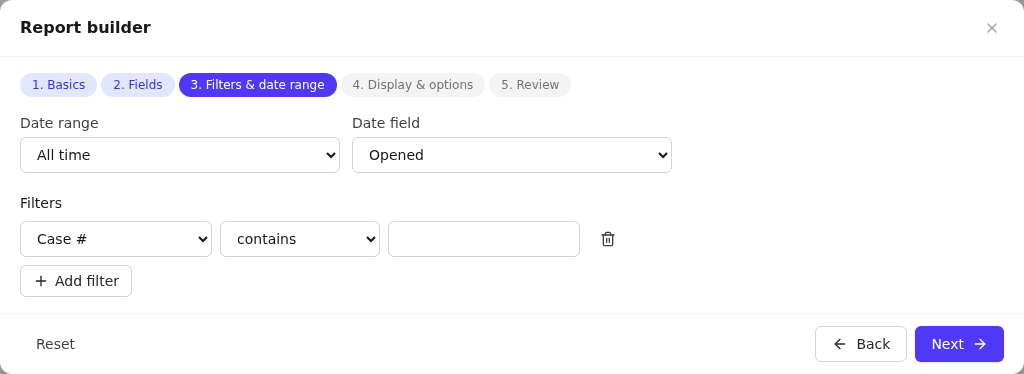
- Edit to adjust: step 3 sets the date range to Last month; step 4 sets grouping, summaries and Export format (PDF for managers, Excel for funders).
- Set Access to Tenant-wide or Site-wide so colleagues can see it.
- Save and run to check the numbers.
3. Schedule each one
Row menu → Schedule: Monthly, Day of month = 1, Run time 07:00, your timezone, site scope, recipients, Include visual PDF, Enabled → Save schedule.
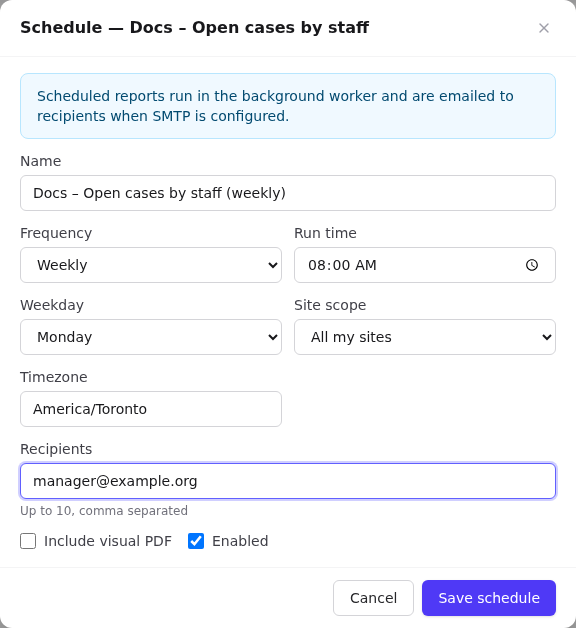
"Last month" is worked out at run time, so a report that runs on the 1st always covers the month that just ended.
4. Check delivery
- Schedules tab: Next run dates, and Delivery Active. If it says SMTP not configured, ask your platform operator to configure email.
- After the first run, Execution & delivery history shows each run with status and a file to download.
5. Ad-hoc requests
For one-off requests, run the report, then CSV / XLSX / PDF or the mail icon to send it now to up to 10 people.