Staff
Staff profiles describe your team: job title, department, role, site, caseload limit, languages and availability. A staff profile is separate from a login account. Link the two so that work can be assigned to the person who signs in.
Where: sidebar → Staff (/staff). Needs: staff.read / staff.write.
Staff list
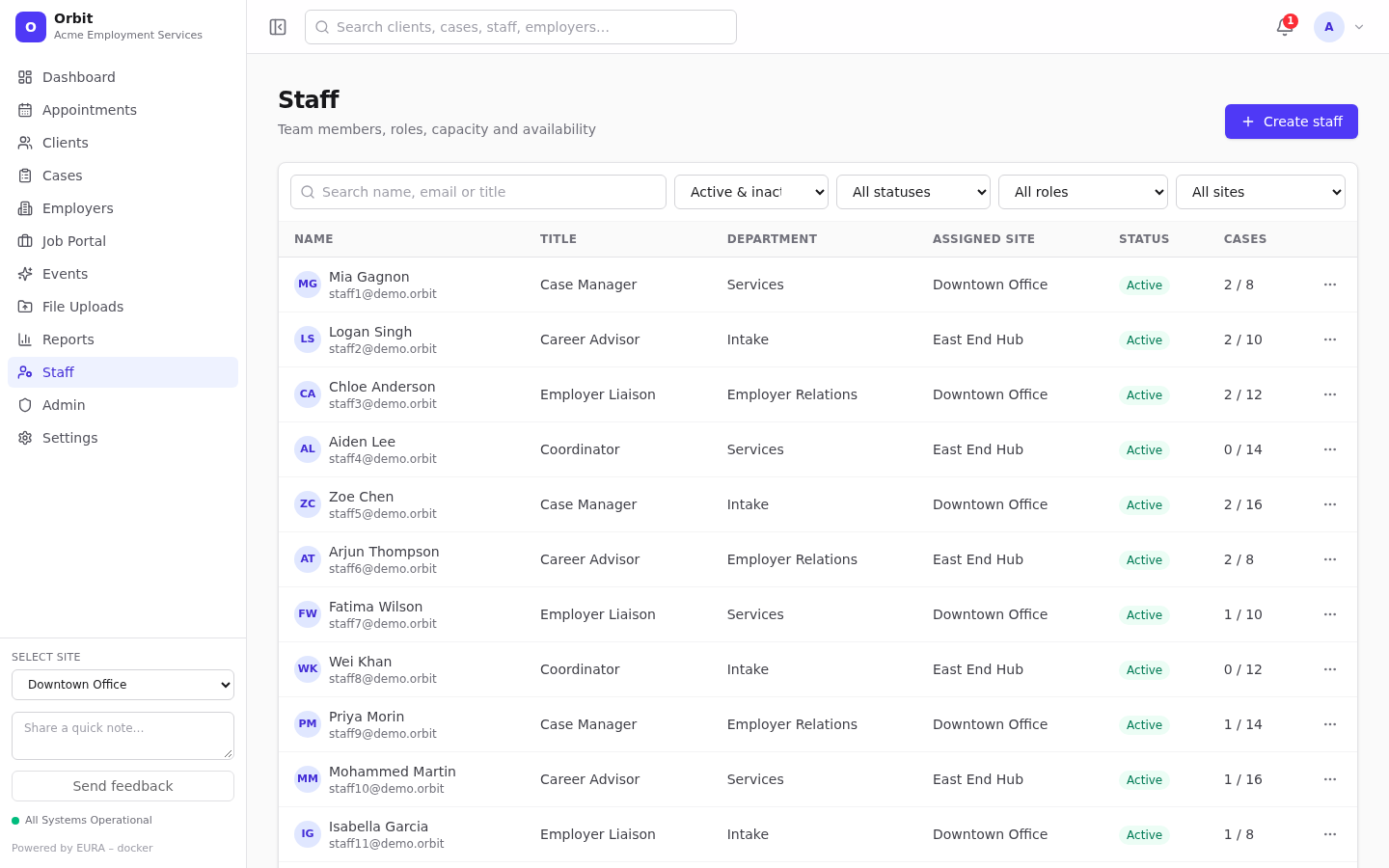
- Search by name, email or title. Filter by active/inactive, status (Active, On Leave, Training…), role and site.
- Cases shows open cases against the staff member's maximum; it's red at capacity.
Create a staff profile
- Select Create staff.
- Enter First name and Last name (required), email, title, department, role, status and site.
- Select Save. Orbit opens the new profile.
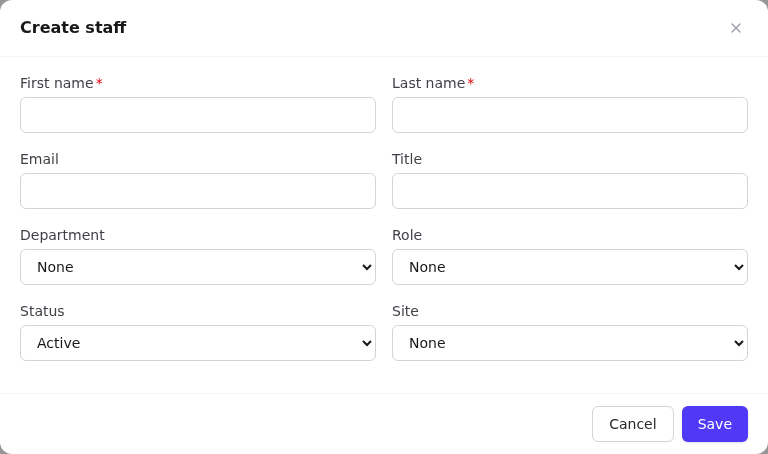
This creates a profile only, with no login. To let the person sign in, add a user in Admin → Users and link the profile. See Users and access.
Staff profile
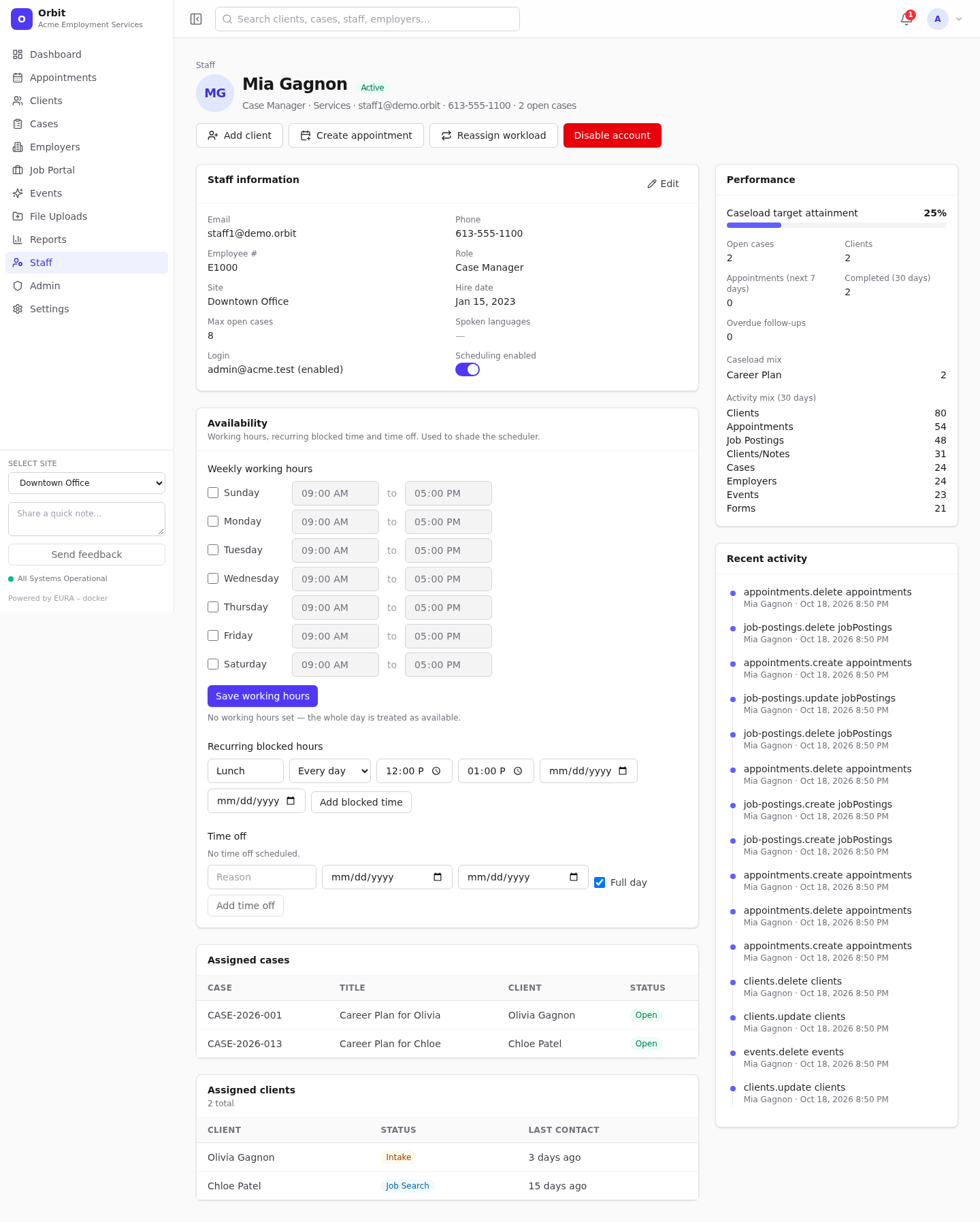
- Header actions: Add client, Create appointment, Reassign workload, Disable account / Enable account (when a login is linked; needs
tenant.users.write). - Staff information (Edit): contact details, employee #, title, department, role, site, status, hire date, Max open cases (drives capacity warnings), Spoken languages (comma separated) and Active.
- Login: the linked login's email and whether it's enabled.
- Scheduling enabled: must be on for the person to appear in the appointment staff picker.
- Availability: working hours, blocked time and time off. See Staff workload and availability.
- Assigned cases and Assigned clients.
- Performance: caseload target attainment (open cases ÷ max), open cases, clients, appointments in the next 7 days, completed in the last 30 days, overdue follow-ups, caseload mix and activity mix.
- Recent activity.
Offboarding a staff member
- Reassign workload to a colleague. See Staff workload.
- Disable account to stop them signing in. History is kept.
- Edit → untick Active, or set a status such as On Leave.