Follow-ups and tasks
Follow-ups are to-dos attached to a client and optionally a case, such as "Call Amara about workshop dates", with a due date, priority and assigned staff member.
Needs: permission to edit the client or case the follow-up belongs to.
Where follow-ups appear
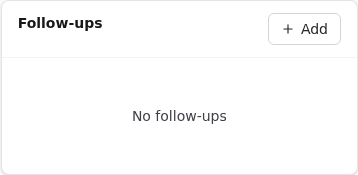
- Client record, right-hand Follow-ups card: all follow-ups for the client.
- Case record, Follow-ups card: follow-ups for that case.
- Dashboard, Upcoming follow-ups: pending follow-ups assigned to you, plus the Pending follow-ups count.
- Reports overview: Overdue follow-ups in the Operations centre.
Add a follow-up
- On a client or case, select Add on the Follow-ups card.
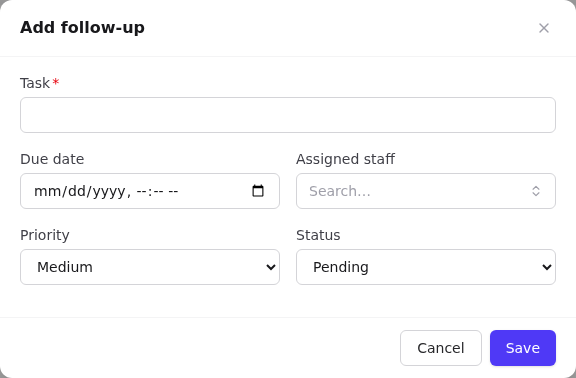
- Enter the Task (required).
- Set a Due date (date and time).
- Choose the Assigned staff member.
- Pick a Priority (Low, Medium, High) and Status (Pending, Completed). Both default sensibly.
- Select Save.
A follow-up added on a case is linked to both the case and its client.
Complete, reopen, edit, delete
- Complete: tick the checkbox. The task is struck through and stamped with when you completed it.
- Reopen: untick it.
- Edit: pencil icon. Delete: bin icon, then confirm.
Due dates show Today, a date, or Overdue in red.
Reminders
When enabled in notification settings, the assigned staff member gets an in-app notification when a follow-up is assigned, and a reminder before it is due (the default is set by your administrator).
Bulk-loading follow-ups
Use the Follow-ups CSV import. See Import recipes.