Clients
Clients are the people your organisation serves. A client record links a person (name and contact details) to their status, assigned staff, cases, appointments, notes, interactions, follow-ups and forms.
Where: sidebar → Clients (/clients). Needs: clients.read to view, clients.write to add or change.
Client list
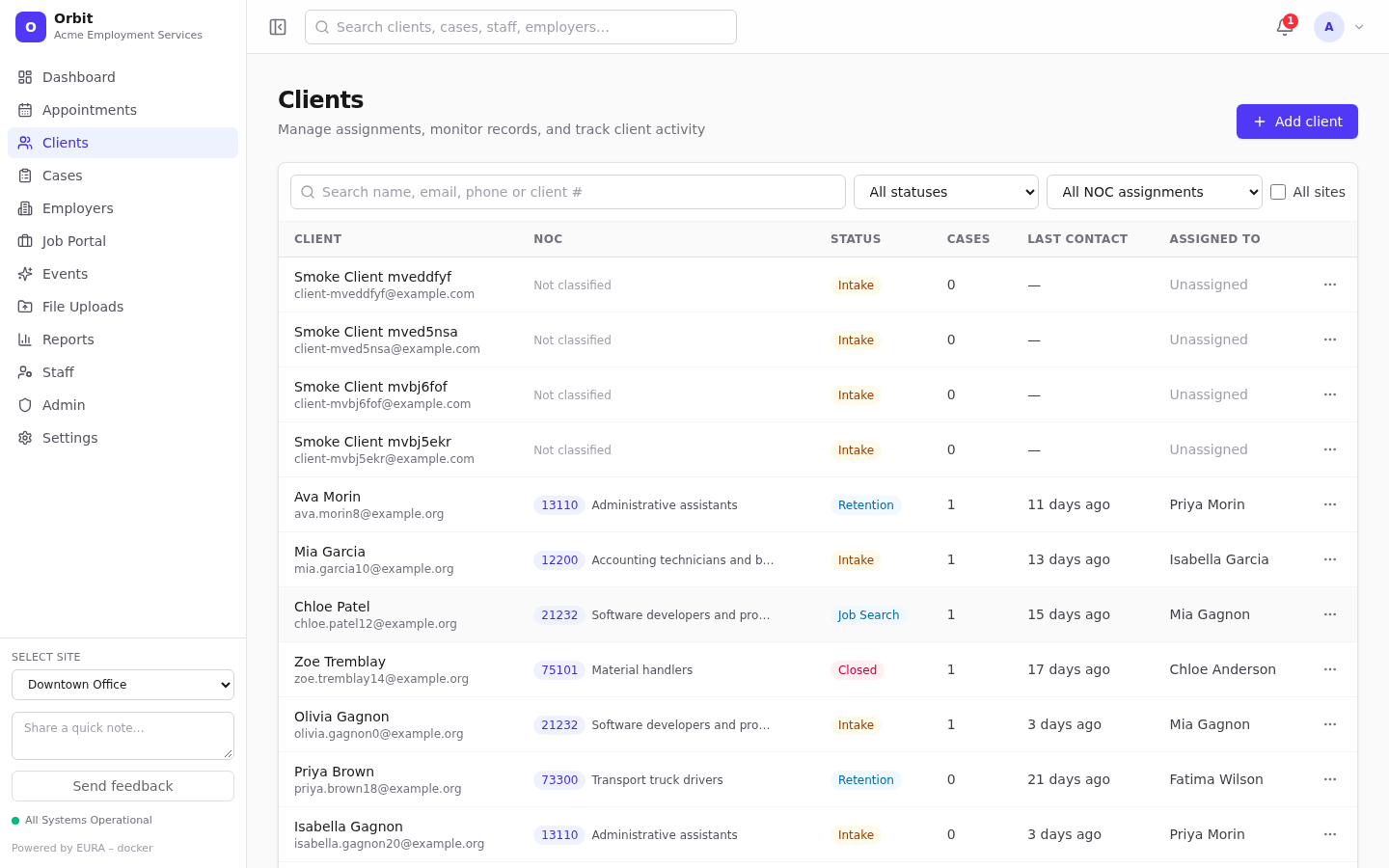
| Control | What it does |
|---|---|
| Search name, email, phone or client # | Matches any of those |
| All statuses | Filter by client status (Intake, Active, Job Search…) |
| All NOC assignments → Missing specific NOC code | Clients whose career interests lack a 5-digit NOC code. See Classification and matching |
| All sites | Off: only clients at your active site. On: every site you can access |
| Last contact column | Sortable |
Select a row to open the client.
Row menu
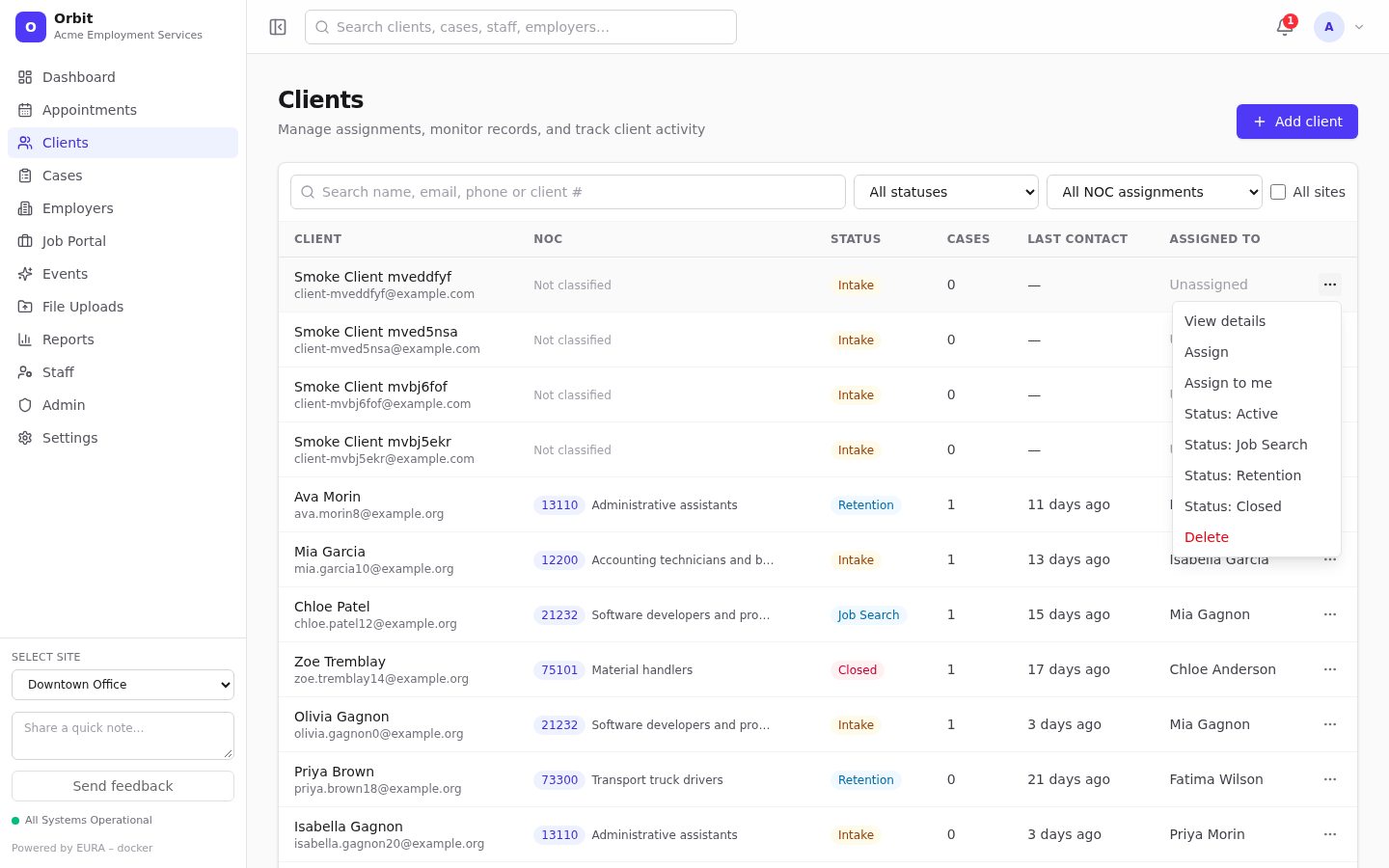
The ⋯ menu on each row offers:
- View details
- Assign / Reassign: pick a staff member.
- Assign to me: shown when you have a staff profile and aren't already assigned.
- Status: …: change the status in one click.
- Delete: removes the client from lists. This is a soft delete, so history is kept.
Add a client
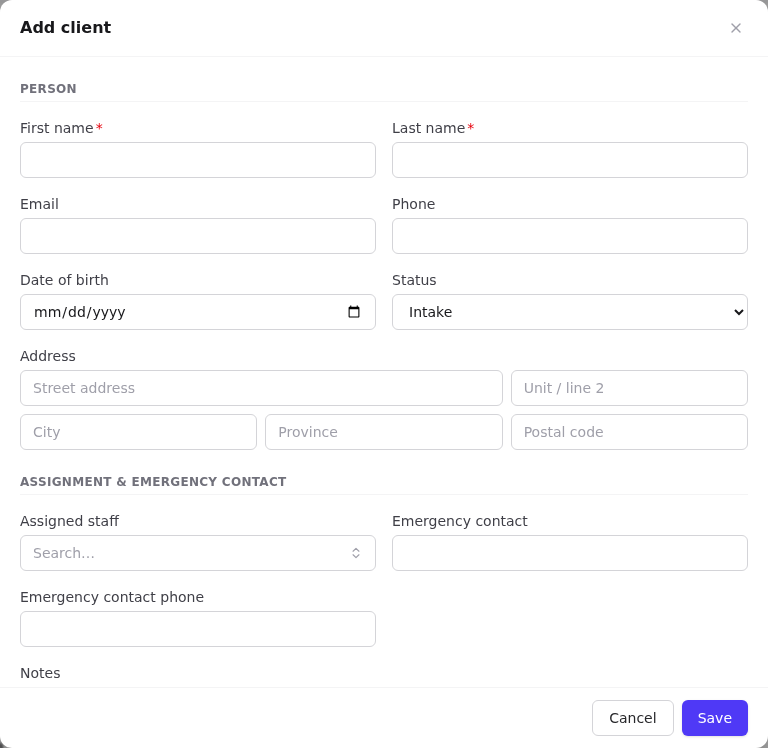
You can add a client from a dialog or a full page; both use the same fields.
- Select Add client (top right of the list). For the full page, go to
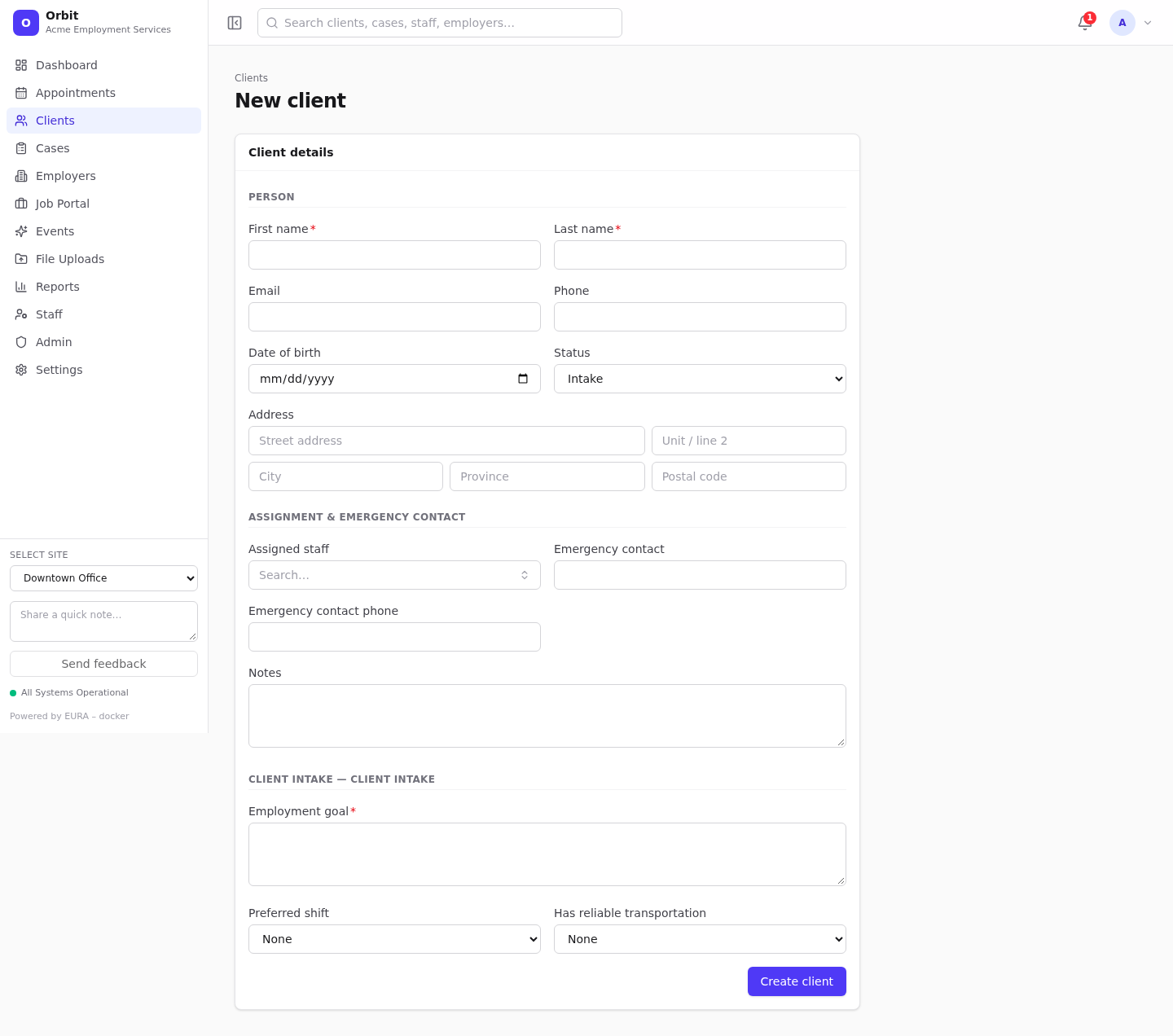
/clients/new. - Fill in Person: First name and Last name are required. Email, phone, date of birth, Status (defaults to your organisation's default status) and Address are optional. If address search is configured, start typing a street and pick a suggestion.
- Fill in Assignment & emergency contact: Assigned staff, emergency contact name and phone.
- Notes become the client's first note, titled Intake note.
- If your organisation has published a Client intake form, its questions appear at the bottom as Client intake — <form name>. See Forms and the form builder.
- Select Save (dialog) or Create client (page). Orbit opens the new client.
The full-page version at /clients/new:
Tip: When you create a case or an appointment, the client picker has a Quick create client button (person-plus icon) that opens this same dialog.
Tip: To add many clients at once, use a CSV import.
Client record
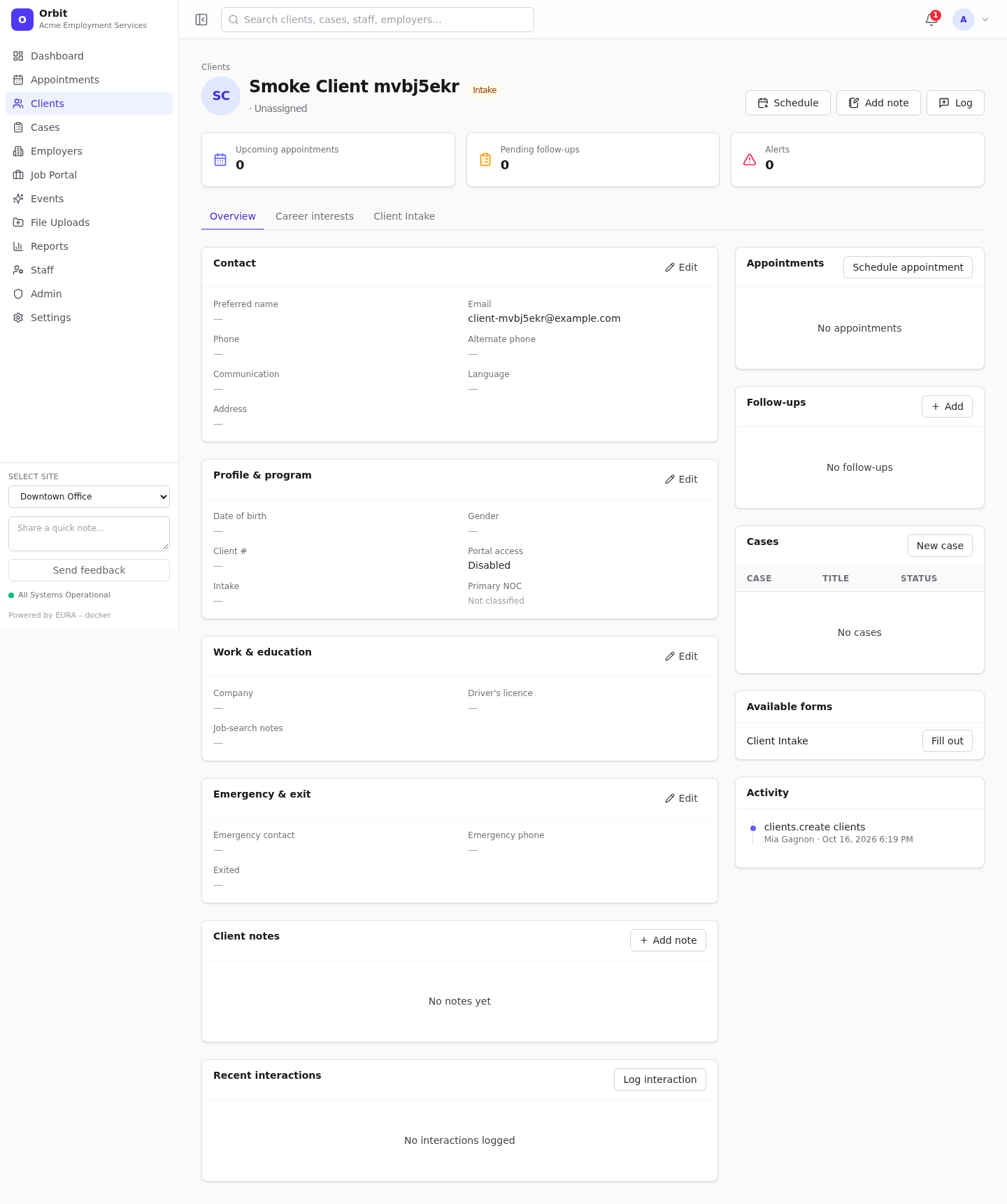
Header
- Name, status, client number and assigned staff.
- Schedule opens the scheduler with a new appointment for this client.
- Add note jumps to the notes card.
- Log records an interaction.
- Tiles: Upcoming appointments, Pending follow-ups, and Alerts (notes marked important).
Tabs
- Overview: everything below.
- Career interests: NOC occupations and matching jobs. See Classification and matching.
- One tab per published client form (for example Client Intake). See Filling in a form on a record.
Editing details
The overview has four editable cards. Select Edit on a card, change the fields, then Save.
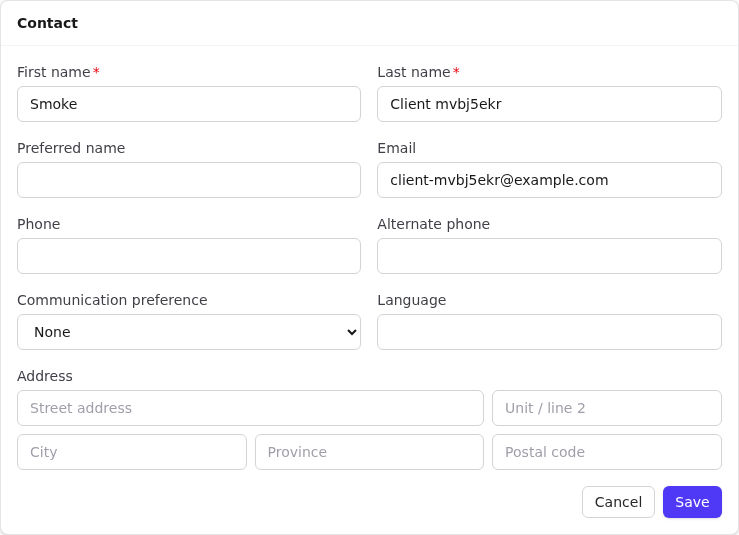
| Card | Fields |
|---|---|
| Contact | First/last/preferred name, email, phone, alternate phone, communication preference, language, address |
| Profile & program | Date of birth (hidden until revealed), gender, client #, status, assigned staff, portal access, intake started/completed, stream type, status in Canada. Also shows the primary NOC |
| Work & education | Company, employment status, job-search status, education, Canadian education, valid driver's licence + note, job-search notes |
| Emergency & exit | Emergency contact and phone, exit reason, exit date |
The dropdown values (statuses, education levels and so on) come from definitions.
Notes
Client notes shows the latest 3 notes; View all opens the rest. Select a note to read it.
To add a note:
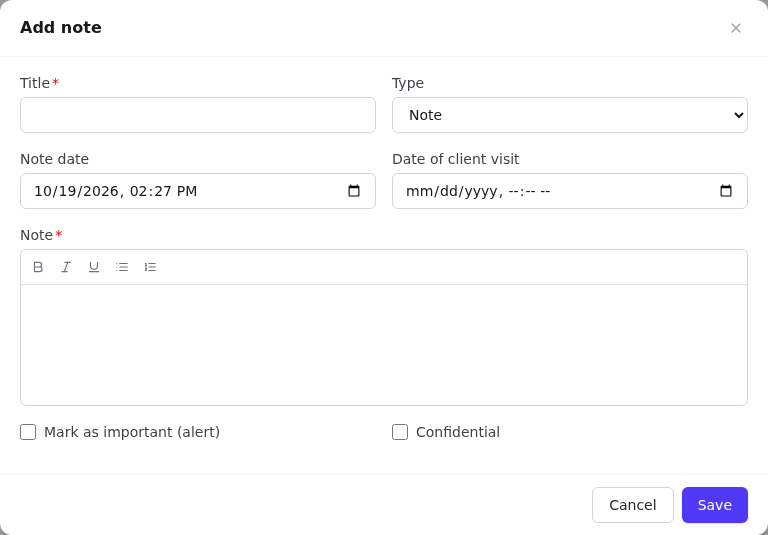
- Select Add note on the card.
- Enter a Title, choose a Type (Note, Update, Alert) and set Note date and Date of client visit if relevant.
- Assign to case links the note to one of the client's cases, so it shows on the case too. Leave it as Client note only otherwise.
- Write the Note. Rich text is supported.
- Tick Mark as important (alert) to count it in the client's Alerts tile; it saves with the Alert type. Tick Confidential to flag it.
- Select Save.
Interactions
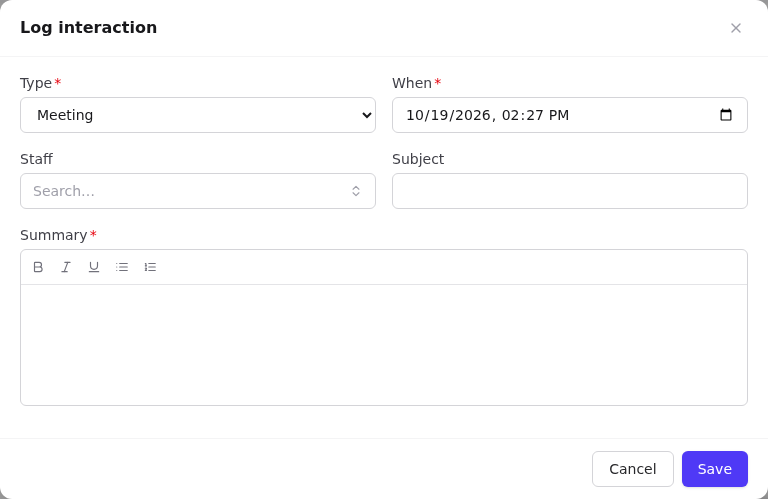
Interactions are contacts with the client: calls, emails, meetings, messages.
- Select Log (header) or Log interaction (Recent interactions card).
- Choose the Type, set When, optionally the Staff member and a Subject, and write a Summary.
- Select Save. The client's Last contact updates.
Right-hand cards
- Appointments: upcoming and recent. Schedule appointment opens the scheduler.
- Follow-ups: see Follow-ups and tasks.
- Cases: the client's cases. New case opens
/cases/newwith the client filled in. - Available forms: each published client form, with Fill out.
- Activity (
audit.view): a timeline of changes to this client.