Import troubleshooting
How to find, understand and fix import problems.
Finding the problem rows
- File Uploads → Recent imports → Details on the import.
- Set the filter to Failed.
- Row is the CSV line number (header = line 1). Message says what's wrong. Source shows the values Orbit read.
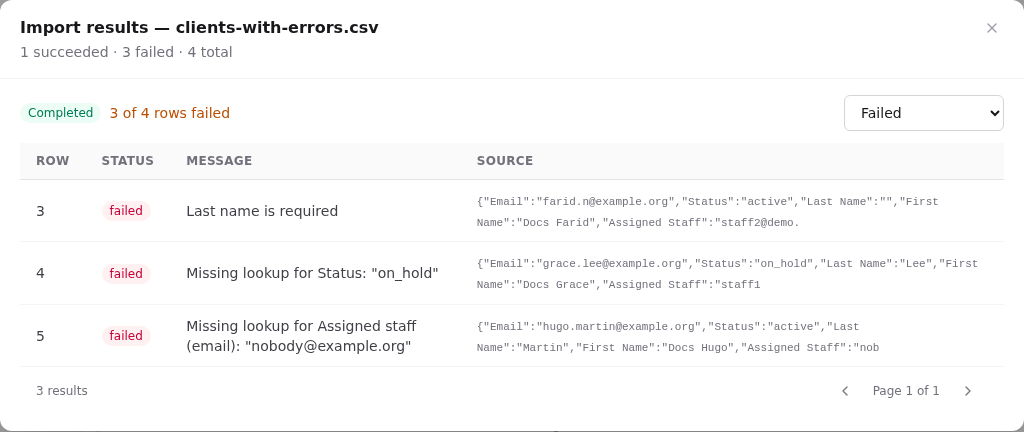
Messages and fixes
| Message | Cause | Fix |
|---|---|---|
| <Field> is required | The required column is mapped but empty in this row | Fill the value, or set a default in your spreadsheet |
| Missing lookup for <Field>: "<value>" | No matching record or active definition | Check spelling; check the code in Settings; check the record exists (import it first; see the import order); check it isn't archived |
| <Field> must be a number | Text in a number column | Remove units and words. $ , and spaces are stripped automatically, so $1,200 works but about 1200 doesn't |
| <Field> must be yes/no | A boolean column has another value | Use yes/no, y/n, true/false or 1/0 |
| <Field> must be a date / must be a date/time | The value can't be read as a date | Use YYYY-MM-DD or YYYY-MM-DDTHH:MM±HH:MM |
| Ignored unknown target field … (warning) | The template refers to a field that no longer exists | Update the template |
| Unique / duplicate-key errors | The value must be unique (for example a case number or posting code that's already used) | Use Replace / update matches, or change the value |
| Import source file not found | The stored CSV is missing | Upload again |
| Toast File type … is not allowed | Your organisation removed CSV from the allowed upload types | Add text/csv (and application/vnd.ms-excel, which Excel uses for CSV on Windows) in Settings → Documents |
| Toast File exceeds the N MB limit | The file is bigger than the upload limit | Split the file, or raise the limit in Settings → Documents |
The Run button is disabled
- Required fields shows a red ○: map every required field.
- Duplicate targets: …: two columns point at the same Orbit field; set one to Ignore.
- You don't have
imports.write.
A column wasn't mapped
- Automatic suggestions compare headers with field names. Unusual headers (
Cell #) need manual mapping. - With a template, headers must match exactly. See Import templates.
Dates and times
- Dates (date of birth, hire date):
1991-04-12is safest. Other readable forms such asApril 12, 1991work, but avoid04/05/1991, which is ambiguous. - Date-times (appointment start, opened at, due date): include the UTC offset, for example
2026-11-10T10:00-05:00(Toronto in winter) or2026-07-10T10:00-04:00(summer). A value without an offset is read in the server's timezone, which is usually UTC. Your times would then be shifted by 4–5 hours. - Excel reformats dates when it opens a CSV. Format the column as text, or check the saved file in a plain-text editor.
Codes vs labels
Definition lookups match the code by default (job_search), but also the name when no code matches. Matching ignores case, spaces and punctuation, so Job Search works too. If two definitions in the same set have similar names, use codes, or choose Match definition name in the mapping row.
Archived definitions never match. Restore them, or map to a current value.
Accents and special characters look wrong
Save the file as CSV UTF-8. Plain "CSV" in older Excel uses a legacy encoding that garbles é, ñ and similar characters.
I imported duplicates
- Deleting an import does not delete its records. Remove duplicates from the record lists (row menu → Delete), or ask an administrator to clean up through the API.
- Next time use Replace / update matches for record types that support matching. See Duplicates.
Imported postings don't appear on the portal
Imports don't set Published at. Edit the posting and set it. See What imports don't do.
Very large files
The wizard processes the file while you wait; large files take a while. Rows are processed in batches of 100 and progress shows under Recent imports. For tens of thousands of rows, split the file into chunks of a few thousand, or use the queued API import (POST /v1/imports/upload) handled by the background worker.