Workflow: client intake to first appointment
The standard process for a new client: record them with an intake form, open a case, book the first appointment and set a follow-up.
Roles: an administrator sets things up once; front-line staff run steps 1–6 for each client.
One-time setup (administrator)
- Definitions: check client statuses (for example Intake → Active → Job Search → Retention → Closed), case types, programs and appointment types with durations. See Definitions and Scheduling settings.
- Intake form (optional): in Settings → Form builder, create a form with Used for: Client intake, add your intake questions and Publish it. Its questions then appear when anyone adds a client. See Forms and the form builder.
- Staff: make sure staff have Scheduling enabled, working hours and a Max open cases limit. See Staff workload.
- Notifications: turn on Appointment assigned, reminders and Follow-up assigned. See Notification settings.
For each new client
1. Check they aren't already in Orbit
Type their name or email into the global search. If they exist, open the existing record instead.
2. Add the client
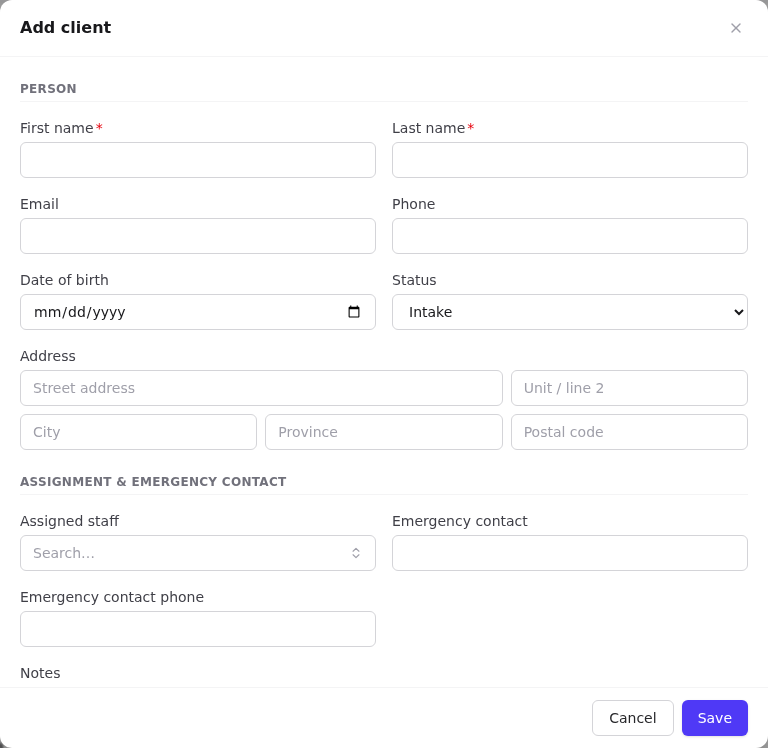
Clients → Add client. Enter their name, contact details and status (Intake), assign yourself or a colleague, and answer the Client intake questions at the bottom. Select Save.
3. Complete the profile
On the client record, use Edit on Profile & program and Work & education to capture education, employment status, status in Canada, stream type and so on. Set Intake started.
4. Record career interests
Career interests tab → add the NOC occupations they want to work in, star the primary one, and Save. Matching jobs shows postings that already fit. See Classification and matching.
5. Open a case
On the Cases card select New case. Leave Case number blank to auto-number, choose the Type (for example Career Plan) and Program, write a title and description, assign staff, and select Create case.
6. Book the first appointment
From the client header select Schedule (or from the case's client). Choose the Service (for example Intake, 60 min), staff, time, location and link the Case. Check for conflict warnings, then Create appointment. The staff member is notified.
7. Set a follow-up
On the case, Follow-ups → Add, for example Send workshop list due in two days, assigned to yourself. It appears on your dashboard and you'll get a reminder.
8. Log the contact
Log an interaction (Meeting) with a short summary, and add a note if needed. The client's Last contact updates.
9. Move the status on
After intake, change the client's status to Active (row menu → Status: Active, or Edit on Profile & program), and set Intake completed.
Closing out
When the goal is reached: set the case status to Closed and pick a Closure reason; set the client's Exit reason and Exited date on Emergency & exit; set the client status to Closed or Retention.
Related
- Clients · Cases · Appointments · Follow-ups