Workflow: onboarding existing data (multi-step import)
Move an organisation's existing caseload from spreadsheets or another system into Orbit: staff, clients, cases, follow-ups, appointments, employers, postings and applications, with reusable templates and in the right order.
Needs: imports.write and settings.write. Allow half a day for a small organisation; most of the time goes into preparing the files.
Plan
- List what you're bringing over and the source of each file.
- Decide the cut-over date. Import historic data once; for anything still changing (open cases, upcoming appointments) do a final import at cut-over.
- Pick a test run. Do the whole sequence once on a test or demo organisation if you have one (ask your platform operator to provision one with Demo data: None).
Step 0: Configure before importing
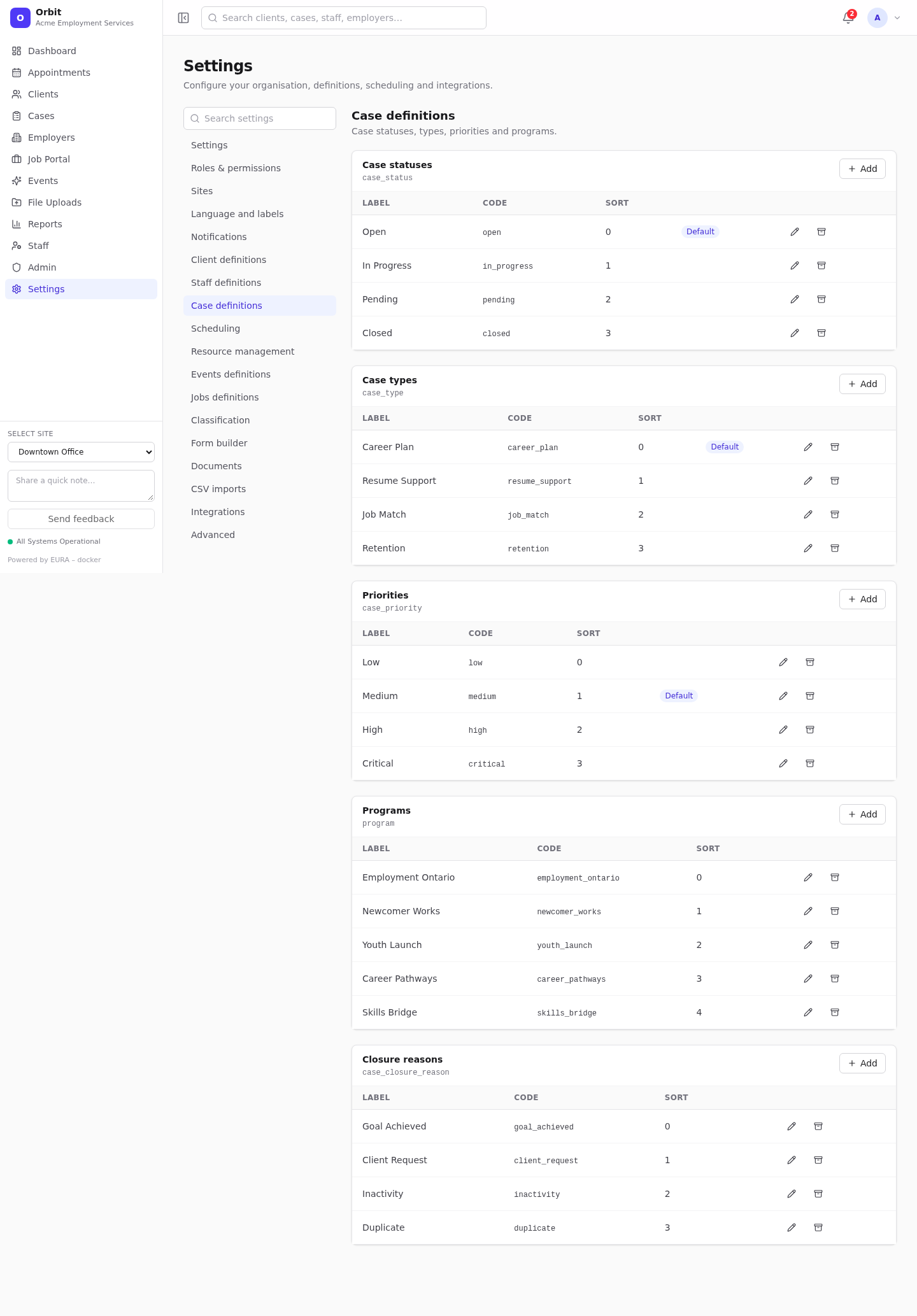
Imports only link to existing settings; they never create them.
| Configure | Where | Why |
|---|---|---|
| Sites | Settings → Sites | Rows refer to sites by name or code |
| Client statuses, case types/statuses/priorities/programs, appointment types/statuses, event types/statuses, employer statuses, job posting statuses, employment and workplace types, application stages and statuses, staff roles/statuses/departments | Settings → … definitions | Lookups match these codes |
| Users who will run imports | Admin → Users | imports.write |
Make a mapping sheet that lists, for each value in the old system, its Orbit code. For example Open - Active → open, On hold → pending.
Step 1: Prepare the files
One CSV per record type. Use the import recipes for required columns, and start from the sample files:
| # | File | Sample |
|---|---|---|
| 1 | People (staff persons) | people.csv |
| 2 | Staff | staff.csv |
| 3 | Clients | clients.csv |
| 4 | Cases | cases.csv |
| 5 | Follow-ups | follow-ups.csv |
| 6 | Appointments | appointments.csv |
| 7 | Events | events.csv |
| 8 | Employers | employers.csv |
| 9 | Employer contacts | employer-contacts.csv |
| 10 | Job postings | job-postings.csv |
| 11 | Applicants | applicants.csv |
| 12 | Job applications | job-applications.csv |
Rules that save the most rework:
- Emails are keys. Every person (staff, client, applicant) needs a unique email, because later files find people by it.
- Give every case a case number and every posting a posting code. Later files refer to them.
- Date-times need an offset (
2026-11-10T10:00-05:00). - Codes, not labels, for dropdown values (labels usually work too).
- Save as CSV UTF-8.
Step 2: Import in order, saving a template each time
For each file, in the order above:
- File Uploads → CSV import wizard.
- Choose the Primary record type. Set Duplicates to Replace / update matches (safe to re-run).
- Upload the file and check the mapping and Definition checks. Fix the file or add missing definitions until every check says All values match.
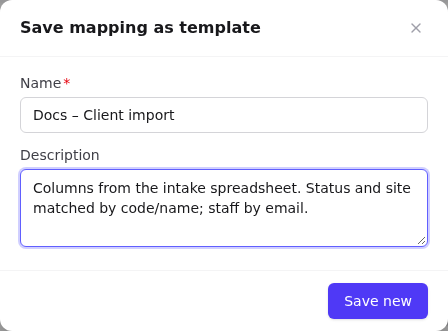
- Save as template, named for example
Migration 01 – people,Migration 02 – staff… - Run import and read the results.
- Fix any failed rows (see troubleshooting) and re-run the corrected file. Records that already imported are updated, not duplicated, for types that support matching.
- Spot-check a few records in the app before moving to the next file.
Careful with re-runs: Follow-ups, appointments, events and employer contacts have no duplicate matching. For those, re-run only the failed rows.
Step 3: Finish what imports don't do
From What imports don't do:
- Users: create logins for staff and link them to the imported staff profiles (Users and access).
- Availability: set working hours for bookable staff.
- Job postings: edit to set Published at, NOC codes and tags.
- Employers: add NAICS codes (filter Missing NAICS assignment).
- Events: turn on public registration where needed.
- Client career interests: add NOC codes (filter Missing specific NOC code).
Step 4: Verify
- Compare counts: Reports → Overview (active clients, open cases) and the list totals, against the source system.
- Run Case Pipeline, Employer Status and Applications by Stage starters and compare.
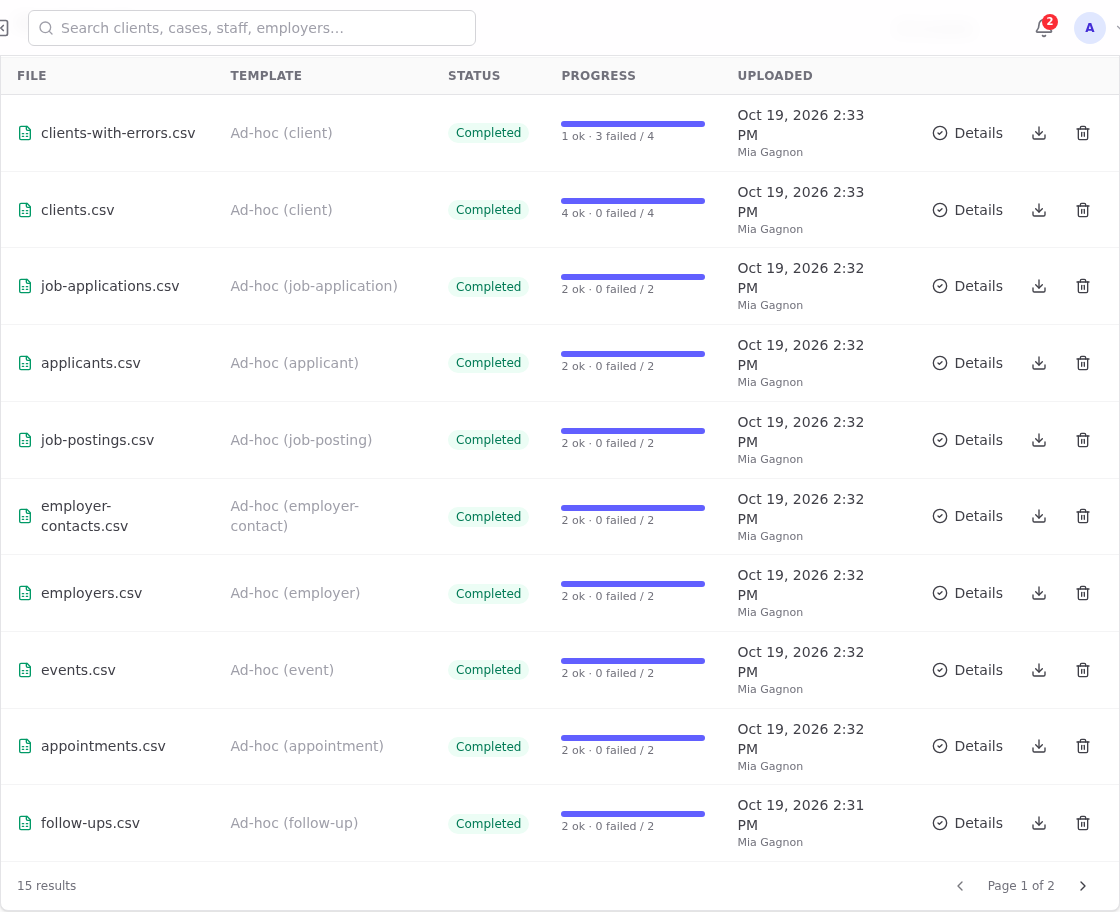
- Open File Uploads → Recent imports, check every job is Completed with the expected failed count (ideally 0), and download the source of any that look wrong.
Step 5: Cut-over delta
At go-live, export only records changed since the first import. Run each through its saved template with Run from template; Replace / update matches updates what's already there.