Workflow: job placement
From a new employer partnership to a placed client.
Needs: employers.write, jobs.write, public-submissions.write. Licenses: Employer Management, Job Postings.
1. Add the employer
Employers → Add employer. Enter the company name, status (Prospect or Active), NAICS code (use Suggest), primary contact and owner. See Employers.
2. Record the relationship
On the employer: Add contact for each hiring manager; Log every call or meeting with an outcome and next step.
3. Post the job
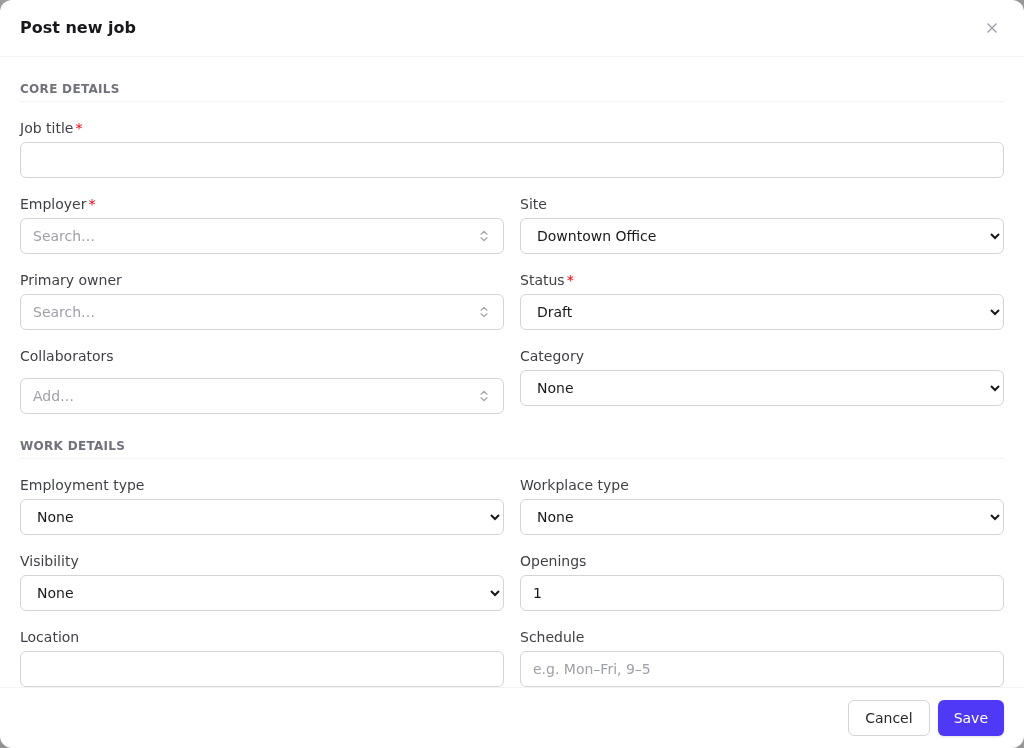
From the employer select Post job:
- Title, status Open, owner and collaborators.
- Employment type, workplace type, Visibility (Both to appear on the portal's partner and internal tabs), openings, location, Closes at.
- NOC: select Suggest and pick the specific 5-digit code. This is what matches clients.
- Compensation, description, qualifications, how to apply.
- Tags:
urgent,featured, orconfidential(hides the employer name on the portal). - Tick Show on public portal to publish.
If saving is blocked by a classification rule, add the missing NOC or the employer's NAICS.
4. Find candidates you already know
On the posting's Details tab, Matched clients lists clients whose career interests share the NOC code. Open each one. For a good fit, add them via Applicants → Add applicant → Existing client.
5. Receive portal applications
Share the public link (Open public view) or embed the board on your site. Applicants apply and confirm their email. Then:
- Applicants tab → Needs review.
- Open each submission, read the answers and download the resume.
- Convert (keep Also create a client record ticked to start supporting them as a client), or Reject with a reason.
See Public submissions.
6. Move applications through stages
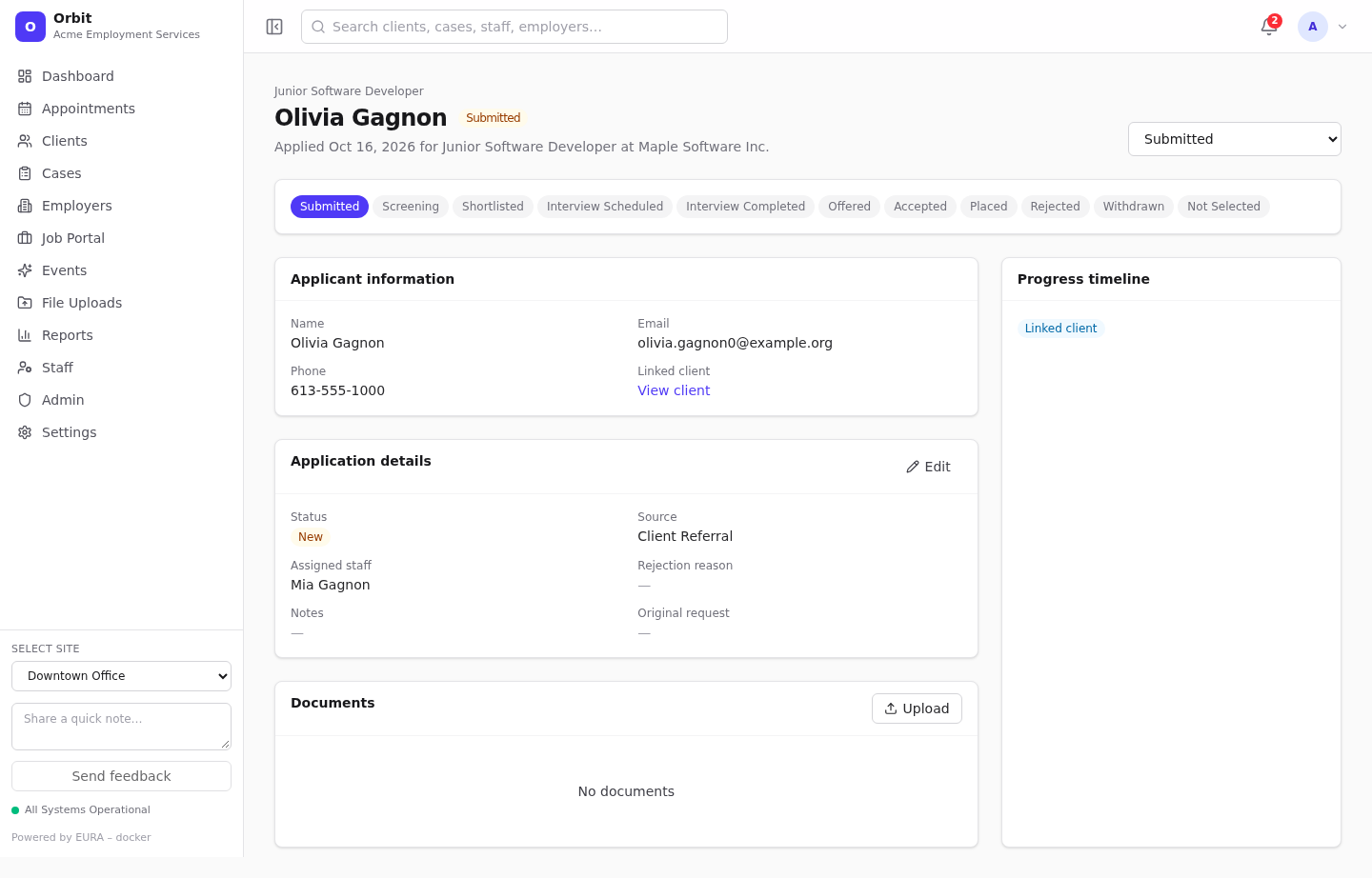
Open each application and use the stage dropdown: Screening → Shortlisted → Interview scheduled → Interview completed → Offered → Accepted → Placed. Record interview details and employer feedback in Application details → notes. Use Rejected, Withdrawn or Not selected with a reason when it ends.
Tip: Book the interview as an appointment (Service Employer Checkin or your own type) linked to the client, so it appears on the calendar.
7. Placement
Set the stage to Placed (and status Hired). The placement then counts in:
- the employer's Placements tile and Employed clients card;
- the Job Portal's Placements this month;
- the Applications by Stage report.
Update the client's Work & education (company, employment status) and status (for example Retention), and add a retention follow-up for 30 days later.
8. Close the posting
When all openings are filled, set the status to Filled, and untick Show on public portal to remove it from the board.