Custom reports
Build your own reports from Orbit's datasets, or start from a ready-made starter. Then preview, print and export them.
Where: sidebar → Reports → Custom Reports (/reports/custom). License: Reporting.
| To | Needs |
|---|---|
| View and run reports | reports.read |
| Create reports | reports.create or reports.write |
| Edit own / all reports | reports.edit.own / reports.edit.all (or reports.write) |
| Delete | reports.delete |
| Export CSV/XLSX/PDF | reports.export |
| Email / schedule | reports.email / reports.schedule (see Report delivery) |
| See sensitive fields (names, emails, phones, notes) | reports.sensitive.read |
| See financial fields (salary) | reports.financial.read |
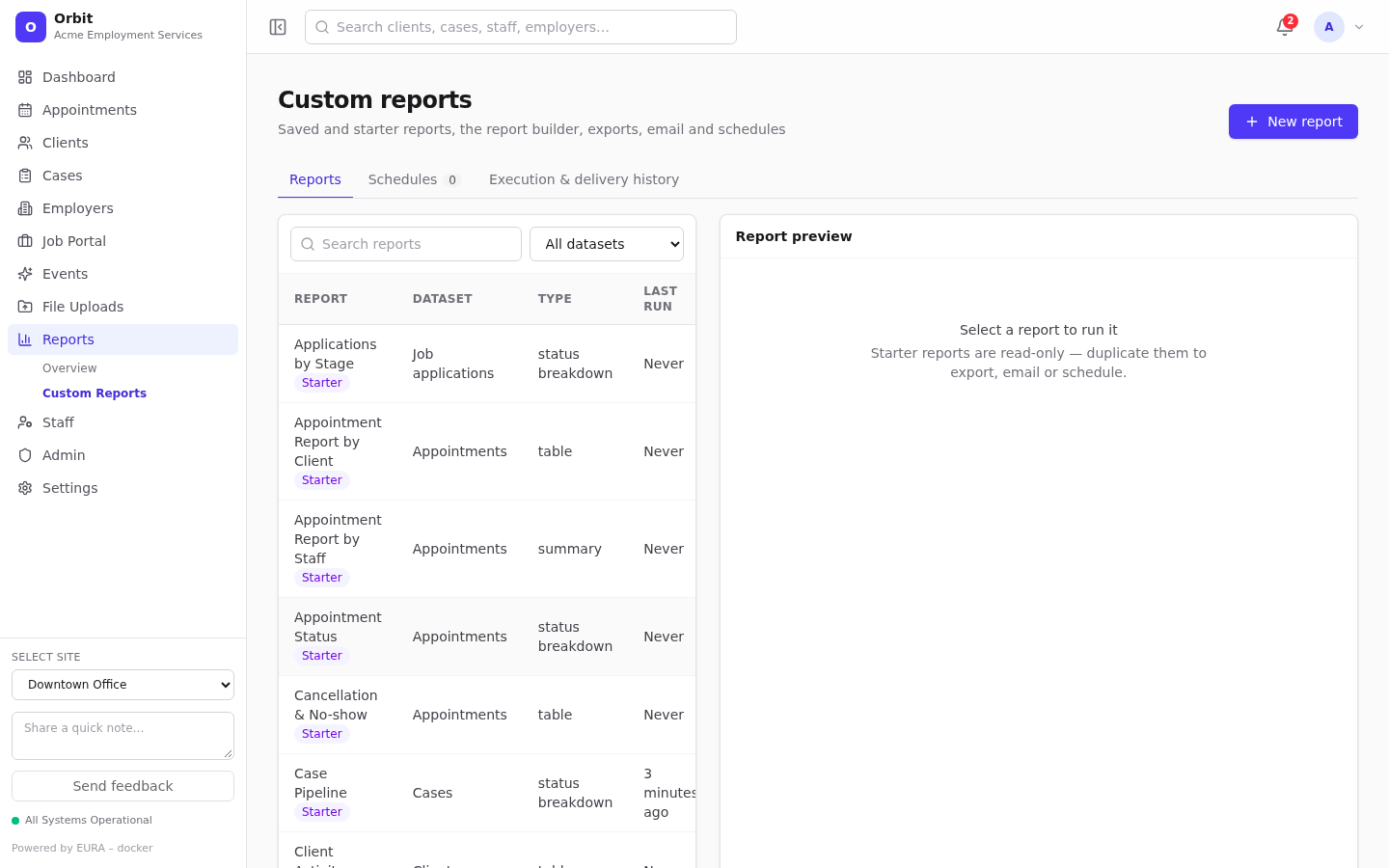
The page has three tabs: Reports, Schedules and Execution & delivery history.
The report list
- Search, and filter by dataset.
- Badges: Starter (built in, read-only) or the access level (private, site, tenant).
- Columns: Report, Dataset, Type (table, summary, status breakdown), Last run.
- Select a report to run it in the preview panel.
- Row menu: Run, Edit, Duplicate, Email, Schedule, Delete.
Starter reports
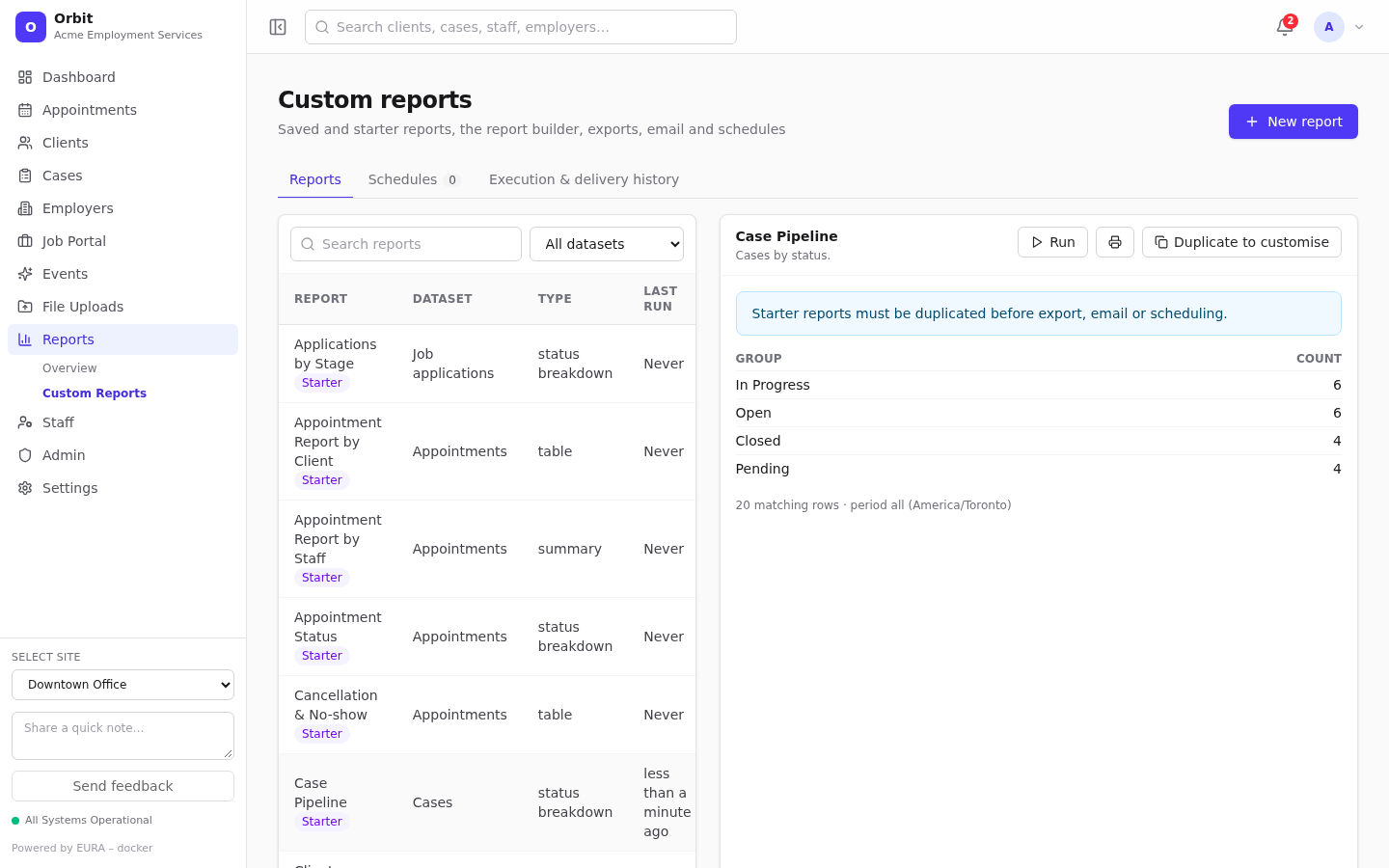
Orbit includes read-only starters. Duplicate one (or select Duplicate to customise in the preview) to export, email, schedule or change it.
| Starter | Dataset | Shows |
|---|---|---|
| Service Summary | Appointments | Appointments by service, total duration |
| Appointment Report by Staff | Appointments | Appointments per staff member |
| Appointment Report by Client | Appointments | Appointments per client |
| Cancellation & No-show | Appointments | Cancelled appointments in the period |
| Staff Utilization | Appointments | Booked minutes per staff member |
| Client Activity | Clients | Clients by last contact |
| Appointment Status | Appointments | By status |
| Location-based | Appointments | By location type |
| Case Pipeline | Cases | Cases by status |
| Employer Status | Employers | Employers by status |
| Job Posting Pipeline | Job postings | Postings by status |
| Clients by Primary NOC | Clients | Career interests by primary NOC |
| Job Postings by Primary NOC | Job postings | By primary NOC |
| Employers by Primary NAICS | Employers | By primary NAICS |
| Exact NOC Match Volumes | Classification matches | Client/job pairs per NOC |
| Applications by Stage | Job applications | By stage |
| Event Attendance | Events | Registered and checked-in totals |
Datasets
| Dataset | Rows are | Default date field |
|---|---|---|
| Appointments | Appointments | Start |
| Clients | Clients | Created |
| Staff | Staff members | Created |
| Cases | Cases | Opened |
| Employers | Employers | Created |
| Job postings | Postings | Created |
| Classification matches | Client ↔ posting pairs sharing an exact NOC | Published (posting) |
| Job applications | Applications | Applied |
| Events | Events | Start |
Change the date field in step 3 of the builder; any date field in the dataset can be used.
Fields you're not allowed to see appear greyed out in the builder.
Build a report
Select New report. The builder has five steps; select a step name to jump to it, or use Next and Back.
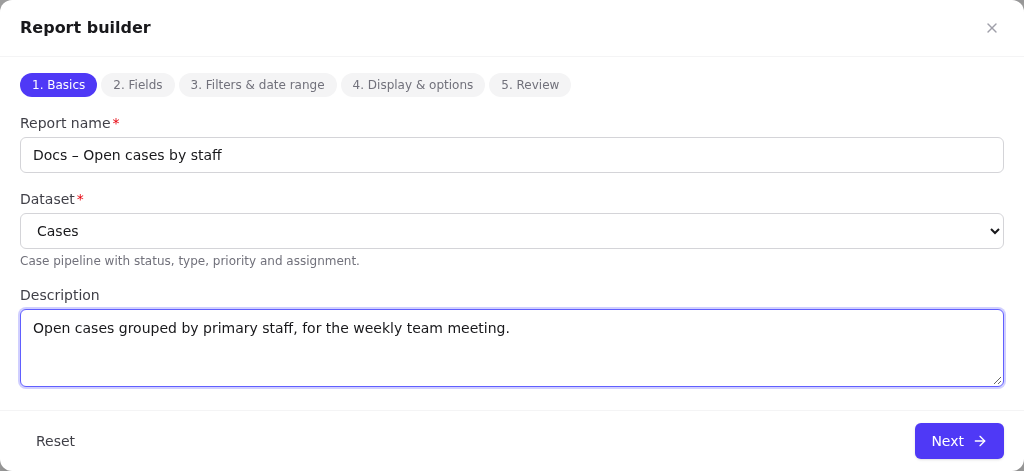
1. Basics
Report name (required), Dataset (fixed once saved) and Description.
2. Fields
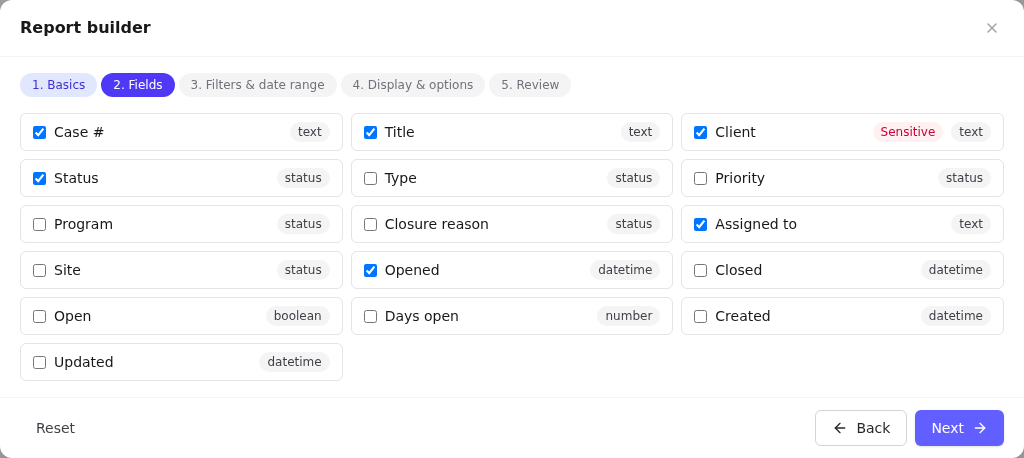
Tick the columns to include. Sensitive fields are flagged; each field shows its type.
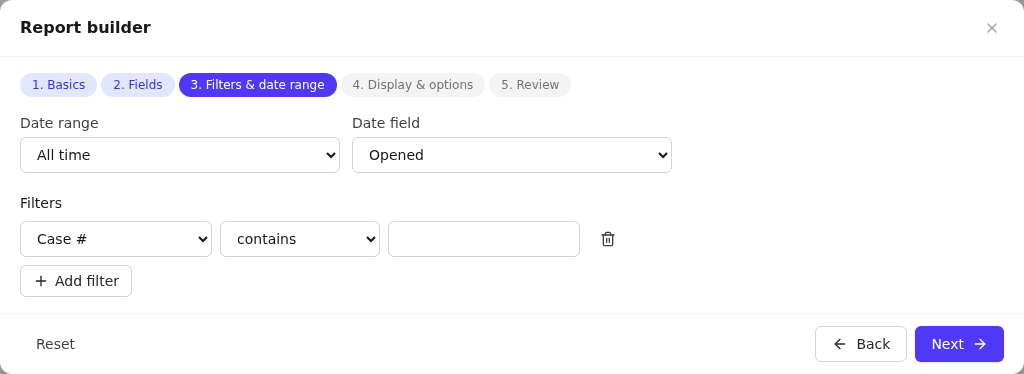
3. Filters & date range
- Date range: Today, Yesterday, This week, Last week, This month, Last month, Last 7 days, Last 30 days, Custom range (start and end), All time.
- Date field: which date the range applies to.
- Add filter: field + operator + value. The operators depend on the field type: contains, equals, does not equal, is empty, is not empty, greater than, less than, between, on, before, after, is yes, is no. All filters must match.
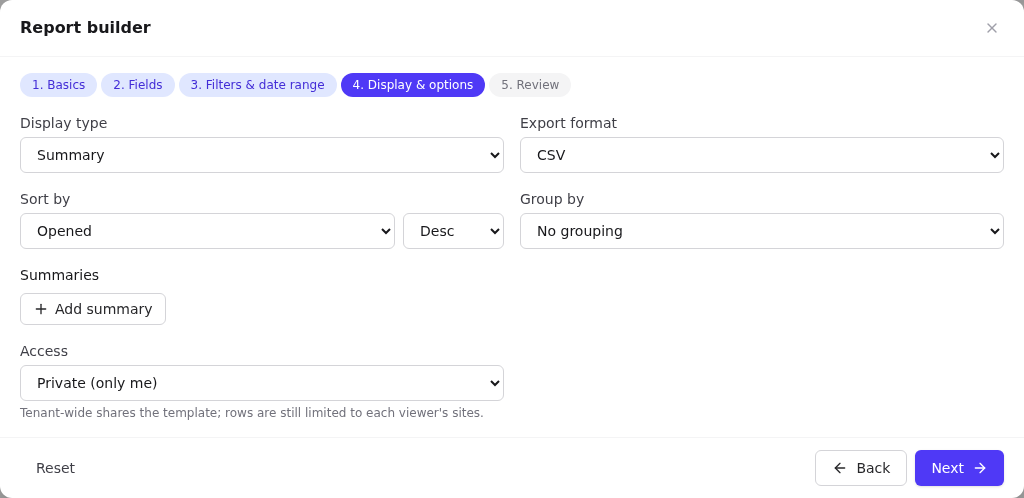
4. Display & options
-
Display type: Table (rows), Summary (totals and groups) or Status breakdown (counts per group).
-
Export format: the default for exports and schedules (CSV, Excel, PDF).
-
Sort by + Asc/Desc.
-
Group by: any groupable field. Group totals appear above the rows.
-
Summaries: add a count, distinct count, sum, average, min or max of a field (the choices depend on the field type), with an optional label.
-
Access:
- Private (only me).
- Site-wide: everyone with access to the Locked site. Once saved, a site-wide report stays locked to that site.
- Tenant-wide: the whole organisation. Needs
reports.writeorreports.edit.all.
Access controls who can see the report definition. Rows are always limited to each viewer's own sites.
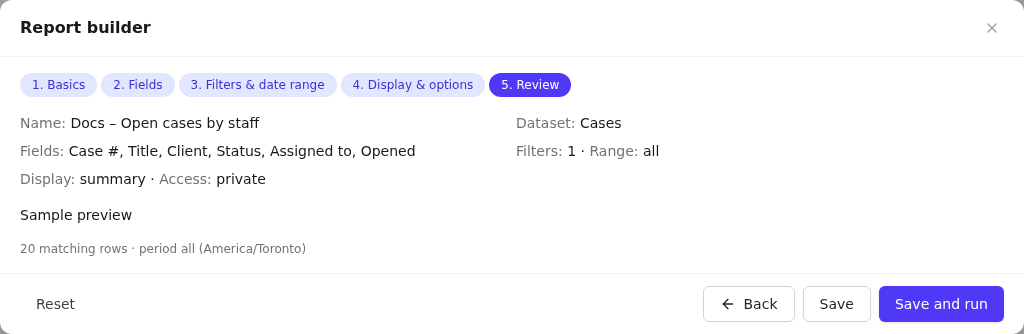
5. Review
A summary of your choices and a Sample preview of the first 20 rows. Select Save, or Save and run.
Reset restores the dataset defaults. Closing with unsaved changes asks Discard report changes?
Preview, print and export
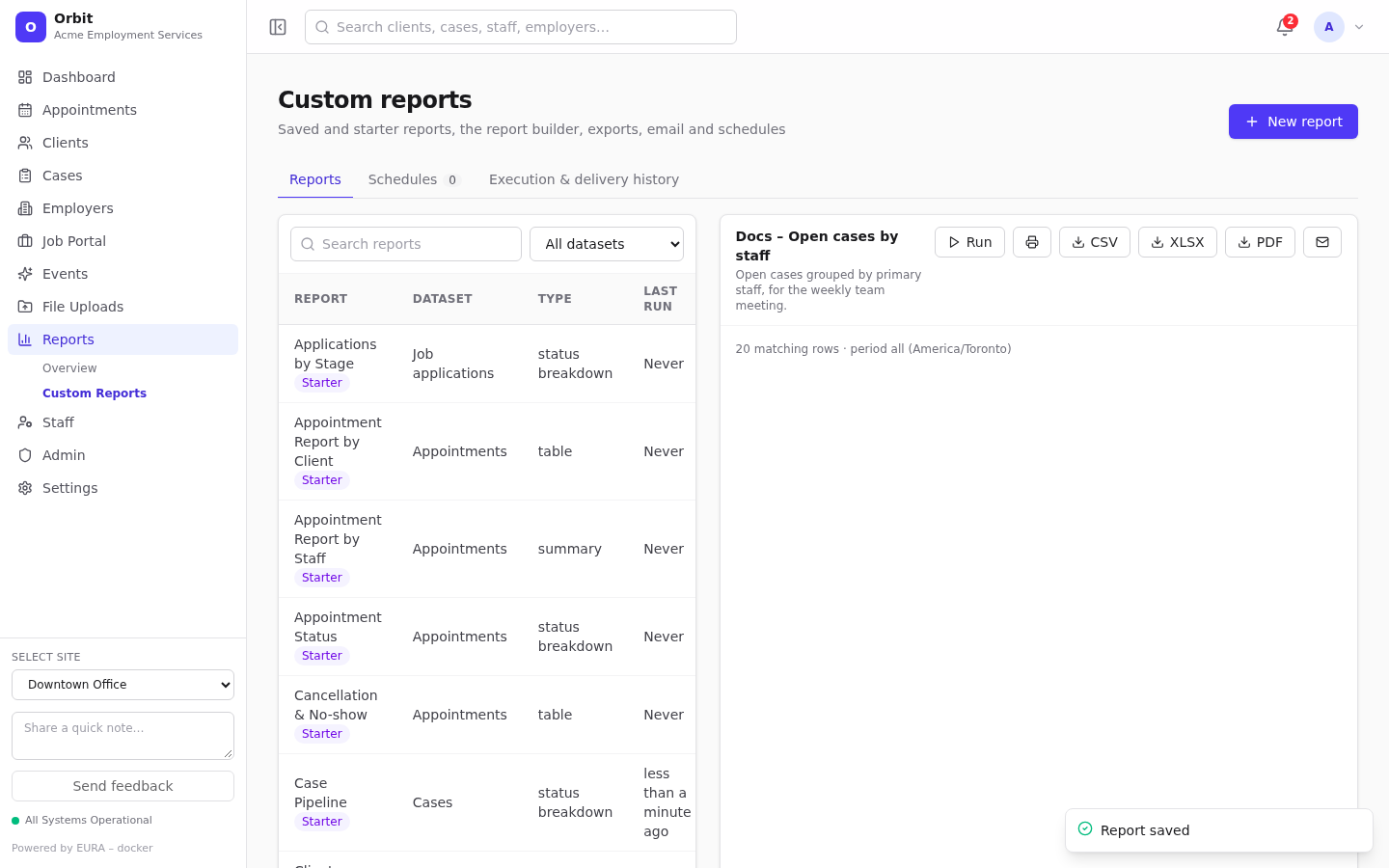
- Run: re-runs with current data. Large results show the first rows and say how many were matched in total.
- Print: prints the preview.
- CSV / XLSX / PDF: downloads the export. The PDF is a formatted document with breakdown bars. Every run and export is listed under Execution & delivery history, where exported files can be downloaded again.
- Mail icon: send by email.