Sites
Sites are your organisation's offices or locations. They organise data and can restrict what each user sees.
Where: Settings → Sites (/settings?section=sites; /admin/sites redirects here). Needs: tenant.sites.read / tenant.sites.write.
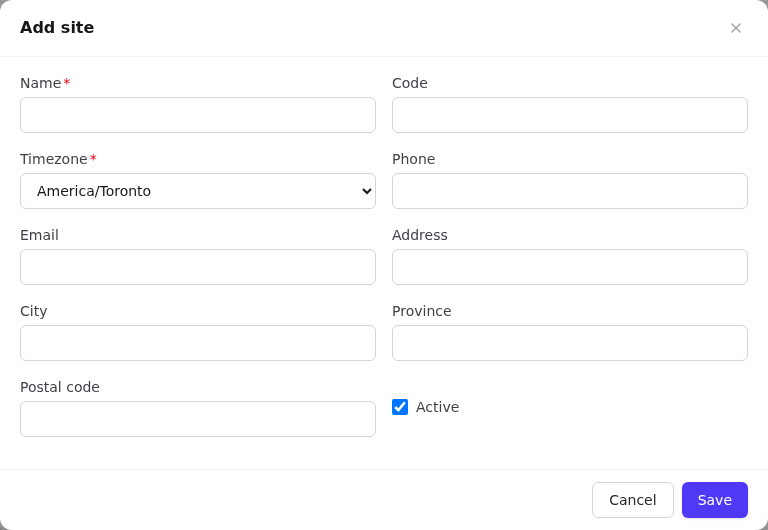
Add or edit a site
- Select Add site, or the pencil on a row.
- Name (required, unique), Code (short, unique; usable in imports), Timezone (required), phone, email, address.
- Active: inactive sites are hidden from pickers.
- Select Save.
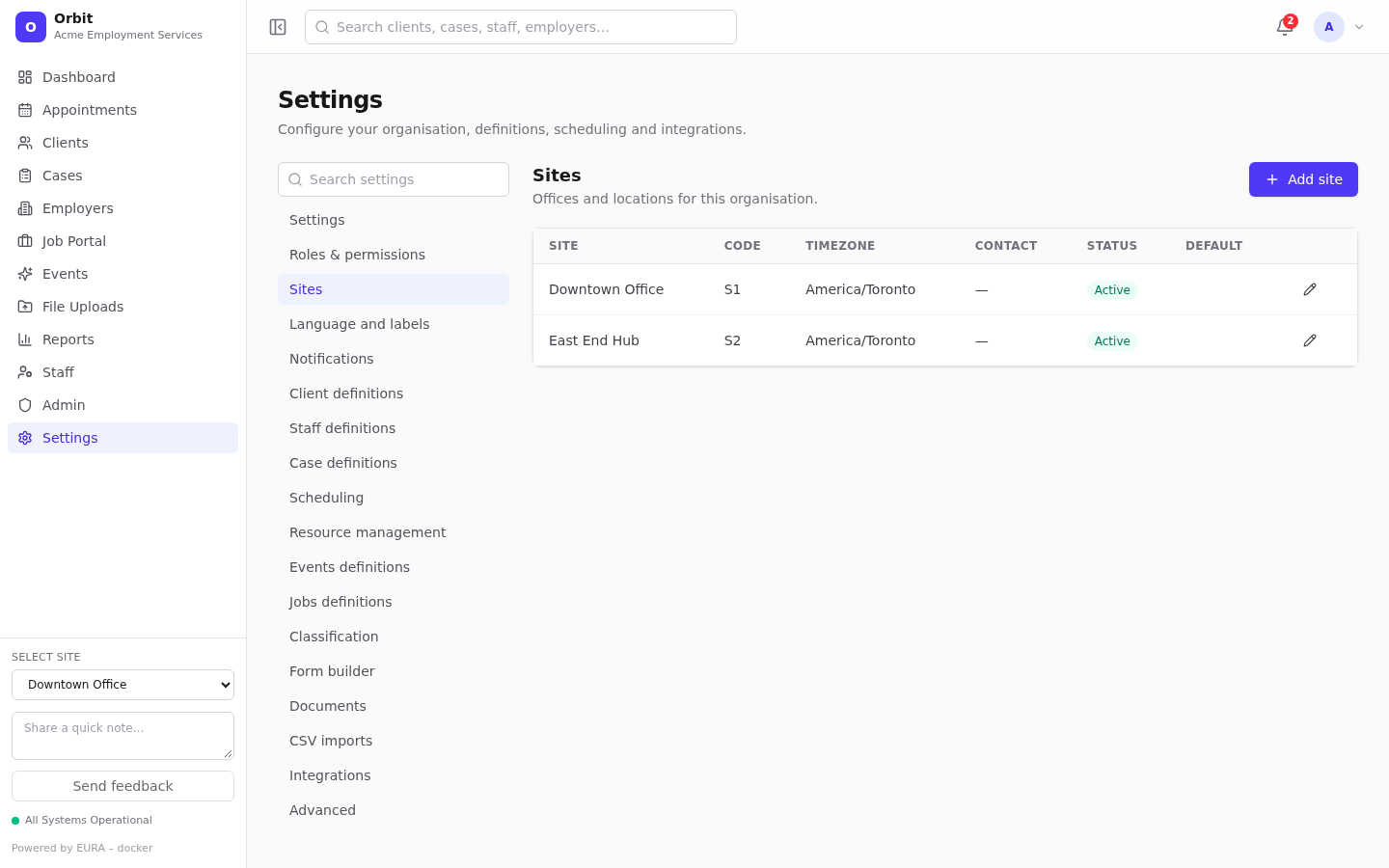
The Default badge marks the organisation's default site, set in General settings.
How sites affect data
- Clients, staff, cases, appointments, events, job postings and resources can belong to a site.
- New records default to the user's active site (the Select site switcher in the sidebar).
- Lists filter by the active site where it makes sense. The client list, for example, has an All sites toggle.
- Resources and events can be Global or All sites.
Restricting users to sites
In Users and access, tick the sites a user may access:
- No sites ticked: the user can access every site (All-site access).
- Some sites ticked: the user can only see records belonging to those sites, or to no site. This is enforced on the server for lists, record pages, searches, creation and reports, so nothing from other sites leaks through.
Site coverage on the users console shows how many users can reach each site.
Reports and sites
Report results are always limited to the viewer's sites. A site-wide report is shared with users of its locked site. See Custom reports.