Forms and the form builder
Build your own forms (an intake questionnaire, a case assessment, an event registration form) without code. Staff fill them in on client and case records; guests fill in event registration forms on the public portal. Every answer is stored and can be viewed and edited later.
Where: Settings → Form builder (/settings?section=forms). Needs: settings.write to build forms. Filling forms on a record needs write permission for that record (for example clients.write).
Concepts
| Term | Meaning |
|---|---|
| Form | A named set of fields with a Used for target and a status |
| Used for | Where the form appears (see Where forms appear) |
| Status | draft (being built, invisible), published (in use), archived (deactivated, invisible, answers kept) |
| Field | A question: label, type, required flag, options, placeholder, help text |
| Field key | A stable identifier generated from the label (Ready to start work? → readyToStartWork), unique within the form. It doesn't change if you later rename the label |
| Submission | One completed copy of the form, linked to a record (client, case or event) |
Where forms appear
| Used for | Appears | Notes |
|---|---|---|
| Client intake | (1) At the bottom of Add client (dialog and /clients/new), as Client intake — <form>; (2) as a tab on every client record; (3) in Available forms |
If several intake forms are published, Add client shows only the most recently created one. Keep one intake form published |
| Client | A tab on every client record, and Available forms | Use for assessments, consent records, check-ins |
| Case | A panel on every case record | |
| Event registration | Selectable as an event's Registration form. Its questions are added to the public Register form; the event page also gets a panel where staff can fill the form for attendees | See Event registration forms |
| Appointment, Employer, Job posting, Follow-up | Can be built and published, but aren't shown on those records yet. Submissions are possible through the API |
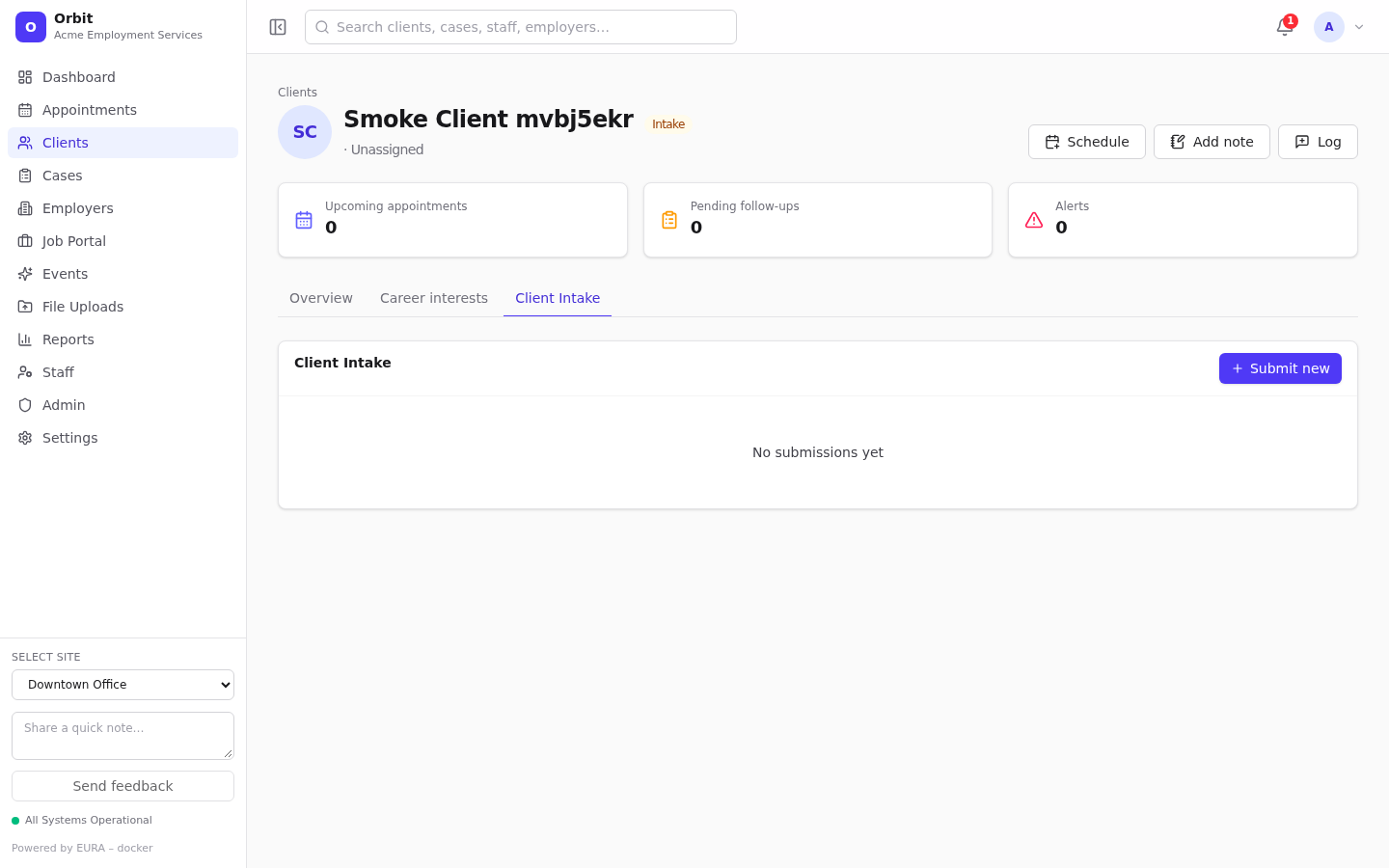
A published Client intake form as a tab on a client record:
Field types
| Type | Input | Stored as | Notes |
|---|---|---|---|
| Short text | One line | Text | |
| Long text | Multi-line box | Text | |
| Number | Number box | Number | |
| Date | Date picker | Date | |
| Dropdown | Select list | Text (the option) | Needs options |
| Single choice | Select list | Text | Needs options |
| Checkboxes | One checkbox per option | List | Needs options; several can be ticked |
| Yes / No | Yes/No select | Yes or no | |
| Email box | Text | Must be a valid email | |
| Phone | Phone box | Text | |
| File | File picker (preview only) | Document | Not shown on staff record forms or public forms in this version. Don't make it required (see below) |
Older forms may use the legacy types text, textarea, select and checkbox. These behave as Short text, Long text, Dropdown and Yes / No.
Build a form, step by step
The example builds Employment Readiness Check, a client form.
1. Create the form
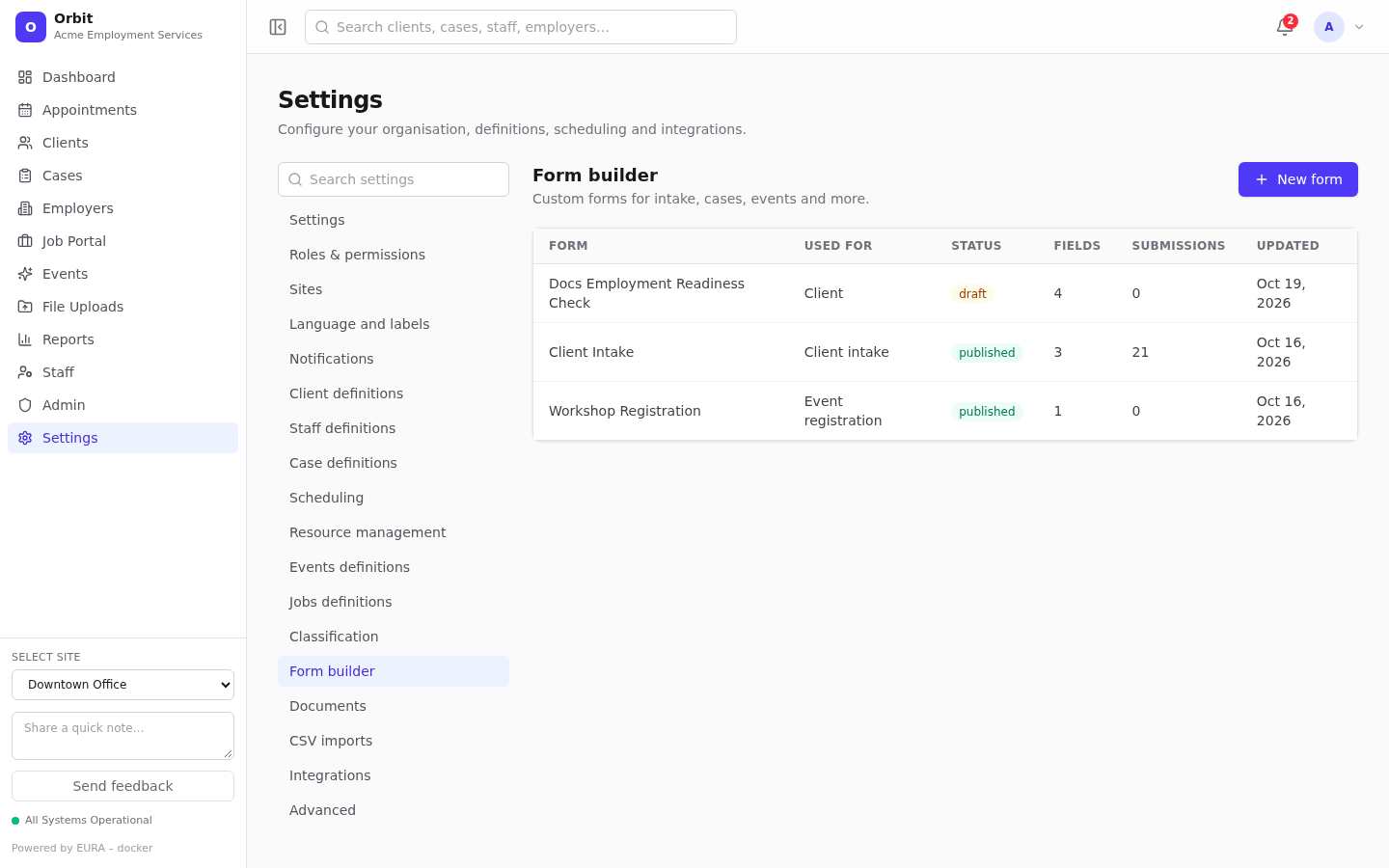
- Settings → Form builder → New form.
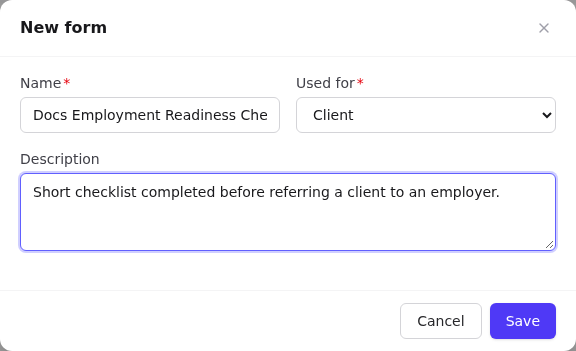
- Name: Employment Readiness Check.
- Used for: Client.
- Description: Short checklist completed before referring a client to an employer. This is shown at the top of the form on records.
- Select Save. The form opens in the editor as draft.
2. Add fields
For each question select Add field:
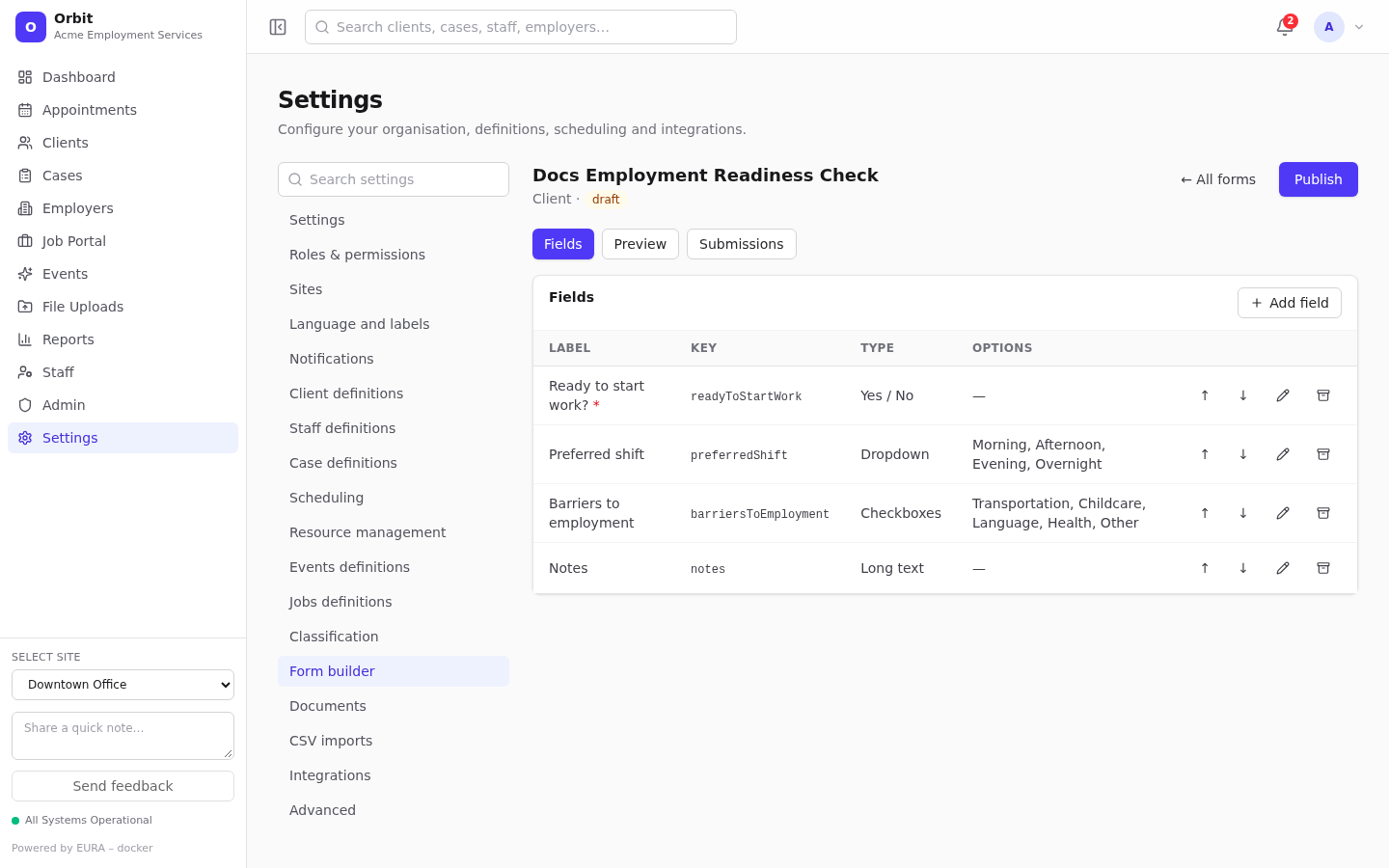
| Label | Type | Settings |
|---|---|---|
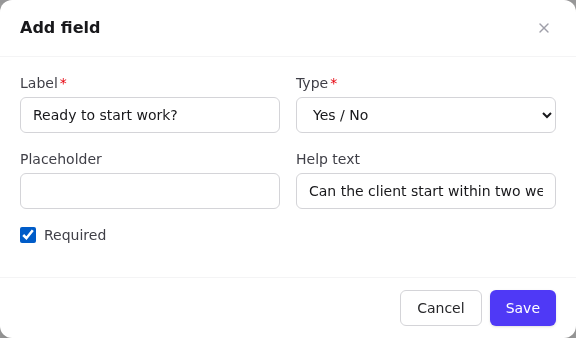
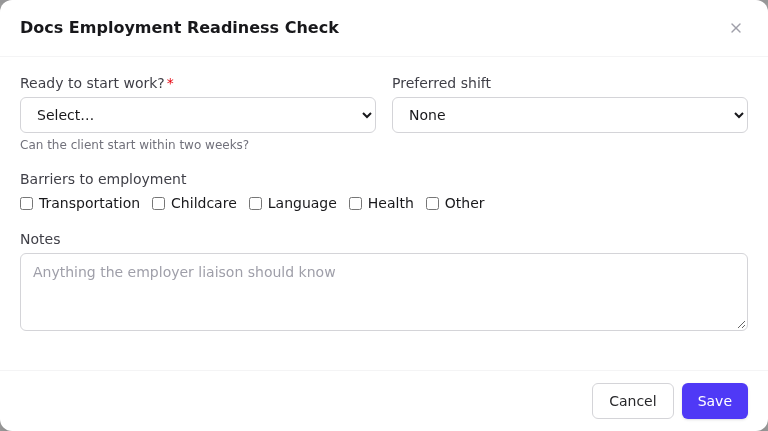
| Ready to start work? | Yes / No | Required; Help text: Can the client start within two weeks? |
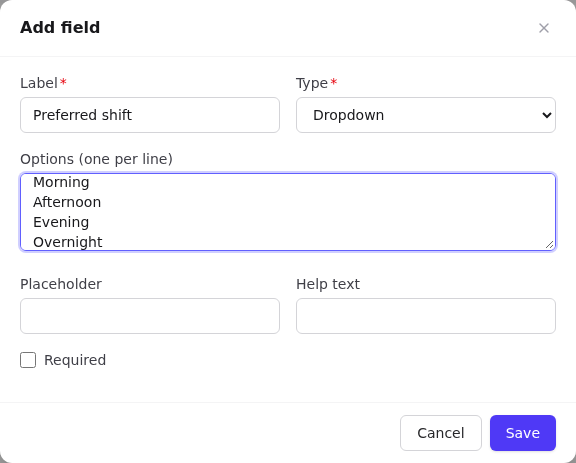
| Preferred shift | Dropdown | Options (one per line): Morning, Afternoon, Evening, Overnight |
| Barriers to employment | Checkboxes | Options: Transportation, Childcare, Language, Health, Other |
| Notes | Long text | Placeholder: Anything the employer liaison should know |
The field dialog:
- Label (required): the question.
- Type (required).
- Options (one per line): shown for Dropdown, Single choice and Checkboxes.
- Placeholder: grey hint text inside the box.
- Help text: shown under the field.
- Required: can't be left empty.
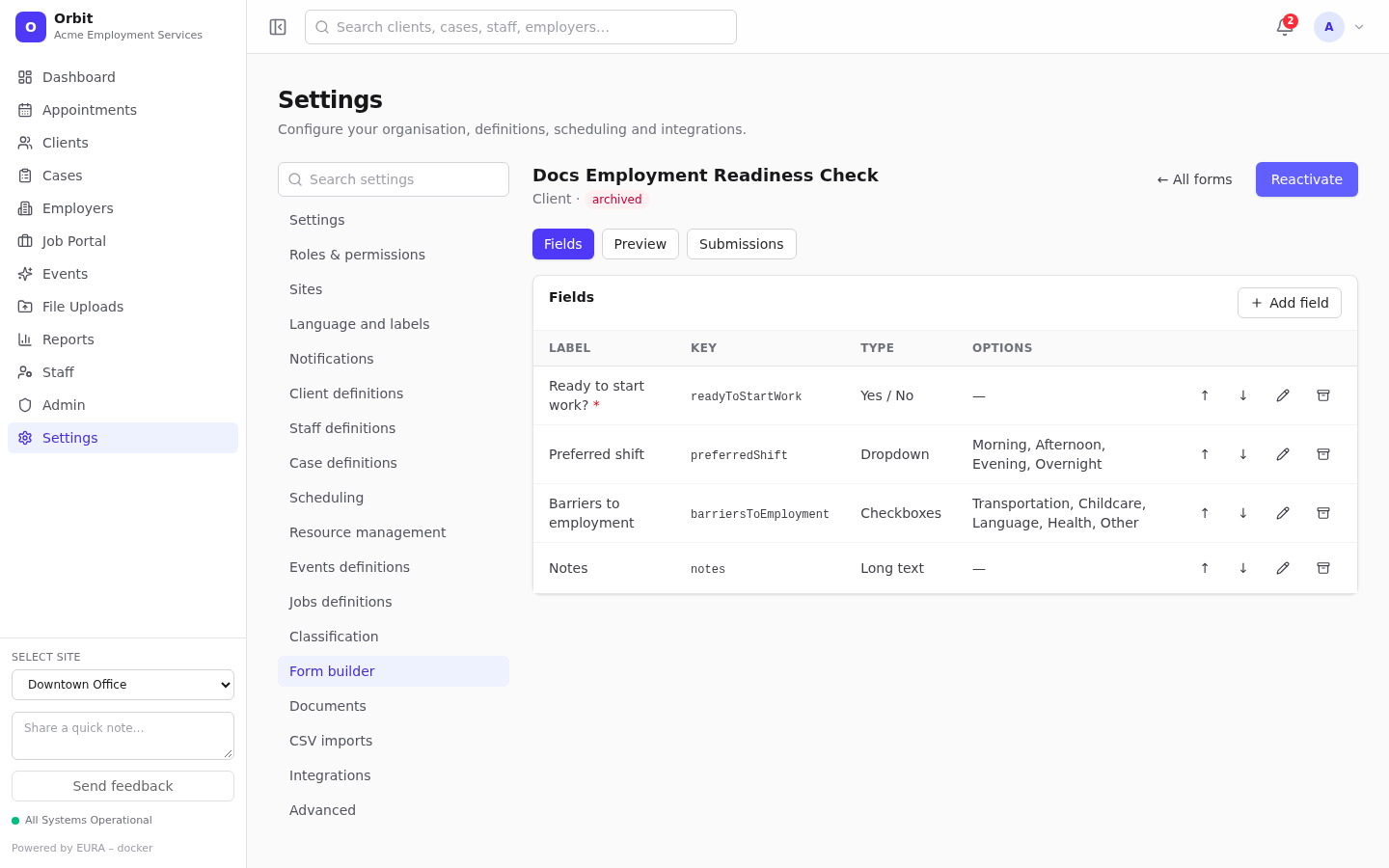
The Fields table lists label (* = required), key, type and options. Per row:
- ↑ / ↓ reorder.
- Pencil edits.
- Archive hides the field from new submissions; old answers keep it, marked (archived). Archived fields appear struck through; the same button restores them.
3. Preview
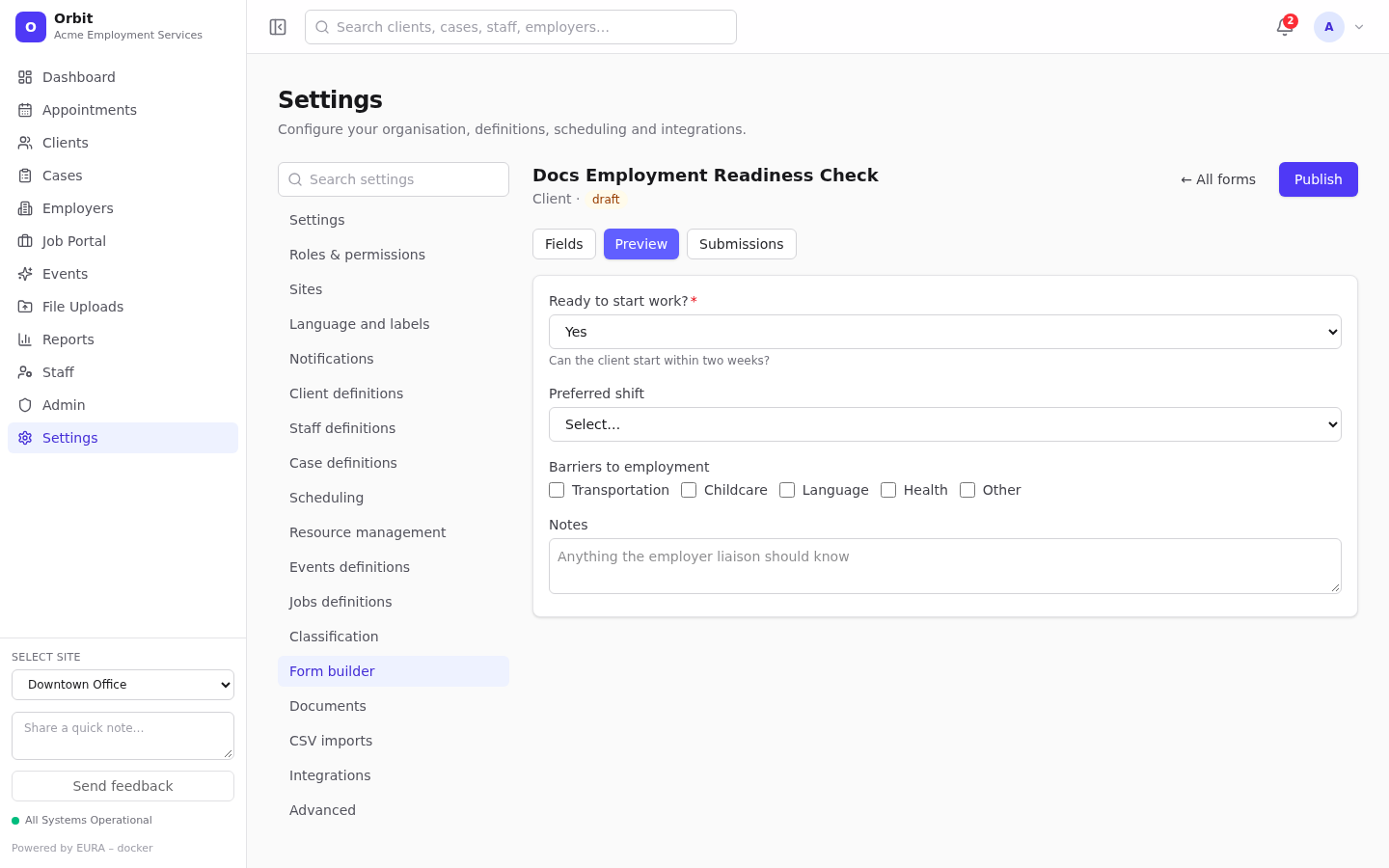
Select Preview to see the form as users will. Archived fields are hidden.
4. Publish
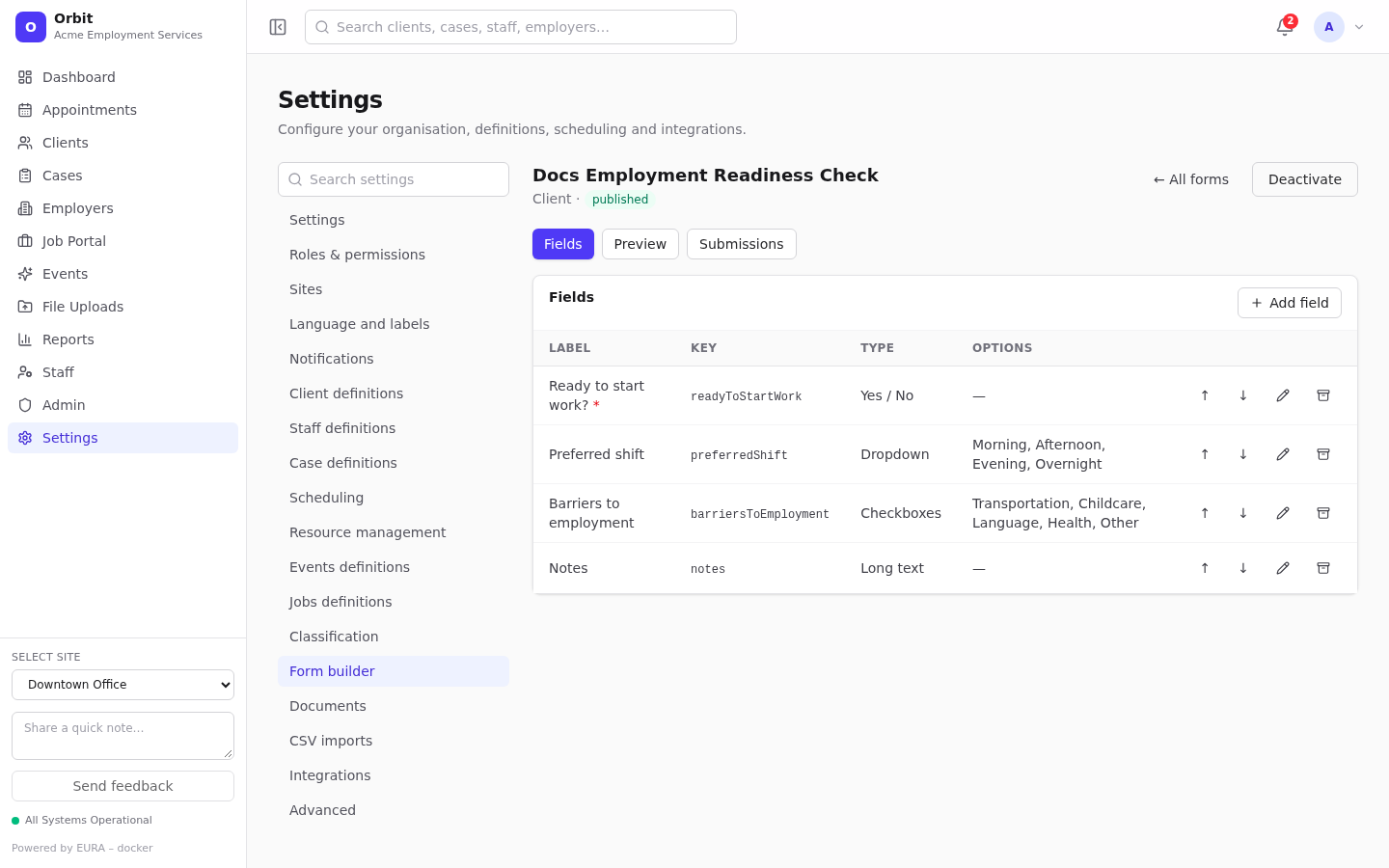
Select Publish. The status becomes published and the form appears where its Used for says. Draft forms are never shown to users.
5. Check it on a record
Open any client. The form appears as a tab and under Available forms → Fill out.
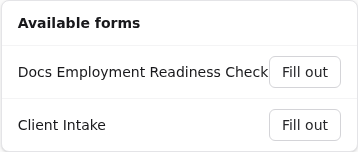
Filling in a form on a record
- On the client's form tab (or the case's form panel) select Submit new.
- Answer the questions. Required ones are marked
*. - Select Save. You'll see Form submitted; the submission is listed with its date.
- Select a submission to view the answers; Edit answers to correct them. The same validation applies.
A record can have many submissions of the same form, for example a check-in every month.
Client intake answers entered in Add client are saved as the first submission on the new client.
Event registration forms
- Build a form with Used for: Event registration and Publish it.
- On the event (Add event or Edit), choose it under Registration form.
- Guests registering on the portal see your questions between Phone and Message. Required fields are enforced.
- Guests' answers appear under Submitted answers on the submission review page. They stay with the submission; converting it doesn't copy them into the event's form panel.
- The event page's form panel lets staff fill in the same form themselves, for example for walk-ins.
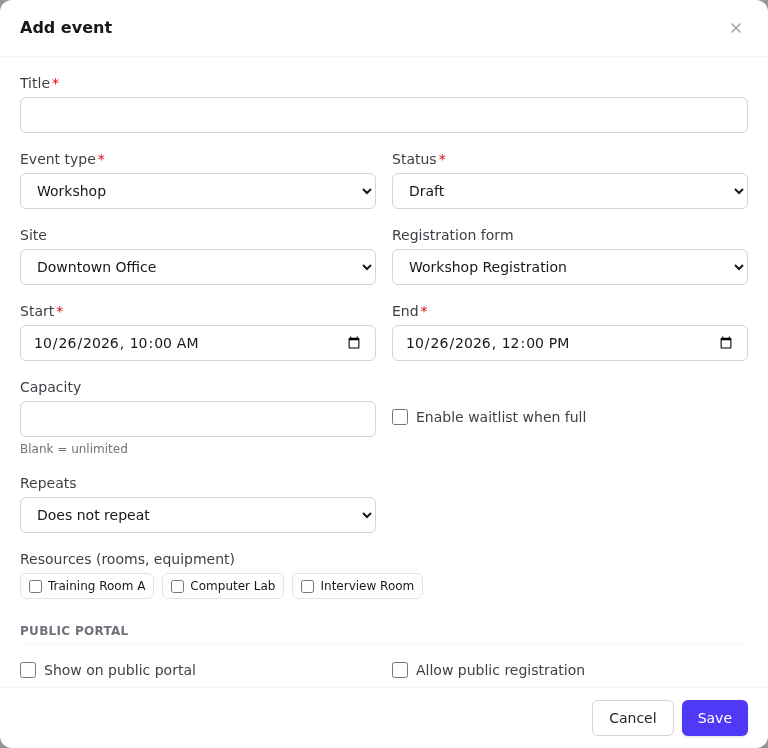
Dropdown, Single choice, Yes / No, Long text, Checkboxes, Number, Date, Email and Short text all work on the public form. File fields are left out.
Submissions tab
In the editor, Submissions lists every submission of the form: date, what it's related to, and status. Select one to read it.
Changing a published form
Changes to a published form take effect immediately for new and edited submissions:
| Change | Effect on existing answers |
|---|---|
| Rename a label | Answers are kept (the key doesn't change) |
| Add a field | Old submissions show it as empty |
| Make a field required | Old submissions can't be edited until it's filled |
| Archive a field | Hidden from new submissions; old answers stay visible as (archived) |
| Rename or remove a dropdown/checkbox option | Answers are stored as the option text. Old answers keep the old text, and Edit answers rejects them until a current option is chosen. Prefer adding options to renaming them |
| Change a field's type | Avoid. Create a new field and archive the old one |
Warning: Don't mark a File field required. File fields aren't shown on staff record forms, so a required one makes the form impossible for staff to submit. (The public registration form skips file fields entirely, required or not.)
For large redesigns, create a new form, publish it, then Deactivate the old one. The old answers stay readable on its submissions.
Deactivate and reactivate
- Deactivate (published form) → status archived. The form disappears from records and event pickers; submissions are kept.
- Reactivate (archived form) → published again.
Good form design
- Keep forms short and specific; build several small forms rather than one huge one.
- Use help text to say why you ask, especially for sensitive questions.
- Use Checkboxes for "select all that apply", and Dropdown for one answer from a long list.
- Make only what you truly need required.
- Name forms so staff recognise them in a tab: Intake, Readiness check, Exit survey.