Navigating Orbit
A tour of the parts of the screen that appear on every page.
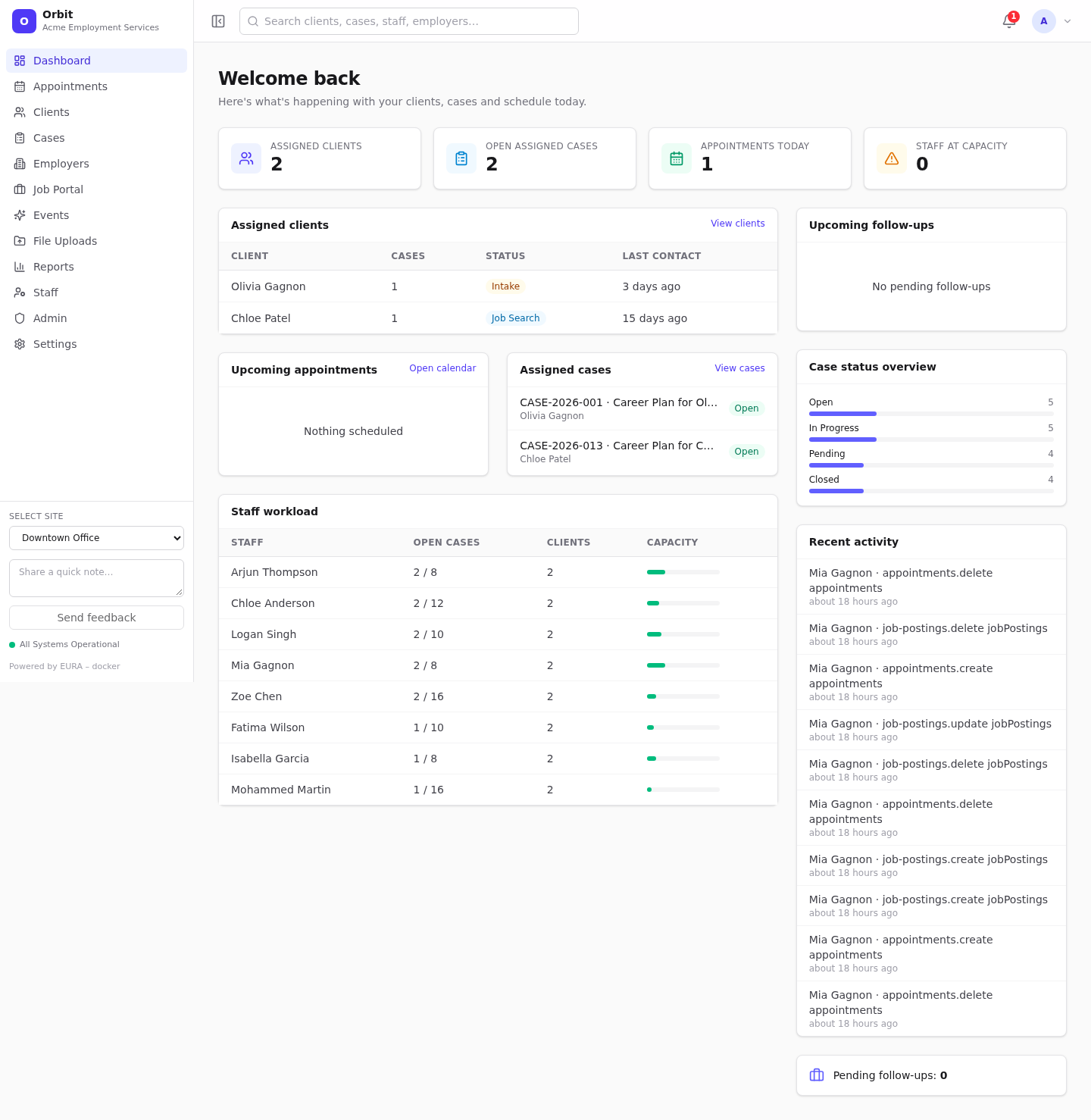
Sidebar
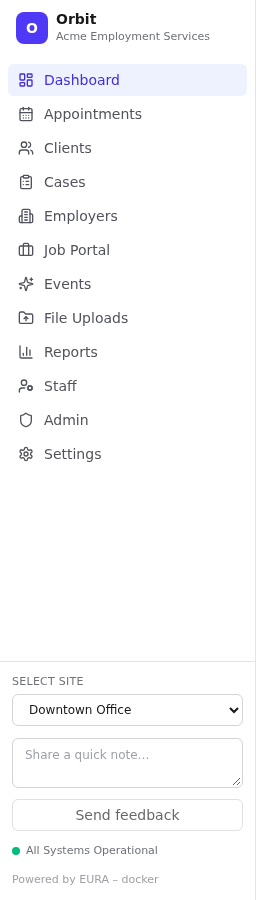
The left sidebar lists the areas you can use. Items are hidden when your role lacks the permission, or when your organisation hasn't licensed the module.
| Item | Opens | Needs permission | Needs license |
|---|---|---|---|
| Dashboard | Your clients, cases, schedule and follow-ups | dashboard.read |
– |
| Appointments | The scheduler | appointments.read |
Scheduling |
| Clients | Client list and records | clients.read |
– |
| Cases | Case list and records | cases.read |
– |
| Employers | Employer partners | employers.read |
Employer Management |
| Job Portal → Overview, Postings | Job postings, applicants, placements | jobs.read |
Job Postings |
| Events | Workshops, info sessions, hiring events | events.read |
Events |
| File Uploads | CSV imports | imports.read |
– |
| Reports → Overview, Custom Reports | Operational reporting | reports.read |
Reporting |
| Staff | Team members, availability, workload | staff.read |
– |
| Admin → Users, Audit Logs | User accounts and audit trail | tenant.users.read, admin.accounts.read or audit.view |
– |
| Settings | Organisation configuration | settings.read, tenant.roles.read or tenant.sites.read |
– |
Areas with sub-pages, such as Job Portal and Reports, show their sub-links while you are in that area.
- Collapse the sidebar: select the panel icon at the left of the header. Orbit remembers your choice on this browser.
- On a phone or narrow window: the sidebar is hidden; open it with the menu (☰) button.
Bottom of the sidebar
- Select site: switches your active site (see Sites). The page reloads and shows Site changed.
- Feedback box: type a quick note and select Send feedback. Orbit sends it to the platform operators with the page you were on. Needs
feedback.write. - System status: All Systems Operational (green) or Issues Detected (red). It is checked every minute.
- Build label: Powered by EURA – <build> identifies the version you are using. Quote it when you report a problem.
Sites and the site switcher
An organisation can have several sites (offices). Your administrator decides which sites you can access.
- Your active site is the default for new records and filters lists that are site-aware. The client list, for example, shows active-site clients unless you tick All sites.
- If you are restricted to certain sites, records from other sites are hidden from you everywhere: lists, searches, reports and record pages. This is enforced by the server, not just the screen.
See Sites for how administrators set this up.
Global search
Type at least two characters into Search clients, cases, staff, employers… at the top of every page. Results show the record type (Client, Case, Staff, Employer); select one to open it.
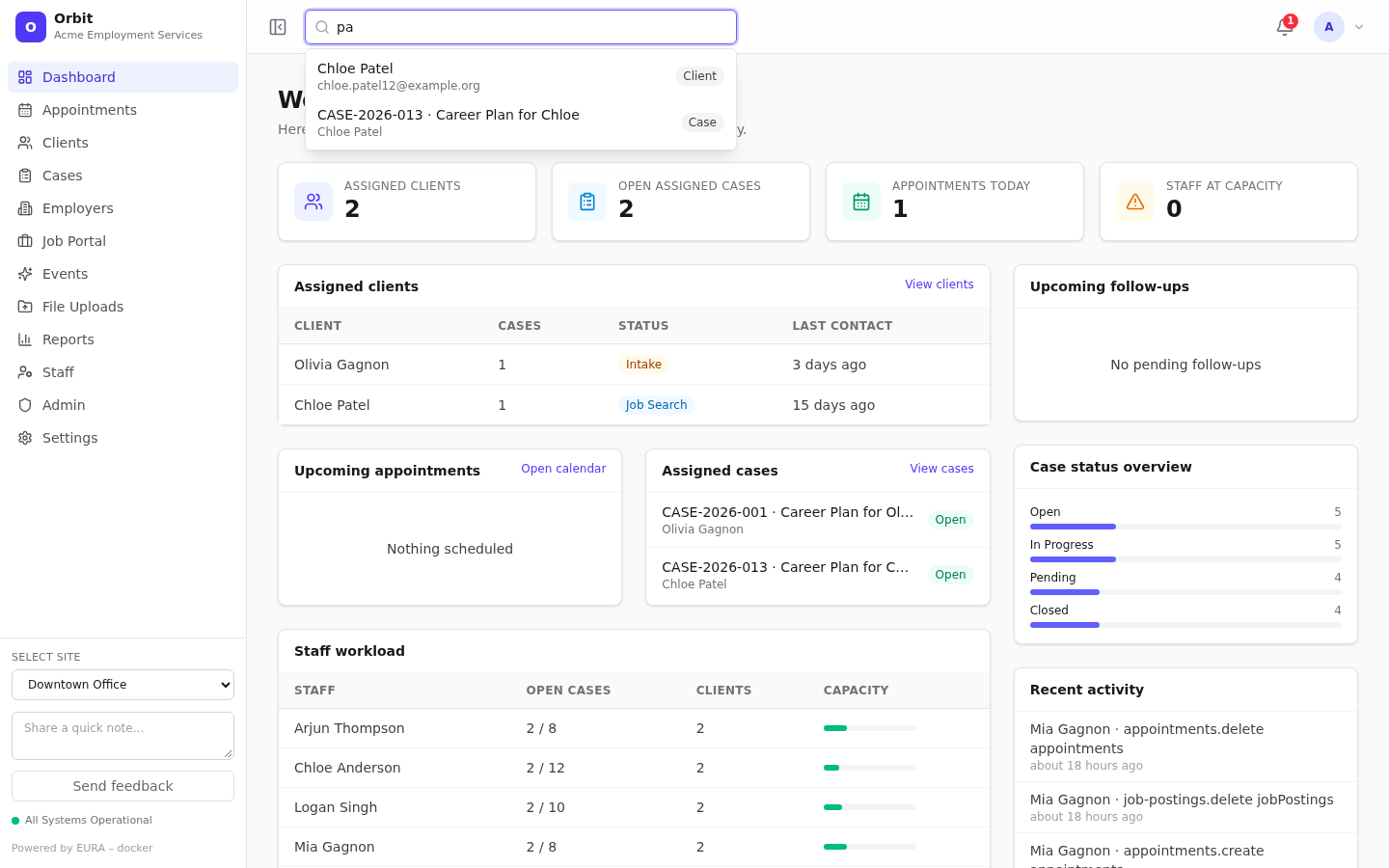
Search matches names, emails, client numbers, case numbers and titles.
Notifications
The bell shows a red badge with your unread count. It updates automatically.
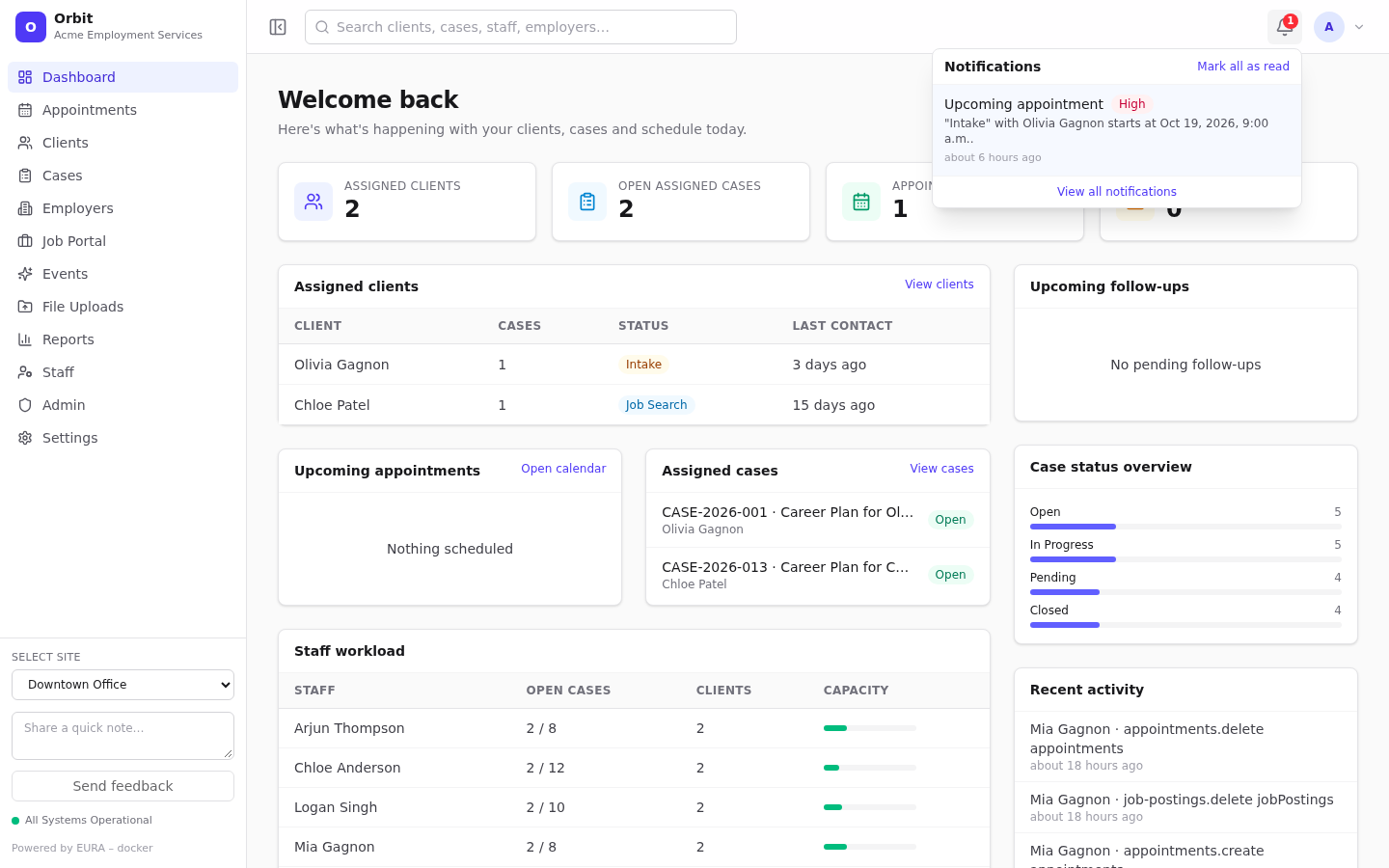
- Select the bell to see the latest 8 notifications.
- Select a notification to mark it read and jump to the related record.
- Mark all as read clears the badge.
- View all notifications opens a side drawer with your full history.
You'll get notifications when an appointment or follow-up is assigned to you or changed, and before it's due, depending on your organisation's notification settings. To hear a chime for new notifications, turn on Play a sound for new notifications in your profile.
See also Notifications for the full notifications page.
Account menu
Select your initials at the top right.
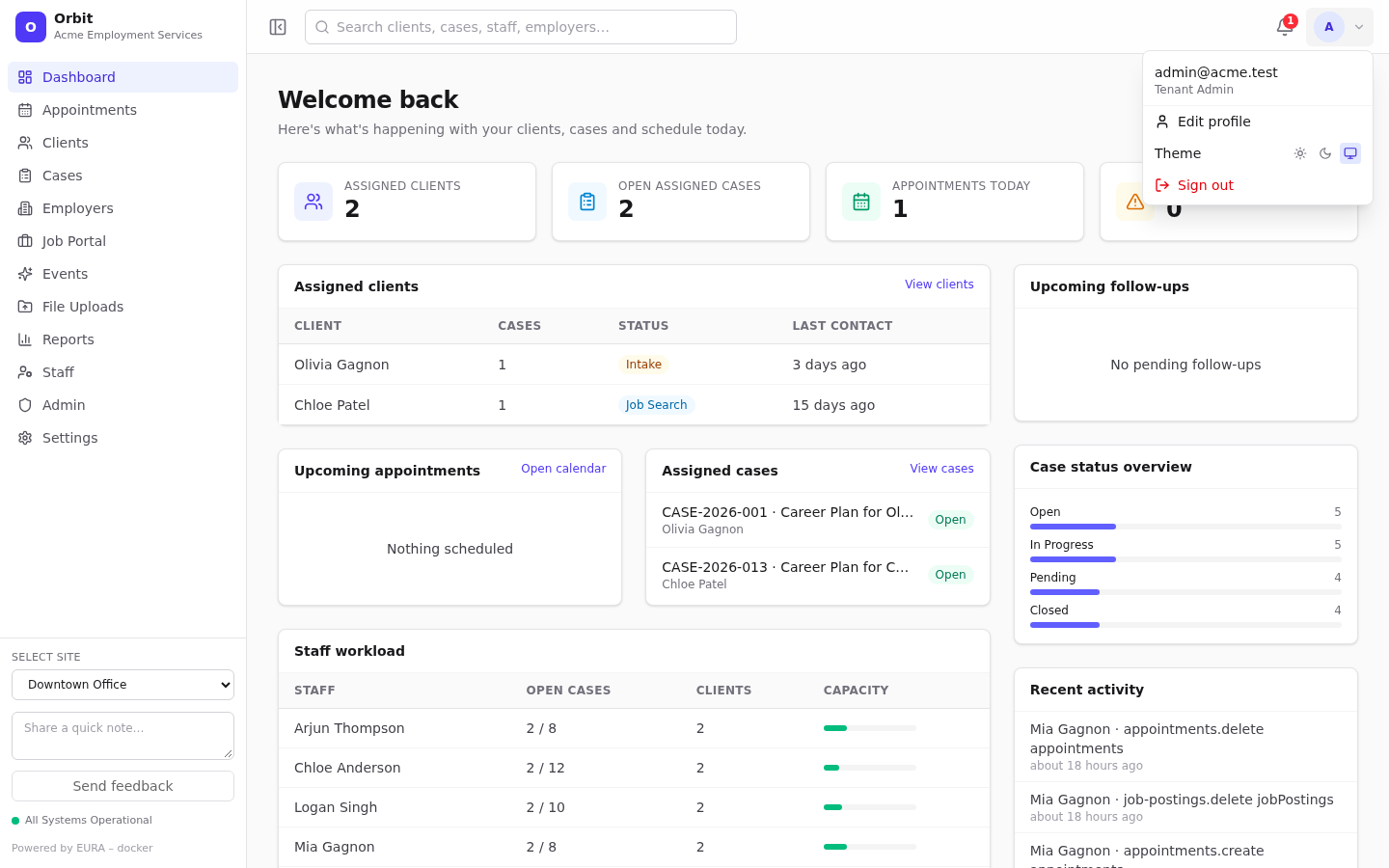
- Your email and role.
- Edit profile opens your profile.
- Theme: light, dark or follow your device. Orbit remembers the choice across devices.
- Sign out.
Common page patterns
You'll see these on most pages:
| Pattern | How it works |
|---|---|
| Search box + filters above a table | Filters apply instantly; combine them freely |
| Sortable columns | Select a column header with an arrow to sort; select again to reverse |
| Row menu (⋯) | Quick actions: view, edit, change status, delete |
| Pagination | Bottom of the table; choose rows per page |
| Dialogs | Forms open in a dialog. Press Esc or ✕ to close. If you have typed something, Orbit asks before discarding |
| Inline edit sections | On record pages, select Edit on a card, change fields, then Save or Cancel |
| Required fields | Marked with a red *. Saving shows errors next to missing fields |
| Toasts | Small messages at the bottom right confirm saves or explain errors |
| Sensitive values | Some values (such as date of birth) are hidden until you choose to reveal them |
| Live updates | Lists refresh on their own when colleagues change data, and across your open tabs |
Unsaved-changes protection
If you try to leave a page or a Settings section with unsaved changes, Orbit asks Discard unsaved changes? Choose Discard to leave or cancel to stay.