Import templates
An import template saves a column mapping (which CSV column goes to which Orbit field, how lookups match, and the duplicates rule) so a recurring file can be imported in two clicks.
Needs: imports.write to create, update or delete templates. Templates are shared by everyone in your organisation.
When to use a template
- You import the same export regularly, such as a monthly referral list from a partner.
- Several staff run imports and you want them all to map columns the same way.
- The mapping took effort to get right, with many columns, lookups or ignored columns.
Save a template from the wizard
- Set up an import in the CSV import wizard as usual: record type, duplicates rule, file, mapping. See the walkthrough.
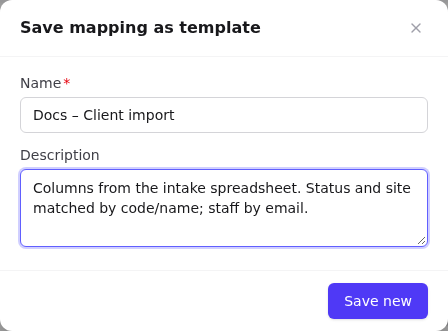
- Before or after running, select Save as template.
- Enter a Name (required; must be unique), for example
Partner referrals – monthly. - Optionally add a Description, for example where the file comes from and anything special about it.
- Select Save new. You'll see Template saved.
What a template stores:
| Saved | Not saved |
|---|---|
| Record type | The CSV file itself |
| Each mapped column: CSV header → Orbit field | Ignored columns (not stored, so they're skipped again) |
| Whether the column is a lookup, and code-or-name matching | |
| The Duplicates setting | |
| Description |
Important: Templates match columns by the exact header text. If next month's file says
Run an import from a template
Option A: Run from template (fastest)
- On File Uploads, open the Run from template tab.
- Choose the Template. Orbit shows the Target record type and the Expected columns.
- Choose the CSV file. If any expected column is missing from the file you'll see Missing in this file: ….
- Select Run. The results open as usual.
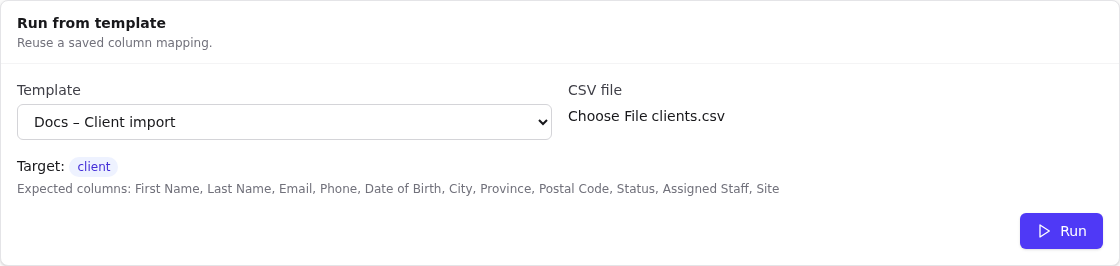
The template's duplicates rule applies. Columns in the file that aren't in the template are ignored.
Option B: Start the wizard from a template (to check or tweak)
- On the CSV import wizard tab, upload the file first.
- Then choose the template in Start from template. The record type and duplicates rule switch to the template's, and its mapping is applied: columns the template knows are mapped, the rest are set to Ignore.
- Review the definition checks, adjust the mapping for this run if needed, and select Run import.
Note: Order matters. If you choose the template before uploading, the upload replaces the template's mapping with fresh automatic suggestions. Choose the template again (or switch to None and back) to re-apply it.
Update a template
- In the wizard, upload a sample file, then choose the template in Start from template and adjust the mapping.
- Select Save as template. The name is filled in.
- Select Update template to overwrite it, or change the name and select Save new to keep both.
Manage templates in Settings
Settings → CSV imports lists every saved template with its target record type and expected columns.
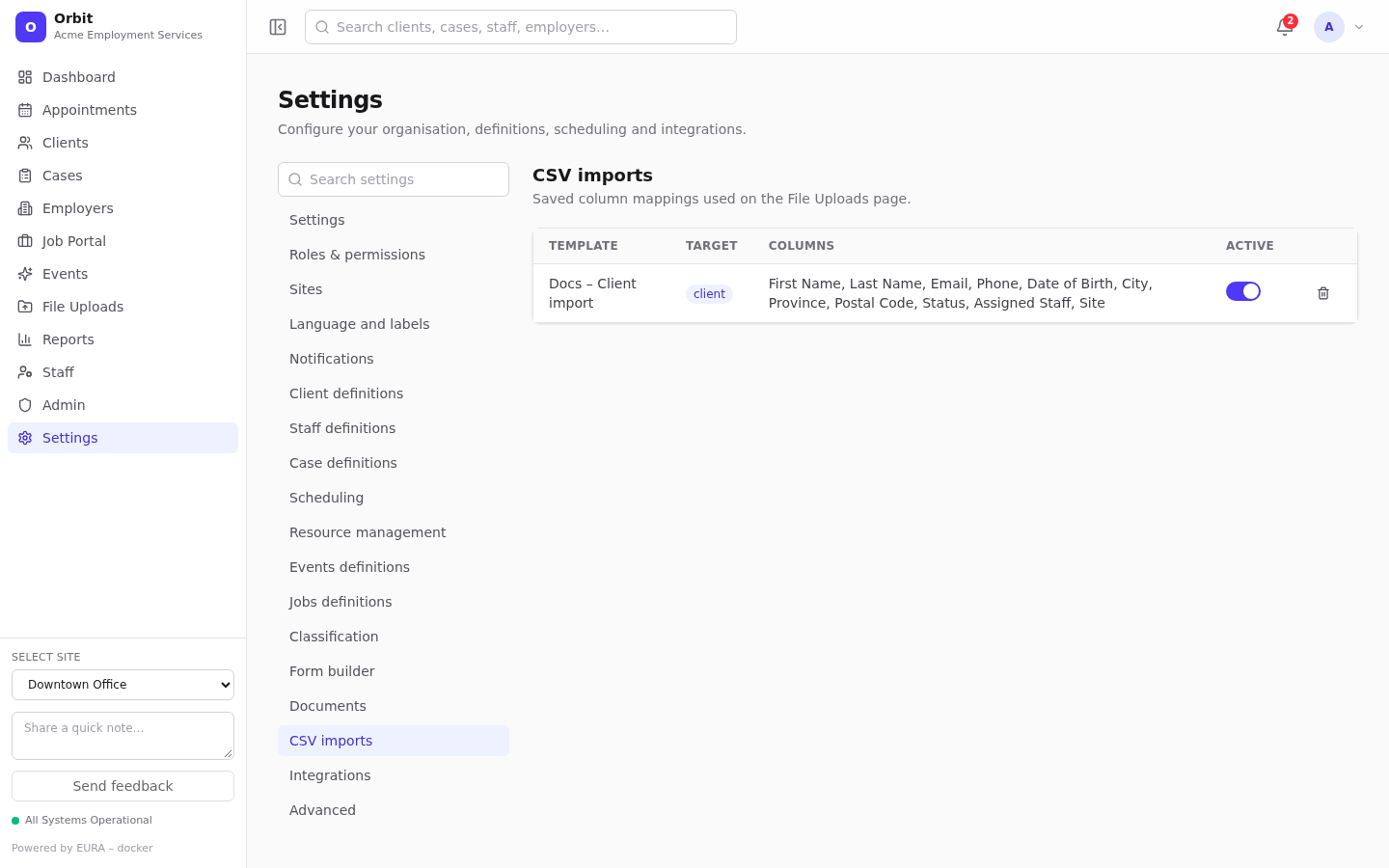
- Active toggle: inactive templates disappear from the template pickers but are kept.
- Delete (bin icon): removes the template. Past imports that used it stay in the history.
Mappings used for ad-hoc imports (run without a template) are saved behind the scenes so the history can show them. They're hidden from this list.
Naming and housekeeping tips
- Name templates after the source and record type:
HRIS export – staff,Partner referrals – clients. - Put the source system and its export steps in the Description.
- Make one template per file layout. If two partners send different layouts, make two templates.
- Deactivate templates you no longer use rather than deleting them, so the history still makes sense.
- Use the All templates filter on Recent imports to audit what a template has imported.