Your profile and security
Keep your personal details current, turn on two-step verification and change your password.
Where: account menu → Edit profile, or go to /profile.
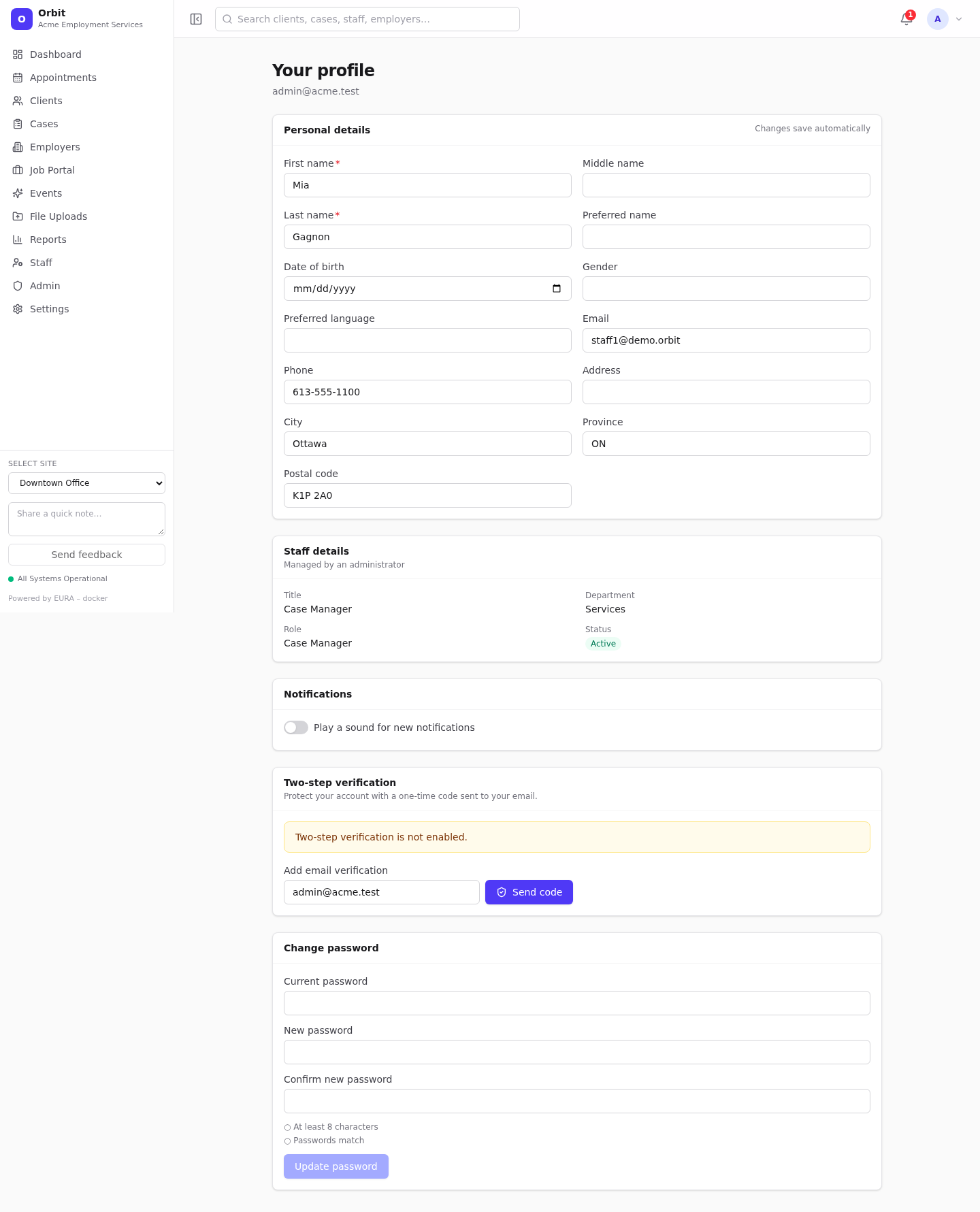
Personal details (auto-save)
The Personal details card holds the details from your linked person record: first, middle and last name, preferred name, date of birth, gender, preferred language, email, phone and address.
- Changes save automatically about a second after you stop typing. The card header shows Saving… and then Saved.
- First and last name are required; nothing saves while either is blank.
- If you see Your login isn't linked to a person profile yet, ask an administrator to link your staff profile. See Users and access.
Staff details
If you are a staff member, Staff details shows your title, department, role and status. They are Managed by an administrator: ask an administrator or anyone with staff.write to change them on the Staff page.
Notification sound
Turn on Play a sound for new notifications to hear a short chime when the bell count goes up.
Two-step verification
Two-step verification protects your account with a 6-digit code sent to your email each time you sign in.
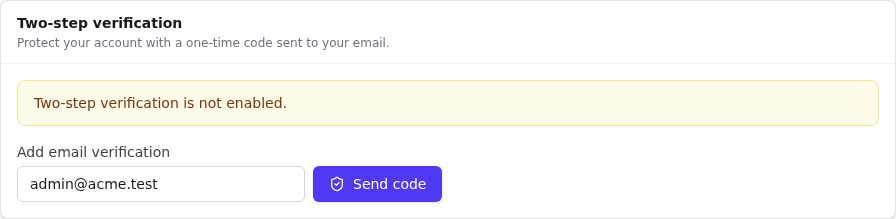
Turn it on
- Under Two-step verification, check the address in Add email verification. It defaults to your login email.
- Select Send code. Orbit emails a 6-digit code.
- Type the code in Enter the code and select Verify.
- A box titled Save these one-time codes appears. These are your recovery codes. Copy them (select Copy) and store them somewhere safe, such as a password manager. They are shown only once.
- Select I've saved them.
From now on, every sign-in asks for a code. See Signing in.
Recovery codes
- Each recovery code works once. Use one on the sign-in screen via Use a recovery code if you can't get your email code.
- Regenerate recovery codes creates a new set. The old codes stop working immediately.
Remove a method
Select the bin icon next to the method and confirm Remove. When no verified method remains, the card shows Two-step verification is not enabled.
Note: Lost both your email access and your recovery codes? An administrator can't see your codes. A platform superadmin can reset two-step verification on your account from the Overseer console; see Tenant management.
Change password
- Enter your Current password.
- Enter the New password twice (at least 8 characters; both must match).
- Select Update password. You'll see Password changed.