Staff workload and availability
Set when staff are available, watch caseloads, and move work between people.
Needs: staff.write (or appointments.write for availability).
Availability
Staff → open a person → Availability. It controls the grey unscheduled / unavailable shading in the scheduler, and the warning when you drag an appointment into that time.
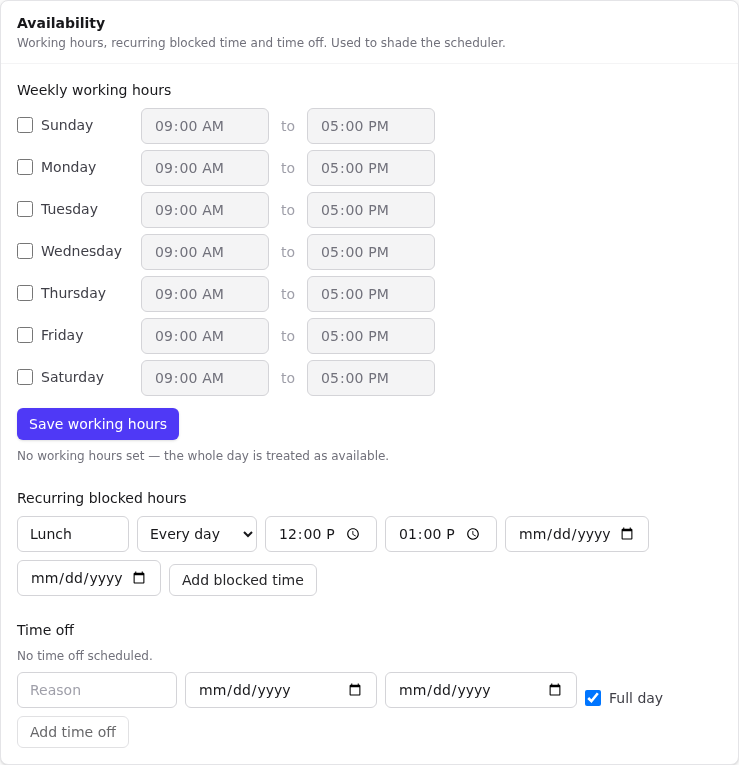
Weekly working hours
- Tick each working day and set its start and end times.
- Select Save working hours.
With no working hours set, the whole day counts as available.
Recurring blocked hours
For lunch breaks, team meetings and similar regular blocks:
- Enter a Label (default Lunch).
- Choose a day, or Every day.
- Set start and end times.
- Optionally set From and To dates, so a temporary schedule ends by itself.
- Select Add blocked time. Remove a block with ✕.
Time off
- Enter a Reason (for example Vacation).
- With Full day ticked, choose start and end dates; untick it to choose exact times.
- Select Add time off.
Behind the scenes, saving availability for the first time creates a bookable resource linked to the staff member. It appears in Settings → Resource management with the Staff calendar badge.
Scheduling enabled
On the staff profile, Scheduling enabled must be on for the person to appear in the appointment Staff picker. Turn it off for staff who never take appointments.
Capacity
- Max open cases on the staff profile sets the caseload limit.
- The dashboard's Staff workload card and the staff list show open cases against the limit; the dashboard bar turns amber at 80 % and red at 100 % (At capacity).
- The Staff at capacity tile counts staff at their limit.
- The Reports overview flags Near capacity staff.
- Performance → Caseload target attainment = open cases ÷ max.
Reassign workload
Use this when someone leaves, goes on leave or is overloaded.
- On the staff member's profile select Reassign workload.
- Choose the Target staff member.
- Tick the categories to move. Each shows its count: Clients, Cases, Tasks, Follow-ups, Upcoming appointments, Employers, Job postings, Job applications.
- Select Reassign. Orbit reports Reassigned N items.
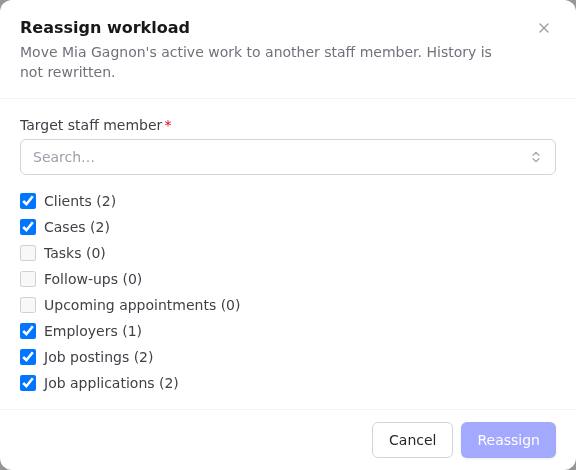
Only active work moves. History (past appointments, completed tasks, notes) still shows who did the work.