Users and access
Manage who can sign in to your organisation: create and invite users, set roles and site access, reset passwords, link staff profiles, and offboard.
Where: Admin → Users (/admin/users). Needs: tenant.users.read or admin.accounts.read to view; tenant.users.write or admin.accounts.write to change.
Accounts, staff profiles and people
| Thing | What it is |
|---|---|
| Account (login) | An email and password that can sign in. One account can belong to several organisations |
| Membership | The account's access to this organisation: role, sites, enabled or disabled |
| Staff profile | The person's work record (title, caseload, availability). See Staff |
| Link | Connects the account to the staff profile's person, so "assigned to me" works |
An account without a staff link can sign in, but sees Staff profile setup needed on the dashboard.
The users console
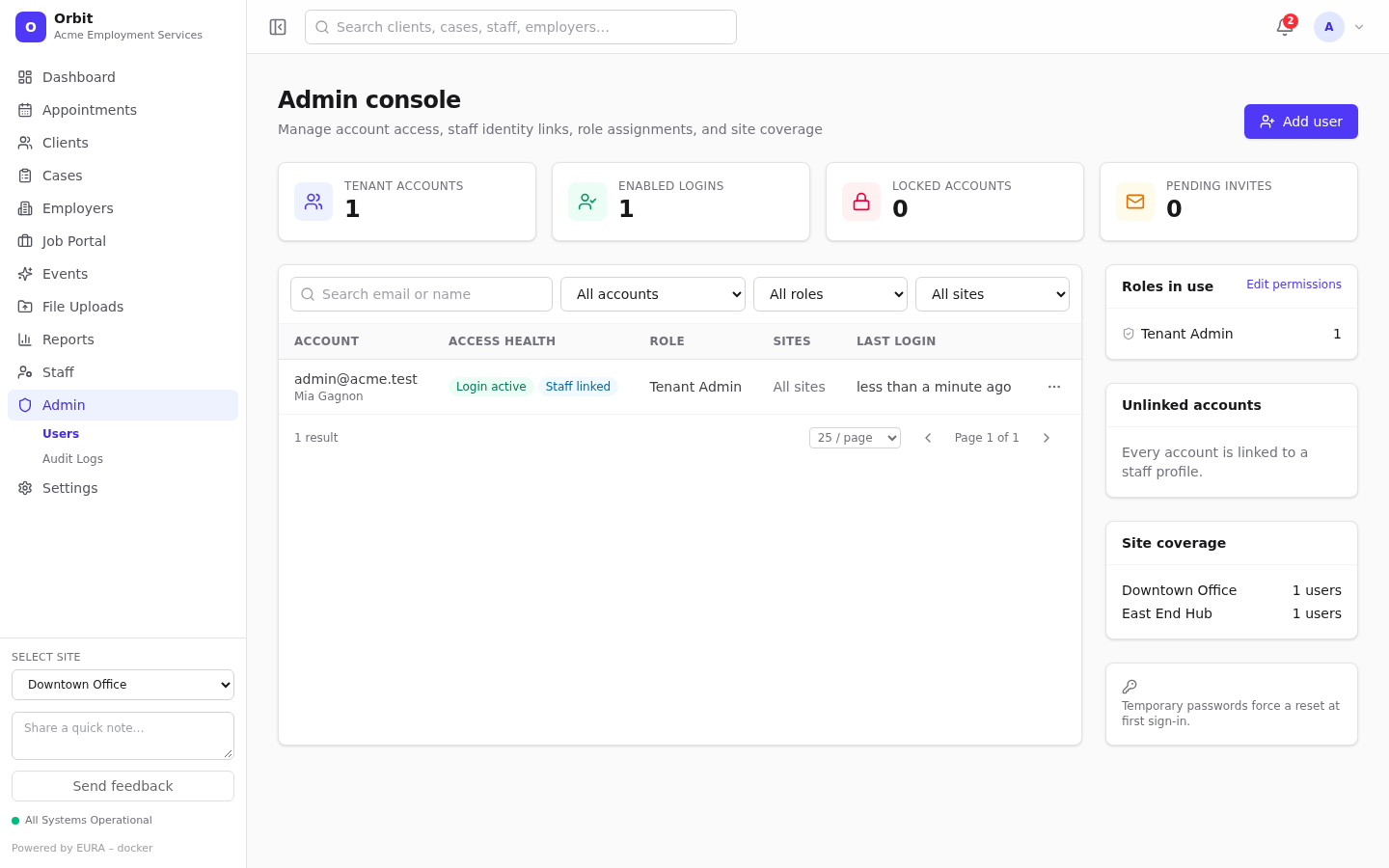
-
Tiles: Tenant accounts, Enabled logins, Locked accounts, Pending invites.
-
Search by email or name.
-
Status filter:
Filter Shows Needs attention Locked, unlinked, pending invite, or must reset password Active login Enabled and not locked Missing staff link No staff profile linked Pending activation Invited but not yet signed up Locked / Disabled As named Missing role Accounts without a staff, viewer or admin role All-site access No site restriction Deleted Removed accounts (can be restored) -
Role and site filters, and page size.
-
Access health chips: Login active, Pending invite, Locked, Disabled, Deleted, Staff linked / Unlinked, MFA, Must reset.
-
Side panels: Roles in use (with Edit permissions), Unlinked accounts (select one to manage it) and Site coverage (users per site).
-
Row menu: View / manage, Email reset link, Delete account / Restore account.
Add a user
Select Add user. The wizard has four steps.
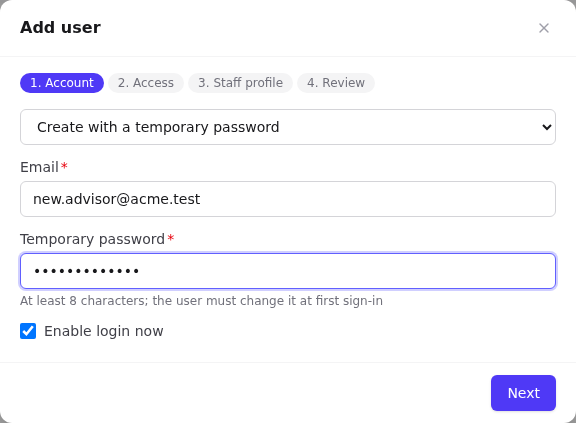
1. Account
- Choose Create with a temporary password, or Send an email invite.
- Email.
- For a password: Temporary password (at least 8 characters; the user must change it at first sign-in) and Enable login now.
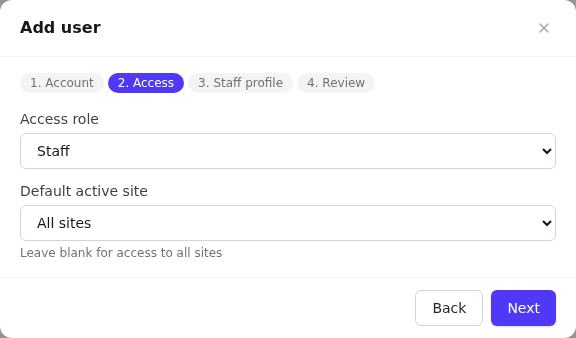
2. Access
- Access role: Tenant admin, Staff, Viewer, or a custom role ((custom)).
- Default active site: pick one site to restrict the user to it, or All sites. (Choose more sites later in the manage panel.)
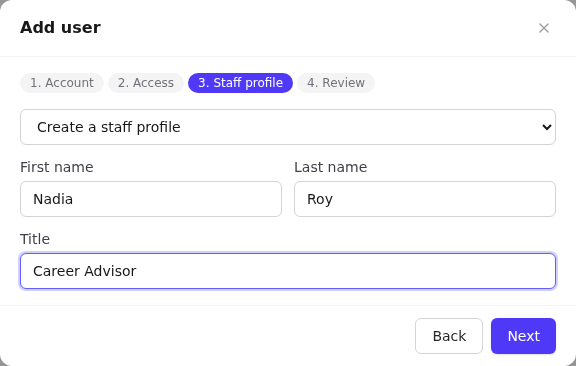
3. Staff profile
- Link an existing staff profile (search), Create a staff profile (first name, last name, title), or No staff profile.
4. Review, then Create user or Send invite.
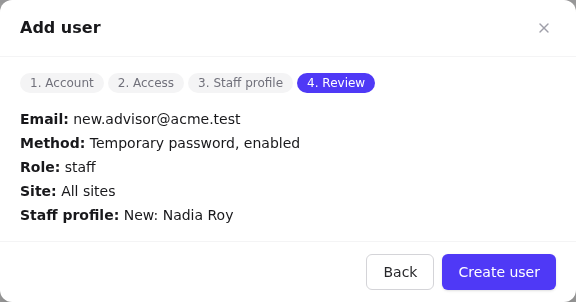
- Temporary password: give the password to the user securely. At first sign-in they're asked to choose their own.
- Invite: the user receives an email with a sign-up link (valid 72 hours by default). Until they accept, the account shows Pending invite. See Accepting an invitation.
Manage a user
Select a row to open the manage panel.
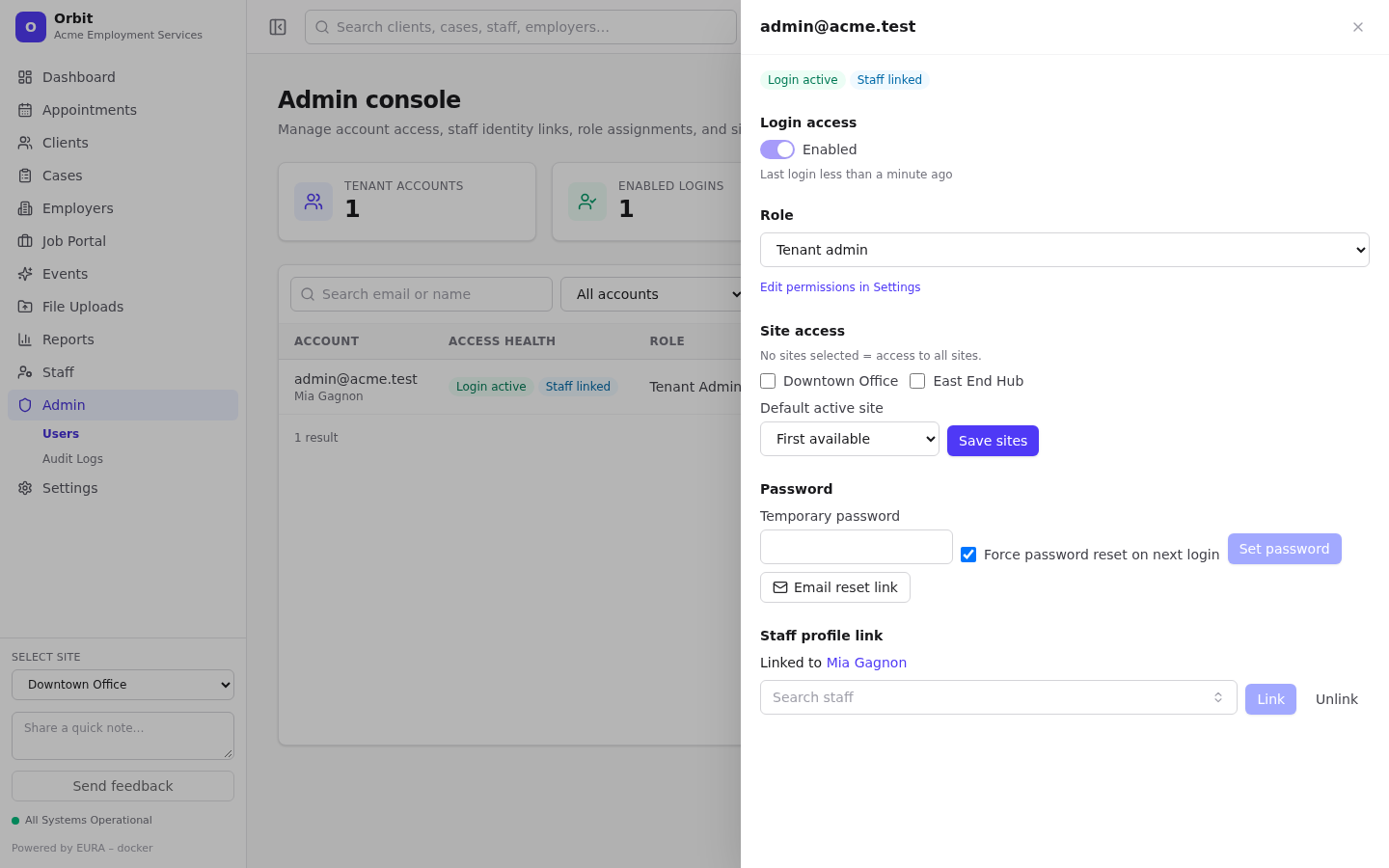
Login access
- Enabled / Disabled toggle. Disabling stops sign-in immediately (offboard while keeping history). You can't disable yourself.
- Unlock account appears when the account is locked.
- Shows the last sign-in time.
Role
Pick Tenant admin, Staff, Viewer or a custom role. It takes effect at the user's next request. Edit permissions in Settings opens Roles and permissions.
Site access
Tick the sites the user may access. No sites ticked means access to all sites. Choose the Default active site, then Save sites. See Sites.
Passwords
- Temporary password + Force password reset on next login → Set password.
- Email reset link sends a password-reset email. It's also in the row menu.
Staff profile link
Shows the linked staff member, or Not linked. Search for a staff profile and select Link; Unlink removes the link.
Offboarding
- On the staff profile, Reassign workload to colleagues (how).
- In the manage panel, turn Login access off.
- Optionally Delete account from the row menu. This removes the account's access to your organisation; history remains and Restore account brings it back.
Two-step verification for users
Users manage their own two-step verification in their profile. The MFA chip shows who has it on. If a user loses access to their codes, a platform superadmin can reset it in Overseer. See Tenant management → Users.